
On this page
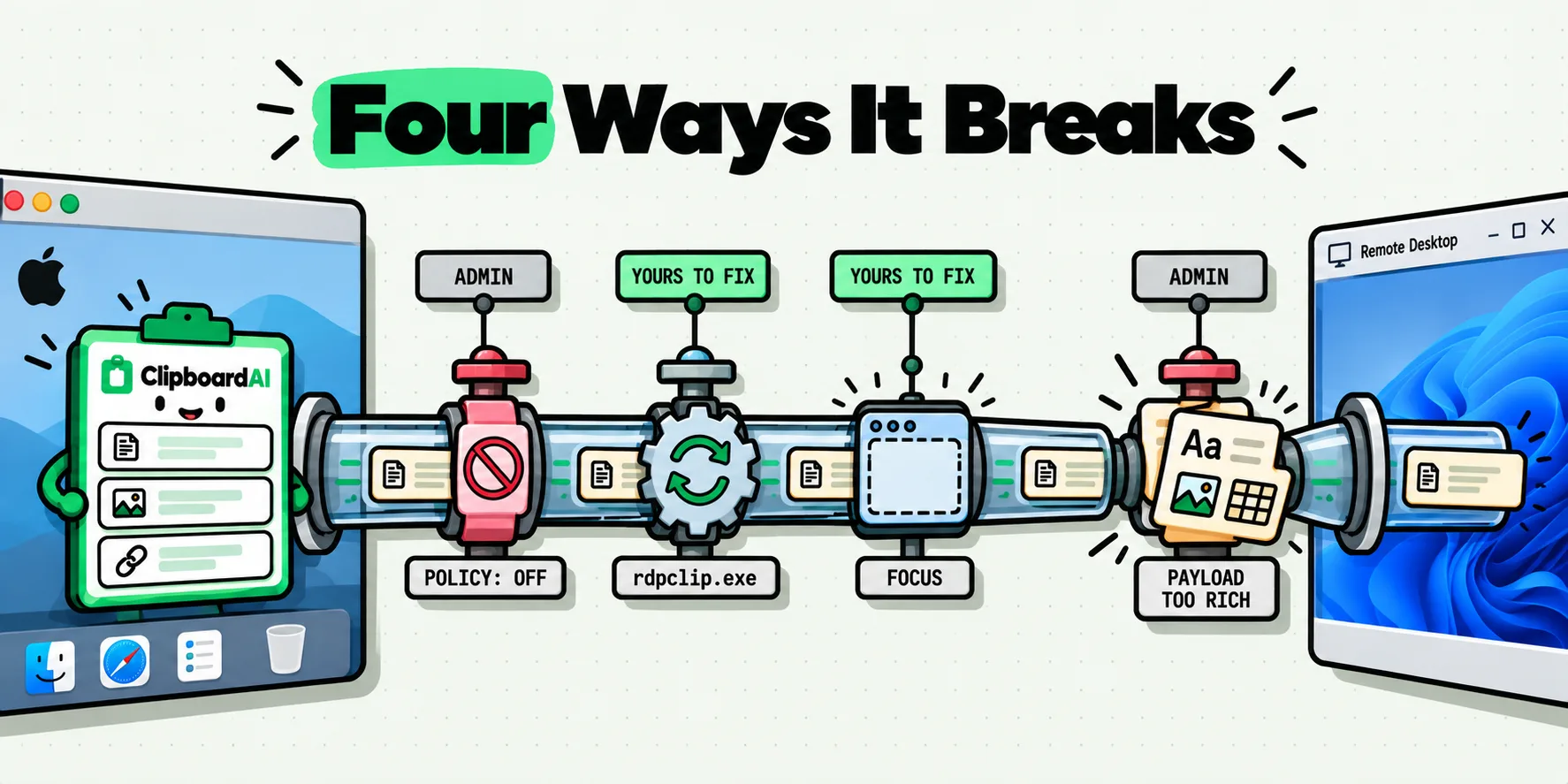
Clipboard sharing between a Mac and a remote Windows desktop travels through a redirection channel inside the remote desktop client. When paste stops working it is almost always one of four things: an administrator has disabled redirection, the Windows-side clipboard helper has wedged, the remote window did not have focus when you copied, or the payload is too large or too richly formatted for the channel. Only the middle two are yours to fix.
Sorting which one you have takes about a minute, and it is worth doing before you file a ticket, because two of the four have no ticket worth filing.
Why every guide you find is written for someone else
Search this problem and you will land in a vendor knowledge base, a university IT page, or an admin's blog. They are all written for the person who administers the Windows side. They tell you to check a group policy object you cannot see and a registry key you cannot reach. You are the designer or analyst on a MacBook with a Citrix or Remote Desktop window open, and none of it applies to you.
The useful split is not by product. It is by who owns the fix. Some of these failures have a thirty-second workaround you can do yourself, and some are a deliberate corporate decision that will never change because you asked nicely.
How the clipboard actually crosses
Your Mac and the remote Windows machine each have their own clipboard. They are separate systems that happen to be looking at each other. The remote desktop client opens a virtual channel alongside the video and input streams, and when you copy on one side the client offers the content to the other. Nothing is shared in the sense of a shared file. It is a negotiated hand-off, performed per copy, per data format.
On the Windows side, a small helper process owns that hand-off. In a Remote Desktop session it is rdpclip.exe. Citrix and VMware Horizon have their own equivalents inside their agents. It is a long-running process doing fiddly work with formats and timing, and when it gets stuck, the symptom is exactly what people describe: it worked this morning and now it does not, and nothing has changed.
The other half of the mechanism matters too. Content is often offered lazily, meaning the receiving side asks for the actual bytes only when you paste. If the window that owned the copy has gone away, or focus moved at the wrong moment, the request finds nothing. That is the source of the maddening case where the first paste after switching windows fails and the second one works.
The 60-second checks, in order
Do these before anything else. They cost nothing and they resolve a good share of cases.
- Click into the remote window first, then copy. Give the session focus, wait a beat, copy again, then paste. Focus and ownership timing cause more of these than people expect.
- Test in both directions separately. Copy inside Windows and paste inside Windows. Then Mac to remote. Then remote to Mac. The pattern of which ones work is the diagnosis.
- Disconnect and reconnect the session, do not log off. Reconnecting re-establishes the channel and often restarts the helper without losing your open applications.
- Try plain text. Copy a single word from a plain text editor. If that crosses when your styled table did not, you have a format problem, not a dead channel.
Decision tree: your problem or your administrator's
Match the symptom, run the confirming test, then look at the last column before you spend any more time on it.
| What you see | Likely cause | Test that confirms it | Who can fix it |
|---|---|---|---|
| Never worked, in either direction, since your first session | Redirection disabled by policy | Copy and paste entirely inside the remote session. If that works and nothing crosses, the channel is off | IT only |
| Mac to remote works, remote to Mac does not | One-way policy, a common data-loss-prevention setting | Repeat with plain text on a fresh session. Consistent direction means policy, not a fault | IT only |
| Worked at login, stopped part way through the day | Clipboard helper process wedged | Reconnect the session. If it comes back, that was it | You, with a reconnect or by restarting the helper |
| First paste after switching windows fails, second succeeds | Focus and ownership timing | Click the remote window, wait, re-copy, paste | You |
| Text crosses, images and formatted tables do not | Format-level restriction or channel limit | Copy one word of plain text, then a small image | You can work around it. Removing the restriction is IT |
| Large pastes truncate, hang, or arrive empty | Size ceiling on the channel | Paste 200 characters, then 200,000 | You, by splitting it. Raising the limit is IT |
| Died after the Mac slept or the network blipped | Session reconnected, channel not re-established | Fully disconnect and start a new session | You |
If the answer is IT, ask for the specific thing. "Clipboard redirection appears to be disabled for my connection, and I need Mac to remote for text only" gets a decision. "Copy paste is broken" gets a reboot suggestion.
Restarting the clipboard helper yourself
In a Remote Desktop session where you have Task Manager, ending rdpclip.exe and starting it again from the Run box clears a wedged clipboard without disturbing your open applications. It takes about fifteen seconds. Anything you had copied inside Windows and not yet pasted is lost, so paste first if it matters.
In Citrix and Horizon the equivalent process lives inside the vendor agent and is usually not something you are meant to restart by hand. There, reconnecting the session is the sanctioned version of the same move. Locked-down images may hide Task Manager entirely, which is itself a signal about how much latitude you have.
On the Mac side, every copy survives the session
ClipboardAI lives on the Mac end of that connection, which is the end you actually control, and on the Mac it is completely hands-off. Everything you copy is captured the moment you copy it, continuously, in the background, with no gesture and no setup. That single fact takes the sting out of the two failure modes that waste the most time in a remote session. (The first two rows of the table are a policy decision inside your organization, so those are a conversation with IT rather than anything you can install.)
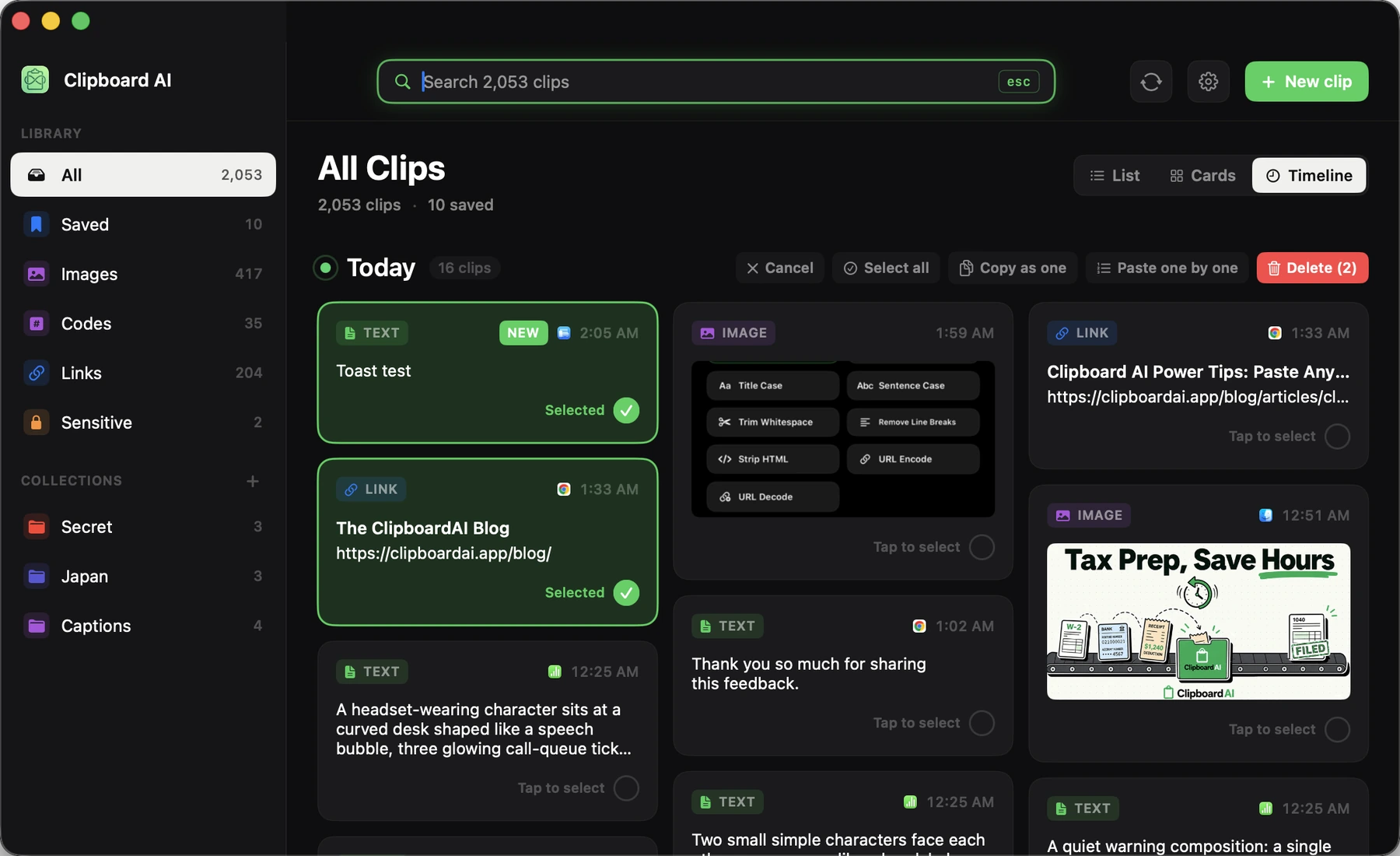
The first is the dropped paste. The Mac app captures continuously in the background, so everything you copied on the Mac side is still there. When a paste silently fails, or the helper wedges and eats the thing you had ready, recovery is picking the clip out of history rather than going back to the source document to copy it again. Over a day of hopping between local design files and a remote line-of-business application, that is the difference between an irritation and a genuine interruption. The All Clips window is where you go for anything older than the last few items.
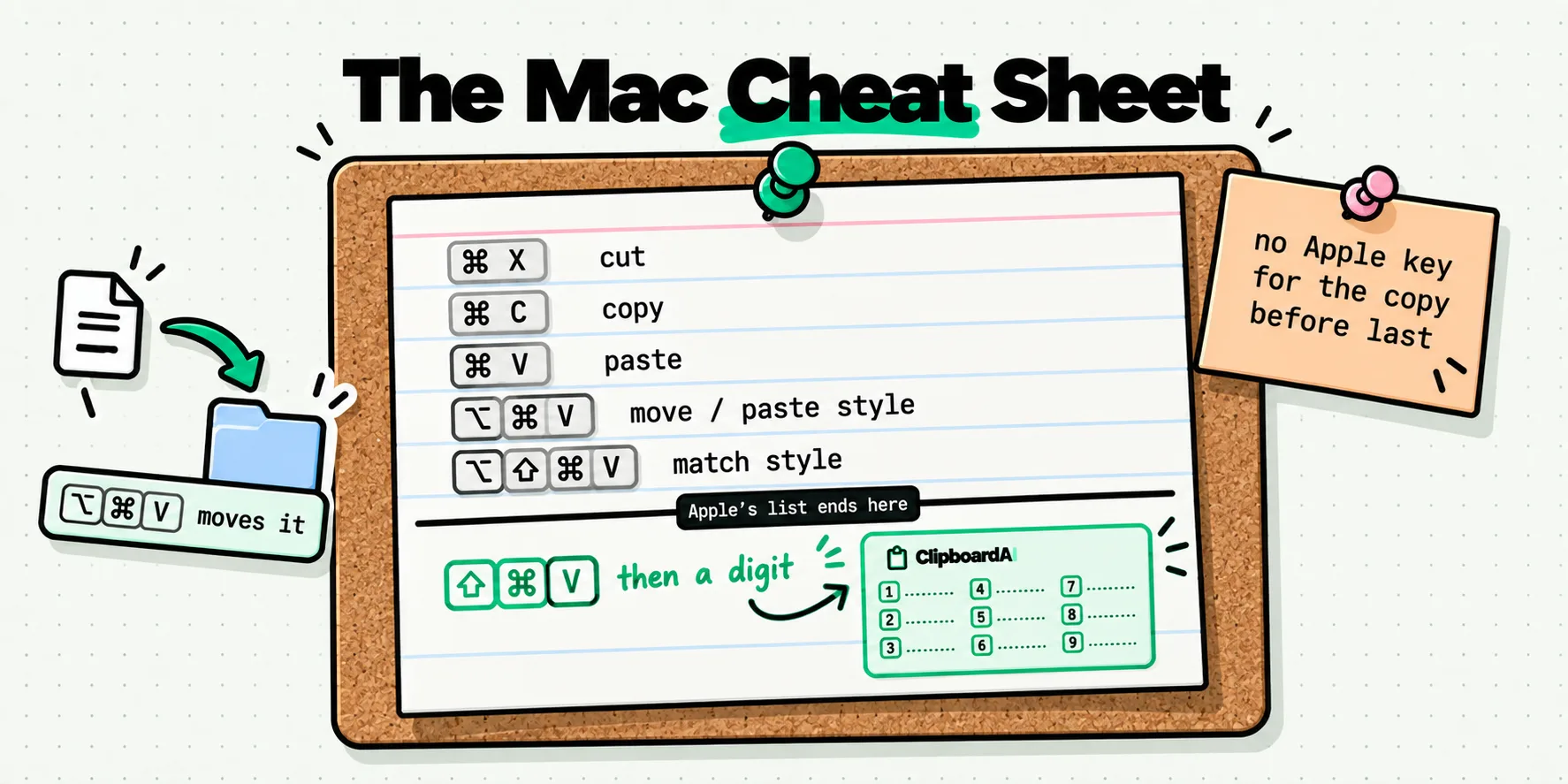
The second is the format problem. When the channel refuses styled content but accepts text, pasting plain is the workaround, and it is built in. Picking a clip out of the panel with Option held strips formatting for that one paste, or you can flip Always paste as plain text permanently in Settings under General, in the Behavior group, so every clip you send over from the panel goes as text and Option becomes the way back for a single one. The plain-text paste guide covers both, and the other modifiers are listed in the shortcut reference. A table of styled cells arriving as tab-separated text is often exactly what you wanted anyway.
Worth knowing which direction is which. ClipboardAI reads the Mac's own clipboard, so anything you copy on the Mac is kept, searchable and reusable for the rest of the day no matter what the session does. Content copied inside the Windows session joins that history whenever redirection is carrying it back to the Mac, which is your organization's setting to make. Where that direction is closed, copying on the Mac side is the route that always works, and it is the side that outlives a wedged helper, a sleep, a network blip and a full reconnect.
Three cases with a different explanation
A managed device can carry a separately installed monitoring or data-loss-prevention agent that enforces its own clipboard rules on top of everything above. If pastes behave inconsistently in ways none of the rows explain, and especially if they behave differently for different applications on the same Mac, that is worth asking about directly.
Web-based session clients are a different animal again. A session running in a browser tab is bound by the browser's clipboard rules as well as the remote protocol's, which usually means a paste only works when you triggered it yourself with a keystroke or a click. Automated or scripted pastes will not go through, and that is the browser, not the remote desktop.
And a plain caution on scope: none of this touches file transfer or drive redirection, which are separate channels with separate policies. If files will not move either, that is a second conversation with the same person. For the phone side of the same general problem, our article on moving text between an iPhone and a Windows PC covers a route that does not depend on any of this, and the remote work app roundup has more on the surrounding setup.
Frequently Asked Questions
Why does copy and paste stop working mid-session in Citrix?
The most common cause is the clipboard helper process on the Windows side getting stuck, usually after a reconnect, a session refresh, or copying something unusually large. The virtual channel is still open but nothing moves through it. Ending and restarting that process inside the session clears it, and so does disconnecting and reconnecting the session without logging off. If it dies again within minutes, and always after the same action, stop retrying and report the pattern.
Can I paste from my Mac into a Windows VDI at all?
Yes, if clipboard redirection is enabled for your connection. It is a standard feature of every mainstream remote desktop client on macOS, and when it works your Mac clipboard and the remote clipboard behave like one. Whether it is enabled is a decision your organization makes centrally. Many enterprises allow pasting into the remote session while blocking copying out of it, so a one-way experience is usually policy rather than a fault.
Is clipboard redirection a security setting my company controls?
Yes. In Remote Desktop, Citrix and VMware Horizon deployments alike, clipboard redirection is a server-side or policy-side setting that administrators enable, disable, or restrict by direction and by data format. It is a common data-loss-prevention control, because the clipboard is an easy route for content to leave a controlled environment. If it is off, no client-side setting, restart, or third-party Mac app can turn it back on.
Why do images fail to paste when text works fine?
Redirection is negotiated per data format, not as a single on or off switch. Plain text is the smallest and most universally supported format, so it crosses when nothing else will. Images, rich text, and file references are larger and are often restricted separately, either by policy or by a size ceiling on the channel. If text works and everything else fails, that pattern is a strong hint you are looking at a format restriction rather than a broken channel.
Does restarting the clipboard process lose what I had copied?
It clears the remote session's clipboard, so anything you copied inside Windows and had not yet pasted is gone. Your Mac clipboard is untouched, because it is a separate system. This is the practical argument for copying on the Mac side wherever you have the choice: the Mac end of the transfer survives everything that happens to the remote session, including a full disconnect and reconnect.