
Here is a moment you know well. You are filling out a form, or building a document, and you need three or four things you already copied earlier: a name, an email, a reference number, a link. The old way is a shuttle run. Copy one, switch back, paste. Switch away, copy the next, switch back, paste. Repeat until your patience runs out.
On Mac, Clipboard AI turns that shuttle run into a single move. Select the clips you want once, and paste the whole set in order. There are three flavours of this, and each one is built for a slightly different job. Let us walk through all three, plus the one habit that makes them click.
The one habit: select first, then paste
Everything here starts the same way. Press ⌘⇧V from any app to open the floating menu at your cursor. Then hold ⌘ and click each clip you want. As you click, a little number appears on every one, showing the order it will paste in. So click them in the sequence you want them to land.
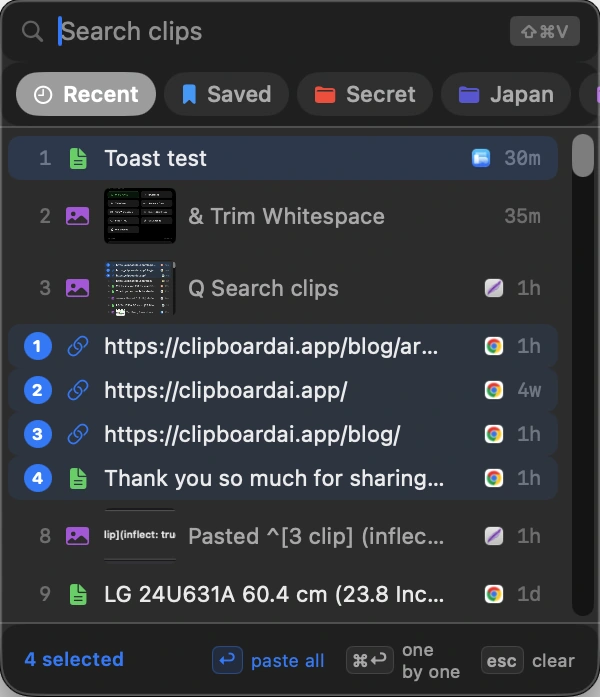
Once you have a selection, the footer offers two ways to fire it, and you can trigger either from the keyboard. That is the whole idea. Now for the three ways they play out.
Clip 1 pastes first, clip 2 next, and so on. Changed your mind about one? Click it again to drop it from the selection before you paste.
Paste All: send the whole stack at once
With your clips selected, press Return, or click paste all in the footer. Clipboard AI hands focus back to whatever app you came from and pastes each clip in order, one right after another. A small card in the corner counts them off, "Pasting 3 of 5", so you can actually watch it happen.
Reach for this when everything is going to the same place: several paragraphs into a doc, a run of lines into a chat, a list of values into a note. One keystroke, and the whole batch is in.
Hold ⌥ (Option) as you press Return to paste the batch as plain text, with fonts and colours stripped. Hold ⇧ (Shift) to paste and then clear those clips from your history in the same move.
Paste One by One: you place each clip yourself
Sometimes the clips need to go to different places. A first name here, a last name there, an email in the next field, a code in the one after that. A single burst of pastes would pile them all into one spot. This is where Paste One by One comes in.
Select your clips and press ⌘Return, or click one by one. Clipboard AI loads the first clip onto your clipboard and quietly steps back. Now you paste with your own ⌘V, wherever your cursor is. The instant you do, Clipboard AI swaps in the next clip, ready for your next ⌘V. Tab to the next field, paste, tab, paste. A card in the corner shows where you are in the queue and previews what is coming up next, with Skip and Cancel buttons if you need them.
It feels a bit like a magazine of clips, chambering the next one each time you fire. For anything with fields, rows, or cells, it is the fastest way to fan a set of clips out into the right spots.
Copy something new while a queue is running and Clipboard AI cancels it for you, so you never accidentally paste a stale clip halfway through.
Copy as one: merge into a single clip
The third option is a little different. Instead of firing several pastes, Copy as one stitches your clips together into a single block of text. Open the All Clips window, click Select, choose the text clips you want, and click Copy as one. Clipboard AI joins them, each on its own line, and puts the result on your clipboard. Paste once, and the whole set lands together.
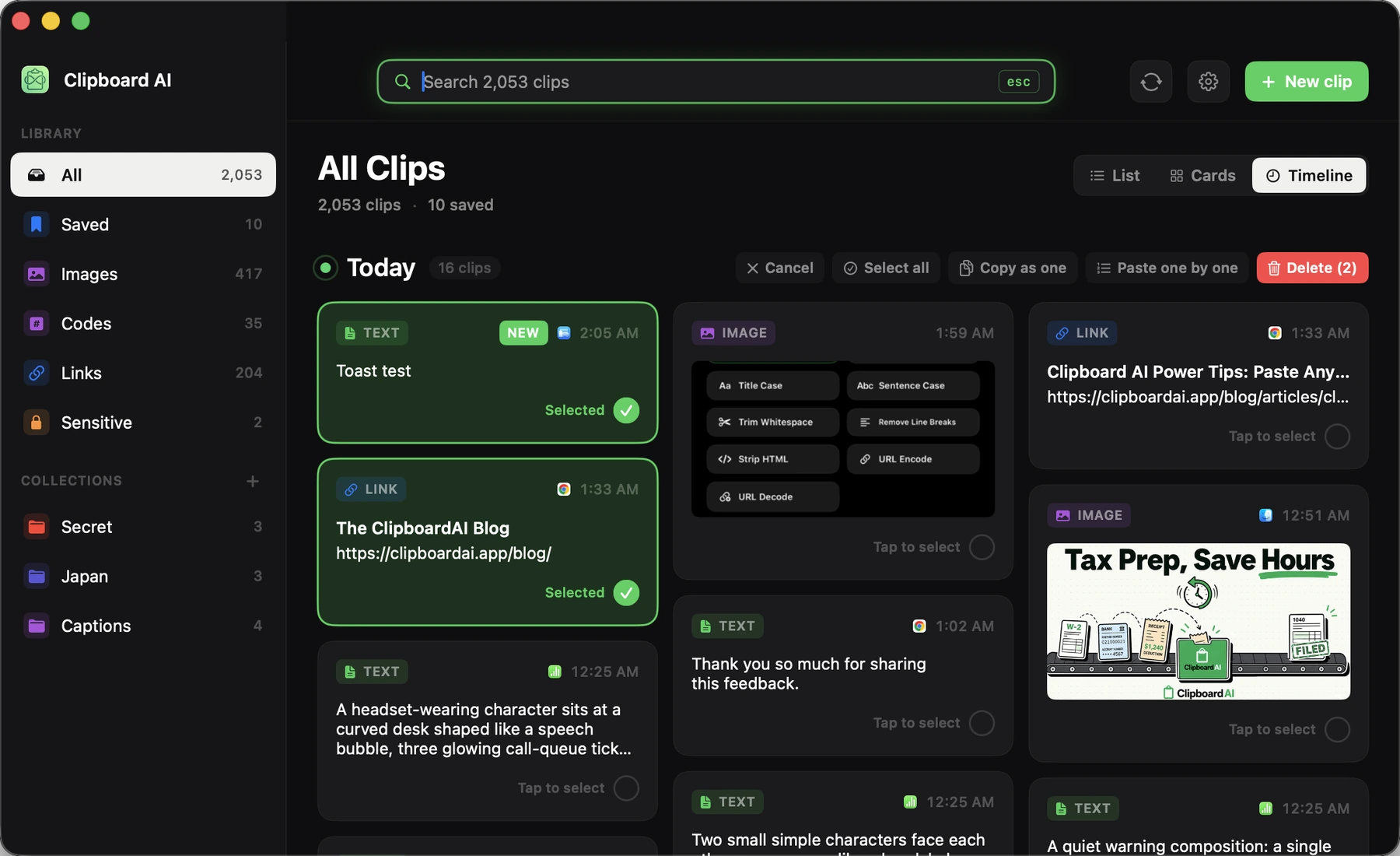
It works on text, so any images in your selection are simply left out. Use it when you want the combined text as one reusable clip, rather than a one-time burst. Think of assembling a quick list, a set of notes, or a handful of quotes into a single paste you can drop anywhere, or keep around.
Bonus: fire a whole Collection
If you keep a set of clips you use together, put them in a Collection: an onboarding email, a scheduling link, and a signature, say. Then right-click that Collection, or any saved item, in the menu bar and choose Paste All or Paste One by One. The whole group goes out without you even opening the floating menu. It is the closest thing to a one-click template that still pastes real, editable text.
Which one should you use?
All three are free, and all three live on Mac. The quick way to choose:
| Use this | When |
|---|---|
| Paste All | Every clip is going to the same place, in order, right now |
| Paste One by One | Each clip goes somewhere different and you want to place them by hand |
| Copy as one | You want a single merged clip you can paste, and reuse, as one block |
Want the keys in one place? The Mac keyboard shortcuts cheat sheet lists every combination, and the Paste several clips at once guide has the step-by-step.
Frequently Asked Questions
How do I paste multiple clipboard items at once on Mac?
Open the Clipboard AI floating menu with ⌘⇧V, hold ⌘ and click each clip you want (they get numbered in the order you pick), then press Return. Clipboard AI pastes every selected clip in turn into the app you came from.
What is the difference between Paste All and Paste One by One?
Paste All fires every selected clip into the same place, in order, in one go. Paste One by One loads the clips into a queue and lets you place each one yourself by pressing your own ⌘V, which is ideal when each clip goes into a different field.
Does pasting multiple clips work in any Mac app?
Yes. Clipboard AI pastes into whatever app you were using, the same way a normal paste does. It needs Accessibility access turned on once so it can send the paste for you.
Is batch and sequential paste free?
Yes. Paste All, Paste One by One, and Copy as one are all part of Clipboard AI on Mac at no cost.