
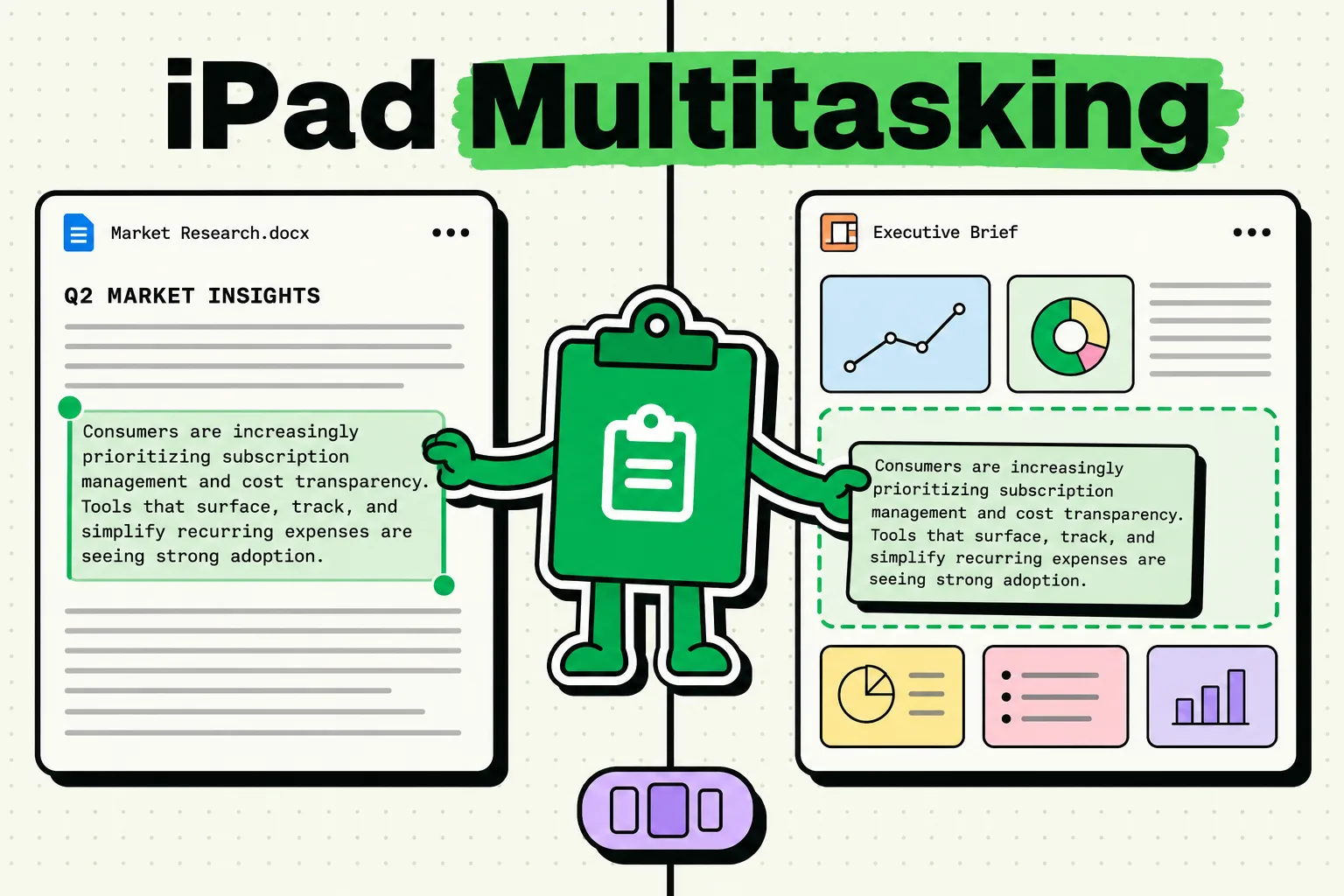
iPadOS does not have a built-in clipboard history. Copy something in Safari, switch to Notes, copy something else, and the first item is gone with no way to recover it. This becomes a real problem the moment you start using Split View or Stage Manager to work across two or three apps at once, because multitasking increases how often you copy between windows, not how much the clipboard can hold. A clipboard manager like ClipboardAI adds the missing history and slots directly into iPad's multitasking layout.
Why Multitasking Makes This Worse, Not Better
Split View and Stage Manager are designed to reduce app-switching, but they do not change how the clipboard works underneath. You can have Safari and Pages open side by side and still lose a quote the moment you copy a second one before pasting the first. In some ways multitasking makes the single-item limit more noticeable, because you are now visually holding two contexts open and expecting the clipboard to keep up with both.
Setting Up ClipboardAI in Split View
- Open your primary app (Safari, Pages, Mail).
- Swipe up from the bottom to reveal the Dock.
- Drag ClipboardAI from the Dock to the left or right edge of the screen.
- Adjust the divider so ClipboardAI takes roughly a third of the screen.
With this layout, you copy in your work app on one side and tap into ClipboardAI on the other to paste anything you have copied previously, without leaving the current view.
A concrete research-to-writing workflow
- Open Safari and ClipboardAI side by side in Split View.
- Read through sources, copying quotes and URLs as you find them. Each one lands in ClipboardAI, tagged as a link or as text.
- Swap Safari for Pages in Split View, keeping ClipboardAI open.
- Work through your saved clips and paste each reference where it belongs in the document.
Slide Over and Stage Manager
Slide Over works well if you want your primary app at full width. Swipe up from the Dock and drag ClipboardAI to the center of the screen (not the edge) to make it a floating panel you can swipe in and out as needed, rather than a fixed split.
Stage Manager (iPad Pro and iPad Air with M-series chips) lets you keep ClipboardAI as a small persistent window in a workspace group alongside your other apps, or run it on a second display if you have one connected. This is the closest iPad multitasking gets to a desktop-style clipboard manager sitting in its own window.
Value Artifact: Choosing a Layout by Task
| Your task | Best layout | Why |
|---|---|---|
| Research while writing | Split View (source app + ClipboardAI) | Copy from one side, paste into the other, no app switching |
| Quick reference while a full-screen app is open | Slide Over | ClipboardAI floats in and out without resizing your main app |
| Working across 3+ apps regularly (M-series iPad only) | Stage Manager | ClipboardAI stays visible as its own persistent window |
| Coding or technical work with saved snippets | Split View or Stage Manager | Pin frequently used code blocks or config values for quick reuse |
Honest Limits
- Stage Manager requires specific hardware. Only iPad Pro and iPad Air models with M-series chips support it. On other iPads, Split View and Slide Over are your only multitasking options.
- This is not the same as Apple's Universal Clipboard. Universal Clipboard is a separate, Apple-built feature (part of Handoff) that copies the single most recent item between nearby signed-in devices for about two minutes. ClipboardAI's history is a different thing: your own app storing everything you copy, optionally synced across your devices through iCloud if you turn that on. Neither feature depends on the other, but they are not interchangeable, and this article is not claiming ClipboardAI's sync as an Apple feature.
- It does not integrate with every app equally. ClipboardAI works with the standard iOS clipboard, so anything you can normally copy and paste, it can save. It cannot reach into an app's internal, non-standard clipboard (some drawing or CAD apps use their own proprietary copy system for objects, not text).
Frequently Asked Questions
Does iPad have built-in clipboard history?
No. iPadOS holds only the single most recently copied item. A third-party app like ClipboardAI is required for a searchable history.
What's the best multitasking layout for using a clipboard manager on iPad?
Split View for active research-and-write sessions where you are copying from one app into another. Slide Over if you want your main app at full screen with occasional clipboard access. Stage Manager, on supported hardware, if you regularly work across three or more apps.
Is this the same as Universal Clipboard?
No. Universal Clipboard is Apple's own feature for copying the most recent item between nearby devices for a couple of minutes. A clipboard manager keeps a full, searchable history and can optionally sync it across your own devices via iCloud - a different mechanism serving a different purpose.
Does Stage Manager work on all iPads?
No, only iPad Pro and iPad Air models built on M-series chips support Stage Manager. Other iPads are limited to Split View and Slide Over for multitasking.