
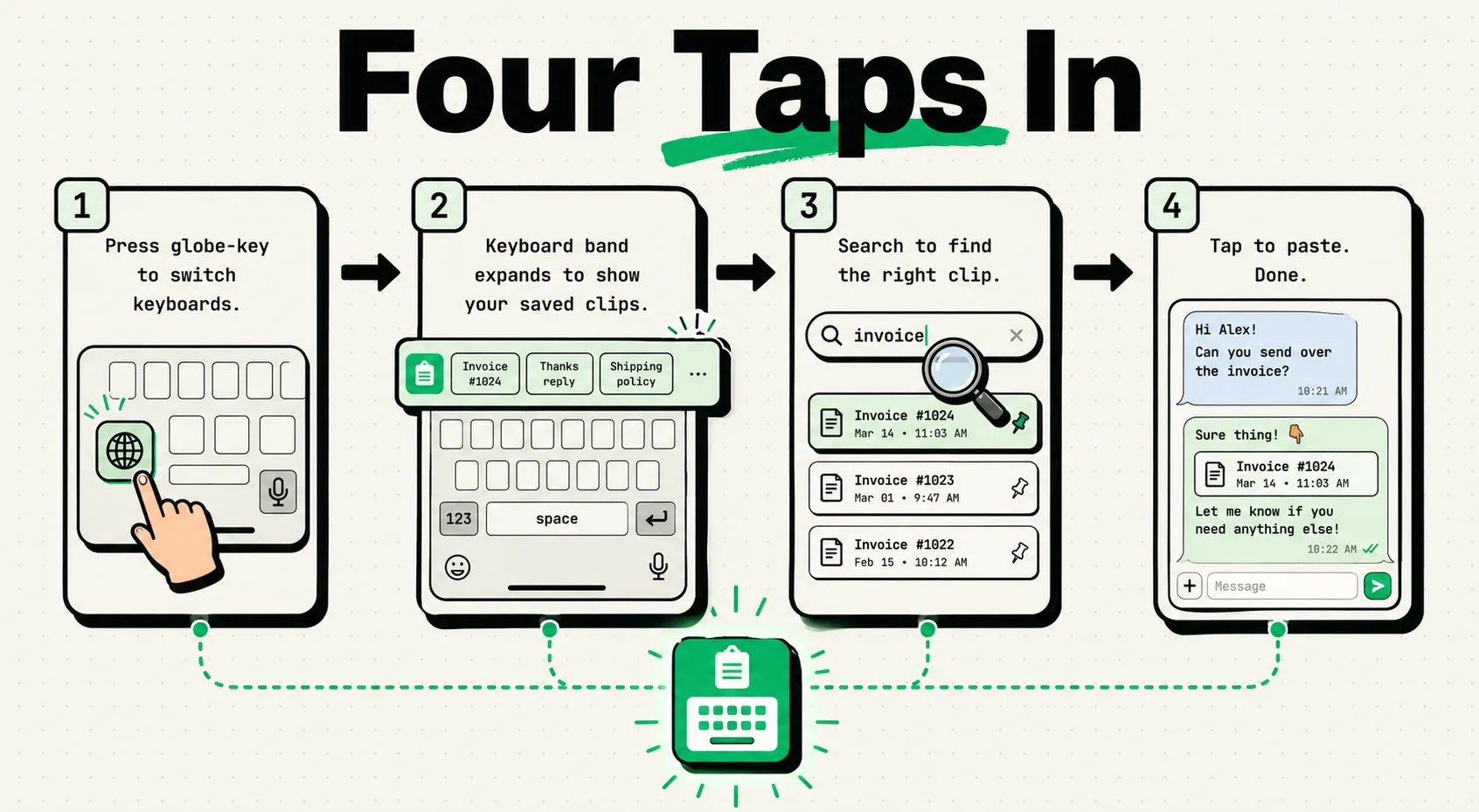
Setting up the ClipboardAI keyboard extension on your iPhone allows you to search, edit, and paste your clipboard history directly inside any app without switching screens. To activate it, download the app, navigate to Settings > General > Keyboard > Keyboards, enable ClipboardAI, and toggle Allow Full Access. Once active, tap the globe icon on your keyboard to access your history and pinned snippets instantly.
Why the Custom Keyboard is a Game-Changer for Mobile Productivity
Standard mobile multitasking is slow. If you are drafting an email and need to insert three different references (such as a link, a quote, and a phone number), you have to leave your email, open your notes or browser, copy the first item, switch back, paste it, and repeat the process two more times. This constant app-switching is frustrating and wastes time.
The ClipboardAI Keyboard Extension solves this by embedding your entire copy history directly into the iOS keyboard interface. You can copy everything you need first, open your target app, and paste each item in sequence from a single, scrollable menu.
Keyboard Setup & Troubleshooting Matrix
If you experience issues during installation or usage, check this troubleshooting matrix to resolve the problem:
| Symptom / Issue | Mapped Cause | Recommended Resolution |
|---|---|---|
| ClipboardAI does not show in the Keyboard list | App is not fully installed or registered in iOS. | Open the ClipboardAI app at least once after downloading, then check Settings > General > Keyboard again. |
| Globe icon does not display the ClipboardAI keyboard | System permissions have not been completed. | Ensure the keyboard is active in system settings and that Allow Full Access is toggled to ON. |
| Keyboard displays a "Full Access Required" warning screen | iOS blocked the keyboard from reading the local app database. | Go to Settings > General > Keyboard > Keyboards > ClipboardAI and toggle Allow Full Access to ON. |
| Keyboard randomly crashes or reverts to default layout | iOS RAM limit exceeded (iOS limits custom keyboards to ~70MB of RAM). | Open the ClipboardAI app and clear old history items. Restart your iPhone to flush the memory cache. |
| Pasted text displays strange characters or spacing | Text encoding conflict between apps. | Tap and hold the item in the keyboard menu and select Paste as Plain Text to strip formatting. |
Step-by-Step Installation Guide
Follow these exact steps to activate the extension on your iPhone:
Step 1: Download the Application
Download ClipboardAI from the Apple App Store. Ensure you are downloading the official release by TactileFX.
Step 2: Open System Settings
- Open your iPhone’s Settings app.
- Scroll down and tap General.
- Select Keyboard and then tap Keyboards at the top of the screen.
- Tap Add New Keyboard...
- Under Third-Party Keyboards, select ClipboardAI.
Step 3: Enable Full Access
- Tap ClipboardAI in your active keyboard list.
- Toggle the switch for Allow Full Access to the ON position.
- A system pop-up will display warning you that the developer can access your keystrokes. Tap Allow to confirm.
- Privacy Note: ClipboardAI uses this permission solely to read your local history database. It does not record keystrokes or transmit typing data to external servers.
Advanced Workflows: Getting the Most Out of the Keyboard
Once configured, you can utilize several advanced workflows to speed up your text entry:
1. Sequential Pasting
If you are moving rows of data from a spreadsheet into a web form, use the Sequential Paste mode.
- How it works: Copy the cells in sequence. Navigate to the form, switch to the ClipboardAI keyboard, and enable Sequential Mode. Every time you tap the paste button, ClipboardAI will insert the next copied item in the order it was copied, automatically advancing the cursor.
2. Category Folders
Organize your snippets into categories (e.g., "Work Templates," "Travel Docs," "Code Snippets").
- How it works: Open the main ClipboardAI app and move clips into custom categories. When using the keyboard, swipe left or right along the category bar to switch between lists of templates.
3. Quick Search
If you have hundreds of items in your copy history, finding a specific clip can be difficult.
- How it works: Tap the magnifying glass icon on the ClipboardAI keyboard, type your query, and the interface will filter your clips instantly.
Setup & Optimization Checklist
Ensure your keyboard is optimized for speed:
- Activate System Keyboards: Confirm ClipboardAI is listed alongside your default system languages.
- Configure Haptic Feedback: Go to Settings > Sounds & Haptics > Keyboard Feedback and ensure Haptic is enabled for physical vibration responses.
- Limit History Database Size: Set your history limit to 100-200 items in the ClipboardAI app settings to prevent RAM lag.
- Verify Password Filters: Ensure the "Block Password Managers" toggle is active in the main app to keep secure credentials out of the keyboard view.
Honest Caveats: iOS System Limits
Apple enforces strict controls on custom keyboard extensions. Keep these limitations in mind:
- Secure Field Exclusions: iOS does not allow custom keyboards to run inside secure password fields. When you tap a password entry field, your iPhone will automatically force-switch back to the default iOS system keyboard for security.
- The iOS System Bug Reset: Occasionally, iOS may reset your active keyboard choice back to the default QWERTY keyboard. Simply tap the globe icon again to toggle back to ClipboardAI.
- Physical RAM Limits: Because custom keyboards are system extensions, iOS restricts their memory usage. If you copy a massive 10MB text block and try to load it in the keyboard, it may crash. For large files, open the main app to manage them.
Frequently Asked Questions
Why does Apple show a scary warning when enabling Full Access?
This is a standard warning displayed for every third-party keyboard on iOS (including Google Gboard and Microsoft SwiftKey). It warns that the keyboard can monitor keystrokes. ClipboardAI runs locally, so your typing data is never sent to external servers.
Can I use the keyboard on iPad?
Yes. The ClipboardAI keyboard extension is fully optimized for iPadOS, supporting both the full-sized keyboard and the floating miniature keyboard layouts.
How do I delete items from the keyboard view?
Open the keyboard, swipe left on any clip in the list, and tap the delete (trash can) button to wipe it from your history database immediately.