
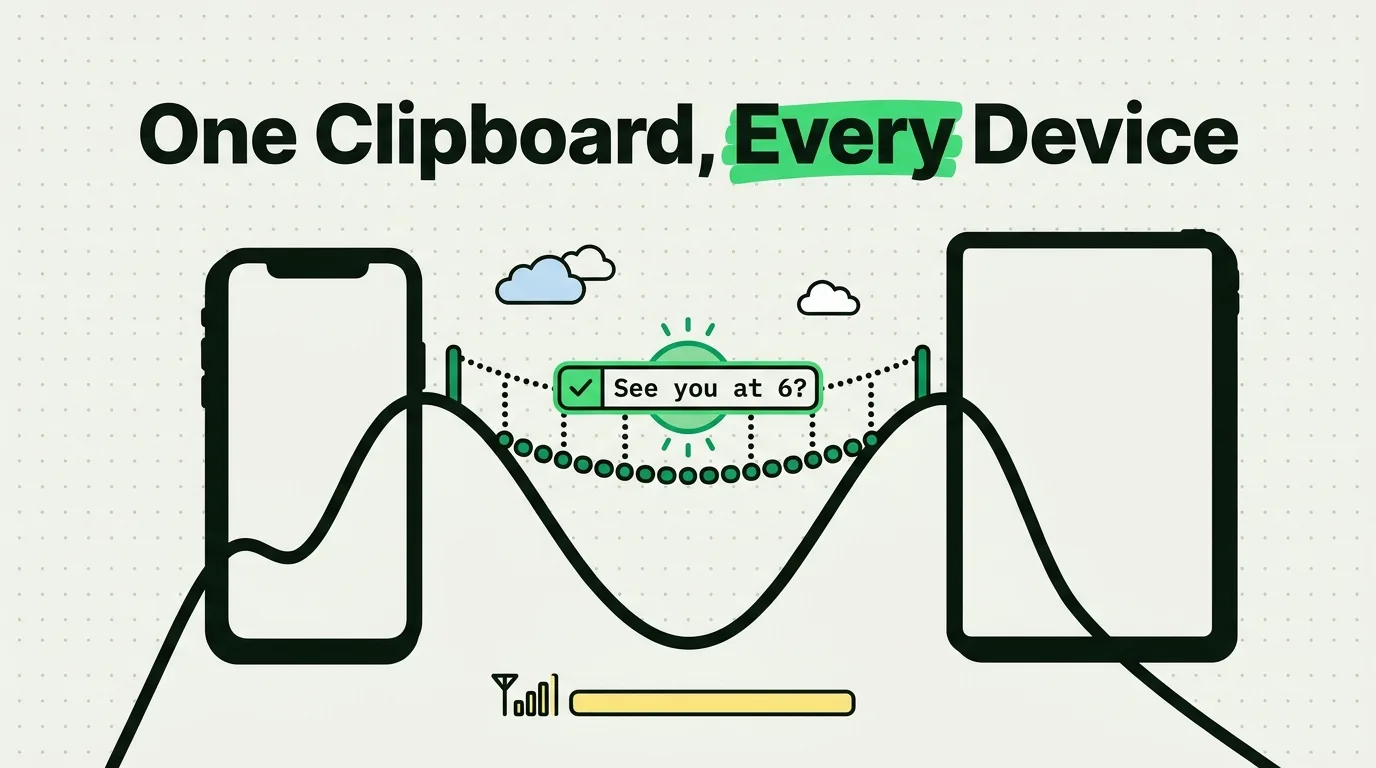
You copy a link on your iPhone during your commute. By the time you sit down at your iPad that evening, it is gone - Universal Clipboard only holds the most recent item, and it expires after roughly two minutes if you do not paste it right away on a nearby device. A clipboard manager like ClipboardAI solves a different problem: it keeps your entire clipboard history synced between devices through iCloud, with no expiration window and no proximity requirement. Keeping a real history needs an app, and we tested the free clipboard apps on iPhone to find which ones are usable without paying.
This is a straight comparison of the two, plus setup and troubleshooting for both.
How Universal Clipboard Actually Works
Universal Clipboard is part of Apple's Continuity features. Copy something on one Apple device, and it becomes available to paste on another, provided:
- Both devices are signed into the same Apple ID
- Both have Bluetooth and Wi-Fi enabled
- Both have Handoff turned on (Settings > General > AirPlay & Handoff)
- Both are within roughly Bluetooth range of each other (about 30 feet)
Where it falls short
- One item only, no history. Exactly like the local clipboard, it holds a single item.
- Short expiration window. Synced content is generally only available for a couple of minutes before it is gone.
- Proximity required. You cannot copy at your desk and paste at home later - the devices need to be near each other.
- No confirmation. There is no indicator that the sync succeeded. You find out it failed only when you try to paste and get nothing useful.
- Inconsistent in practice. Bluetooth or Wi-Fi hiccups cause silent failures with no error message.
Setting Up Full History Sync with ClipboardAI
- Install ClipboardAI on both your iPhone and iPad, signed into the same Apple ID.
- Open the app on each device and enable iCloud sync in settings.
- That's it - from this point, everything you copy on either device is saved and synced, with no expiration window and no need for the devices to be near each other.
- Open ClipboardAI on either device to see the same categorized history: links, emails, phone numbers, addresses, codes, and text, with pinned items appearing at the top on both.
You can run both at once. Universal Clipboard still handles the immediate "copy here, paste there right now" case; ClipboardAI covers everything you want to retrieve later.
Side-by-Side Comparison
| Universal Clipboard | ClipboardAI Sync | |
|---|---|---|
| Items synced | Most recent item only | Full history |
| Expiration | About two minutes | Kept until you delete it |
| Proximity requirement | Devices must be near each other | None - works anywhere both devices have internet |
| Search | Not available | Full-text search across synced history |
| Categorization | None | Automatic (links, emails, phone numbers, addresses, codes) |
| Pin/bookmark | Not available | Yes, syncs across devices |
| Cost | Free, built into iOS | Free tier available; premium from $19.99/year |
| Encryption | Apple's standard device-to-device encryption for Continuity features | On-device by default; optional iCloud sync protected by Apple in transit and at rest |
Real Use Cases
- Research on iPhone, write on iPad. Copy quotes and links throughout the day on your phone; they are waiting in ClipboardAI when you sit down with a keyboard.
- OTP codes across devices. A verification code arrives by SMS on your iPhone while the login form is open on your iPad. Copy it once; it appears in your synced history on the other device.
- Mobile-to-desk workflow. Copy a client's address or a meeting link on your phone between meetings; it is organized and searchable when you get back to your iPad.
Troubleshooting
Universal Clipboard not working:
- Confirm both devices use the same Apple ID (Settings > [Your Name]).
- Confirm Handoff is on for both (Settings > General > AirPlay & Handoff).
- Confirm Bluetooth and Wi-Fi are on for both devices.
- Restart both devices if settings look correct but sync still fails.
ClipboardAI sync not working:
- Confirm both devices use the same Apple ID.
- Confirm iCloud sync is enabled in ClipboardAI's settings on both.
- Confirm iCloud Drive is on (Settings > [Your Name] > iCloud > iCloud Drive).
- Confirm both devices have an internet connection.
- Force close and reopen the app on both devices.
- Check whether iCloud storage is full - a full account can affect sync for any app.
Honest Notes on Security
Universal Clipboard's device-to-device transfer uses Apple's standard Continuity encryption. ClipboardAI stores everything on your device by default, and your clips only leave it if you turn on iCloud sync. When you do, that traffic moves through your own private iCloud account using Apple's CloudKit, the same infrastructure that protects your Photos and Notes, encrypted in transit and at rest. No ClipboardAI clip content is ever sent to or stored on a ClipboardAI-owned server. There is no account to create and nothing for us to see, and you can leave sync off entirely for a fully on-device setup.
Frequently Asked Questions
How do I sync my clipboard between iPhone and iPad?
Apple's Universal Clipboard covers the immediate case: copy on one device, paste on a nearby second device within about two minutes. For a persistent, searchable history synced across devices with no time limit, use a clipboard manager like ClipboardAI with iCloud sync enabled.
Why does Universal Clipboard fail sometimes?
It requires both devices to be nearby, with Bluetooth, Wi-Fi, and Handoff all enabled, and the copied content only remains available for about two minutes. Any of those conditions failing causes a silent, unexplained failure.
Can I see my full clipboard history on both iPhone and iPad?
Not with Apple's built-in tools - Universal Clipboard only ever holds the one most recent item. A clipboard manager with iCloud sync keeps a full history available and searchable on every synced device.
How is my synced clipboard kept private?
Sync runs through your own private iCloud account using Apple's CloudKit, the same protection tier as your Photos or Notes, encrypted in transit and at rest. No clip content ever touches a third-party or ClipboardAI-owned server, there is no account to create, and you can turn sync off entirely to keep everything on your device.