
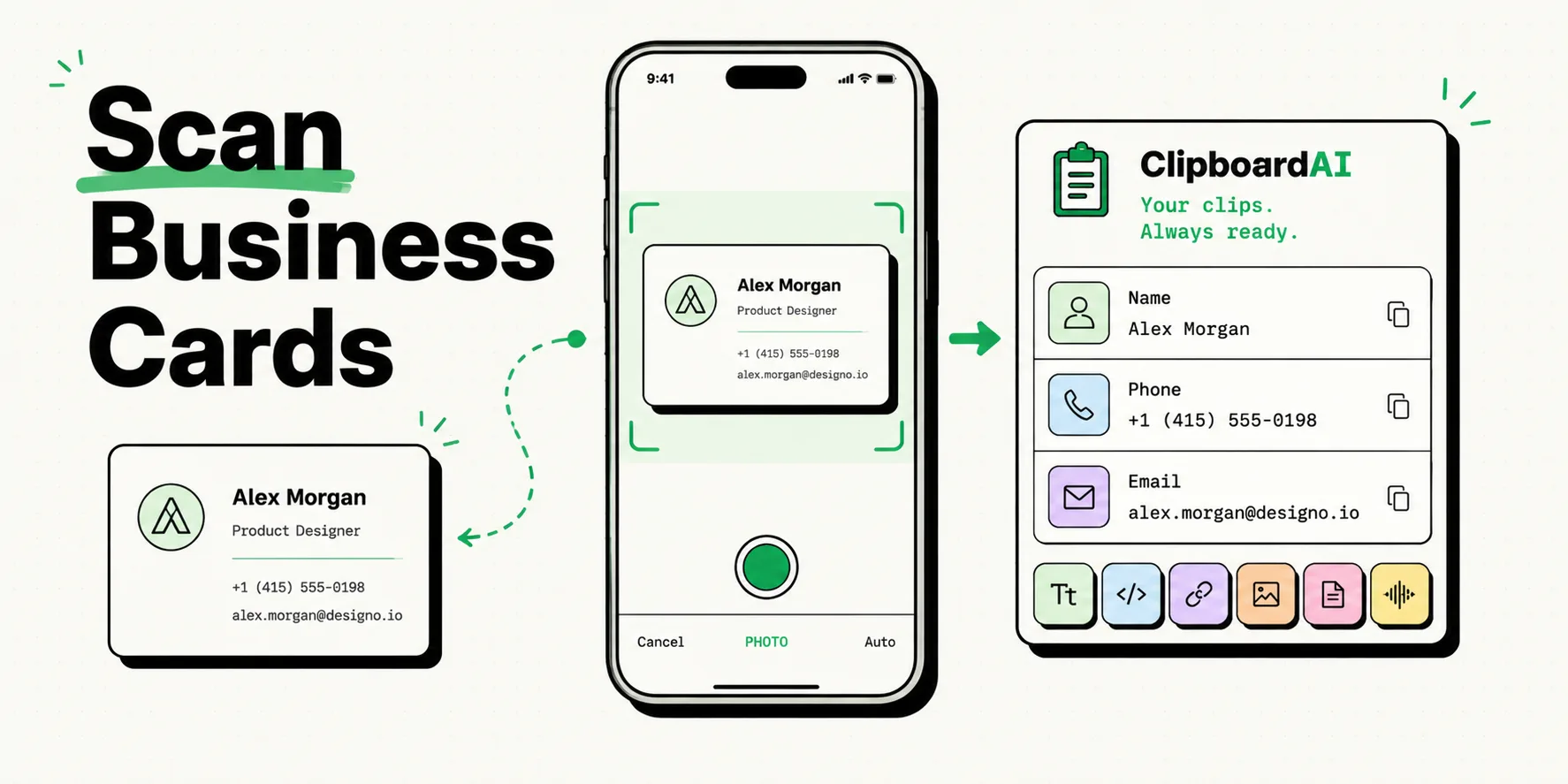
To extract contact details from physical business cards instantly on your iPhone, use the native Live Text camera features or a clipboard manager like ClipboardAI to parse scanned text into structured contact fields. Pointing your camera at the card highlights names, emails, and phone numbers, allowing you to copy them in one tap and save them to a persistent clipboard history without typing them manually.
Here is how you can use Optical Character Recognition (OCR) tools to scan contacts, clear scanning typos, and export records into your phone book.
The Overhead of Manual Networking
At networking events, trade shows, or sales conferences, you collect dozens of business cards. Manually entering this data - typing phone numbers, checking the spelling of corporate emails, and copy-pasting addresses - is slow and prone to transcription errors.
Consider the standard digital entry workflow:
- You read the card, open the Contacts app, create a new contact, and type the name.
- You toggle back to the physical card, type the phone number (hoping you don't swap digits).
- You read the company web address and type it in.
- You repeat this sequence for every single card in your pocket.
By utilizing your iPhone's camera sensor as an OCR scanner, you can pull the text strings directly off the paper card in real time, saving them to your clipboard database to build contacts in seconds.
Required Value Artifact: Scan-Error Troubleshooting Matrix
Optical Character Recognition is highly accurate, but stylized fonts and poor lighting can cause scan errors. Use this troubleshooting guide to resolve OCR glitches:
| Optical Scanning Issue | Likely Cause | Recommended Troubleshooting Step |
|---|---|---|
Character Substitution (e.g., l scanned as 1, O as 0) |
Stylized sans-serif or script typefaces. | Manually edit the string in your clipboard history overlay before exporting. |
| Missing Fields (e.g., email address is ignored) | Low contrast between text and card background. | Adjust your camera angle to minimize glare; use your phone's flashlight to increase contrast. |
| Combined Strings (e.g., Name and Job Title scanned as one line) | Tight line spacing or columns on the business card. | Copy the block, paste into a plain text workspace, and split the text into separate fields. |
| Garbled Symbols (e.g., logo or icon read as punctuation) | Card graphics or background icons processed as letters. | Select and delete the graphic noise from your clipboard history log. |
Step-by-Step Scan Workflows
Here are the two fastest ways to capture business cards on iPhone:
Method 1: Using Native Live Text in the Camera App
- Place the business card on a flat, well-lit surface.
- Open your iPhone's native Camera app and point it at the card.
- Wait for the yellow bracket to frame the card, then tap the Live Text button (the three lines inside a square icon) that appears in the bottom right corner.
- Tapping this freezes the image and highlights all recognized text.
- Tap Copy All to write the text to your pasteboard, or tap individual fields (like the email address) to copy them separately.
Method 2: Bulk Processing with ClipboardAI
If you have a stack of 10+ cards, copying them one-by-one is tedious.
- Open the camera inside your clipboard utility.
- Photograph each card sequentially.
- The app extracts the text from each image and logs it as separate entries in your clipboard database.
- Once you return to your desk, open the desktop app or mobile keyboard tray and sort the scanned logs directly into your CRM or Google Contacts sheets.
Sorting Scanned Data into Your Phone Book
Once you have copied the card data to your clipboard, you need to save it systematically:
- Use Custom Categories: Organize your scanned cards by event name (e.g., "CES 2026 Contacts") to keep them separate from personal files.
- Auto-Fill Contacts: When creating a new contact, use the clipboard manager's custom keyboard to drop the phone number, email, and company name into their respective fields without typing.
- Clean Formatting: Many cards write phone numbers with parentheses or dashes (e.g.,
+1 (555) 019-2831). Use text cleanup shortcuts to standardize the format before saving.
Honest Caveats: OCR Limitations & Data Security
Scanning physical cards carries security and accuracy parameters:
- No Automated Verification: OCR cannot verify if a number is active. Always double-check critical contact details against the physical card before discarding it.
- Sensitive Company Details: Some corporate cards include internal department routing codes or private support numbers. Ensure your clipboard history utility does not sync these logs to public databases.
- Contrast and Gloss Constraints: Glossy foil business cards reflect camera flashes, blinding the OCR sensor. Turn off the flash and utilize indirect natural light for the best scan quality.
Building a Mobile Card Scanner Setup Today
Establish a clean workflow for your next networking event:
- Install ClipboardAI on your mobile device.
- Configure the Custom Keyboard: Ensure the extension is enabled in your iOS system settings.
- Build an "Inbox" Folder: Create a clipboard history category labeled
Scanned Cards. - Practice Scanning: Test the camera scanner on one of your own cards to get used to the framing and light adjustments.