On this page
The Bottom Line
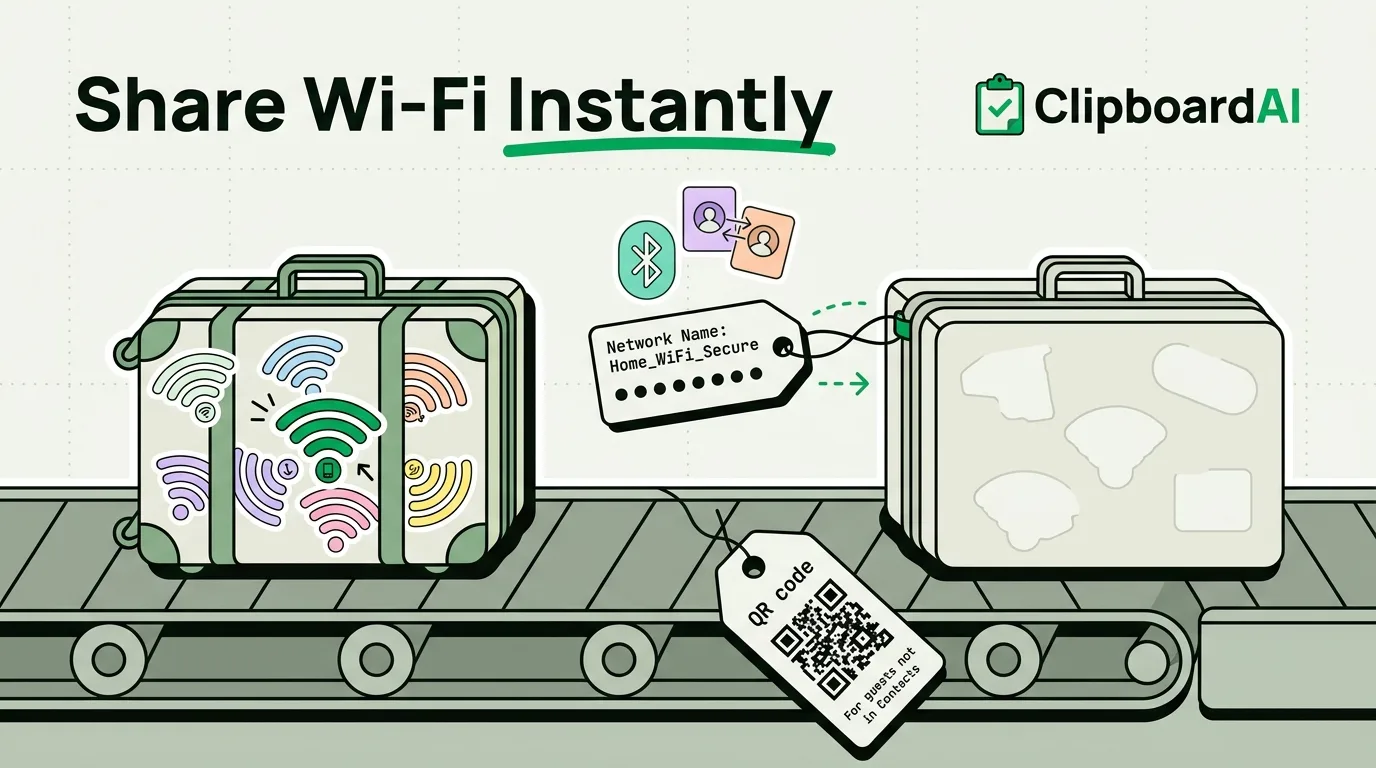
The fastest way to share your Wi-Fi password on iPhone requires zero typing: bring the two phones close together, tap "Share Password" when it appears on your screen, and the other person's phone gets it directly, no copy-paste involved. That only works if both people are already signed into iCloud with each other in their Contacts. When it does not apply (Android device, or someone not in your contacts), copying the password from Settings and sending it manually is the fallback.
Method 1: Share Password (Fastest, iPhone to iPhone)
- Have the other person go to Wi-Fi settings on their device and tap your network name, so their phone is actively trying to join.
- On your iPhone, which must already be connected to that Wi-Fi network and have the other person saved in Contacts, a "Share Password" prompt appears automatically.
- Tap "Share Password." Their device joins the network immediately, with no password ever displayed or typed.
This requires both devices to have Wi-Fi and Bluetooth on, both people in each other's Contacts app, and iOS 11 or later (essentially any iPhone still supported today).
Method 2: Copy the Password Directly From Settings
On iOS 16 and later: Settings > Wi-Fi > tap the "i" next to your connected network > tap the password field, which reveals the actual password (Face ID or passcode confirmation required) and lets you copy it. This works whether or not the other person has an iPhone, since you are just getting the plaintext password to send however you want (text, email, sticky note).
Method 3: QR Code for Guests or Non-Contacts
For anyone not in your Contacts app, a Wi-Fi QR code lets them join by scanning with their camera instead of typing anything. There is no native iOS QR generator for this, but you can create one with a free web-based Wi-Fi QR generator (search "wifi qr code generator") using your network name and password, then print it or display it on screen for guests to scan.
Which Method to Use
| Situation | Best method |
|---|---|
| Both people have iPhones, already in each other's Contacts | Share Password |
| Guest has an Android phone or isn't in your Contacts | Copy from Settings, send via text, or use a QR code |
| Recurring guests (Airbnb, office visitors) | Printed QR code, reusable |
If You Need to Give It Out Repeatedly
If you run a business or host guests often and give out the same Wi-Fi password over and over, pin it in ClipboardAI so it stays instantly accessible rather than digging through Settings each time. This is only worth it if Share Password does not apply, most personal use is better served by that native method since it never exposes the plaintext password at all.
Caveat
Whatever you use to store or send a Wi-Fi password, remember it grants network access, treat it with the same care as any other shared credential. If you frequently change your router password for security, update wherever you have it pinned or saved to avoid handing out a stale one.
Frequently Asked Questions
Why doesn't Share Password show up for me?
Both devices need Wi-Fi and Bluetooth enabled, both people need to be in each other's Contacts with the correct Apple ID email or phone number, and the receiving device needs to be actively attempting to join that network when you check for the prompt.
Can I see my Wi-Fi password on older iOS versions?
The direct in-Settings reveal requires iOS 16 or later. On older versions, you would need to check your router's admin page directly.