
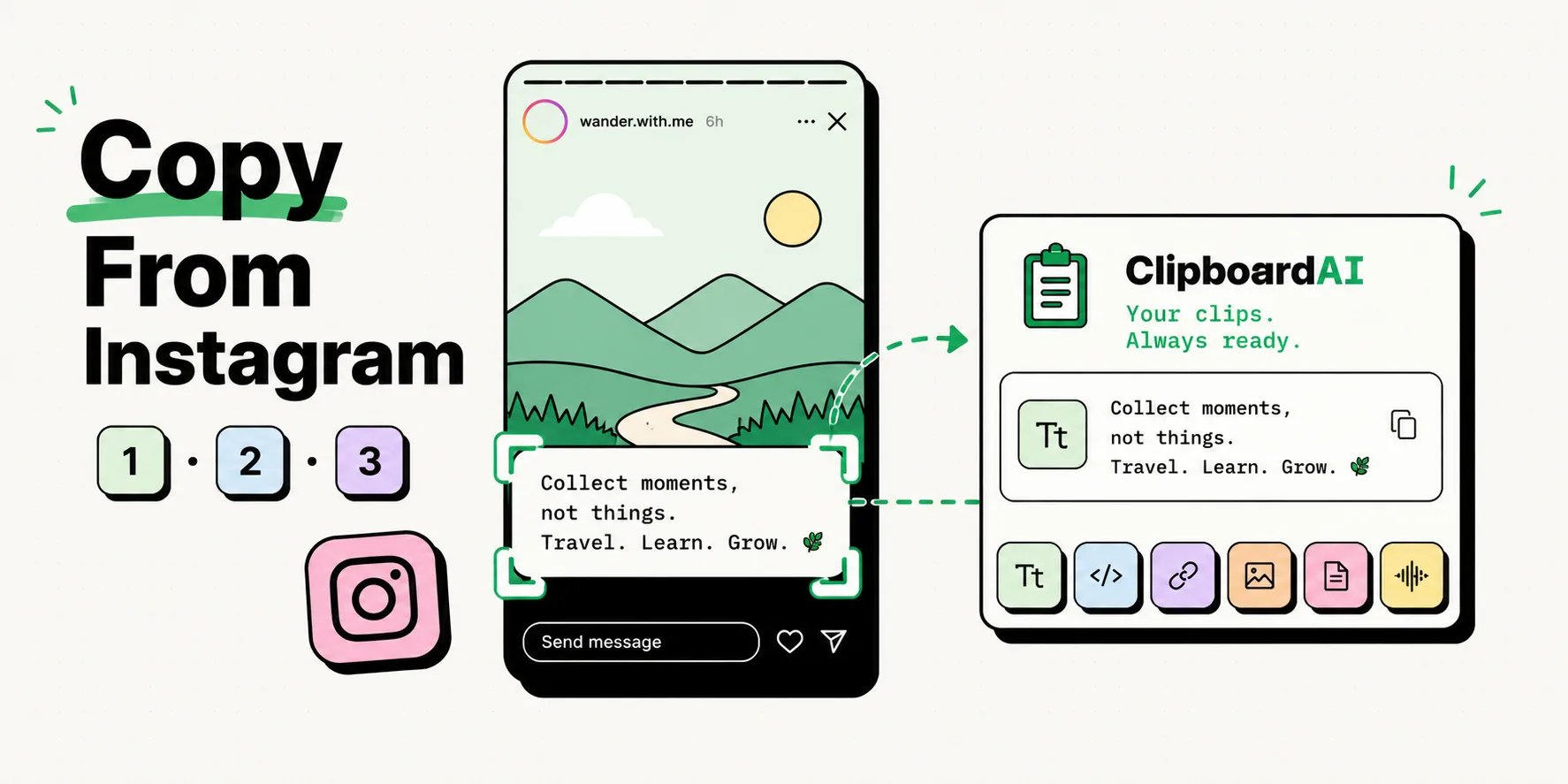
To copy text from Instagram Stories or Reels, take a screenshot of the post and open it in your Photos app. Tap the Live Text icon (a small bracketed page symbol) in the bottom-right corner, highlight the text you want, and select Copy. Alternatively, you can use ClipboardAI to automatically scan your screenshots and extract text, captions, or usernames with a single tap.
Instagram is built to keep you inside its app ecosystem. Because the platform prioritizes visual content, it restricts standard text selection inside the iOS app. You cannot double-tap a caption, a comment, a Reel overlay, or a Story sticker to copy it.
This design choice makes sharing quotes, links, addresses, or recipes incredibly frustrating. Fortunately, you can bypass this closed-sandbox design using on-device optical character recognition (OCR). Below are the three most effective ways to extract text from Instagram in 2026.
Method 1: The iOS Live Text Screenshot Workaround (Best for Stories & Overlays)
Apple's Live Text feature is built directly into iOS. It scans images in your Photos app for text characters and converts them into copyable, editable text fields.
Step-by-Step Instructions:
- Open Instagram and navigate to the Story or Reel containing the text.
- If it is a Story, tap and hold the screen with one finger. This hides the user interface elements (like the message bar and top profile bubble), giving you a clean view of the image.
- If it is a Reel, pause the video at the exact moment the text overlay is fully visible and sharp.
- Take a screenshot (press the Power Button and Volume Up Button simultaneously).
- Open the Photos app and select your screenshot.
- Tap the Live Text icon (the three lines inside brackets) in the bottom-right corner. The system will highlight all recognized text on the screen.
- Tap, hold, and drag your finger across the highlighted text to select it.
- Tap Copy from the bubble menu. You can now paste this text into any other app.
Method 2: The Mobile Safari web Version (Best for Captions and Comments)
While the native Instagram app blocks selection, the web version of Instagram viewed in Safari or Chrome does not. This is the cleanest way to copy long captions, hashtags, or comments without cluttering your camera roll with screenshots.
Step-by-Step Instructions:
- Locate the post in the Instagram app.
- Tap the Share button (the paper airplane icon) and select Copy Link.
- Open Safari or your preferred mobile browser and paste the link into the address bar.
- If prompted to open the app, decline and choose to continue in the browser.
- Log into your Instagram account if the post is private or blocked by a wall.
- Once the webpage loads, scroll down to the caption or comment section.
- Tap and hold on the text. Since you are using a web browser, standard text selection handles will appear.
- Select your text block and tap Copy.
Method 3: Using ClipboardAI's Screen Parse (Best for Batch Content Creation)
If you are a content creator, researcher, or social media manager, taking screenshots and manually highlighting them gets old quickly. ClipboardAI features a dedicated image parser that reads screenshots automatically and stores the text in your history feed.
Step-by-Step Instructions:
- Take a screenshot of the Instagram post.
- Open ClipboardAI.
- The app scans your latest photo block, extracts the text, and displays it in a clean text card.
- Tap the card to copy the text, or use the ClipboardAI keyboard to paste it directly into your writing space.
Instagram Text Extraction Methods Compared
Here is how the main workarounds compare in speed, convenience, and layout preservation:
| Method | Text Types Supported | Speed | Formatting Quality | Primary Limitation |
|---|---|---|---|---|
| Live Text Screenshot | Video overlays, stickers, captions | Fast | High (Standard plain text) | Creates duplicate screenshot files in Photos. |
| Mobile Web Browser | Captions, comments, descriptions | Moderate | Perfect (HTML/Text formats) | Does not work for temporary Stories or video overlays. |
| ClipboardAI OCR | All visible text, usernames, hashtags | Very Fast | High (Pre-parsed layout) | No permissions needed -- just screenshot and open the app, but you do have to open it to trigger the scan. |
Honest Caveats: Privacy, Layouts, and Quality Checks
Before you start extracting text from Instagram, be aware of the following system and platform limits:
1. The "Ghost Screenshotting" Myth
A common concern is whether Instagram alerts other users when you screenshot their Stories or Reels. Currently, Instagram does not notify users when you screenshot standard posts, Stories, or Reels. However, they do notify users if you screenshot disappearing media sent via direct message (DM) threads in Vanish Mode. Keep this in mind when capturing sensitive chats.
2. Stylized Font Corruption
Many users write Instagram bio text or Story overlays using third-party Unicode font generators (e.g., script, bold serif, gothic letters). When iOS Live Text or other OCR tools scan these characters, they often read them incorrectly or paste them as corrupted blank boxes. Standard alphanumeric characters scan perfectly, but fancy decorative text requires manual retyping.
3. Contrast and Background Blur Issues
If the text in an Instagram Story has low contrast (e.g., white text on a light yellow background) or sits on top of a highly detailed, noisy photo, the OCR engine will make spelling errors. Letters like "l" (lowercase L), "I" (capital i), and "1" (number one) are frequently misread in noisy backgrounds. Always review extracted text for accuracy.