
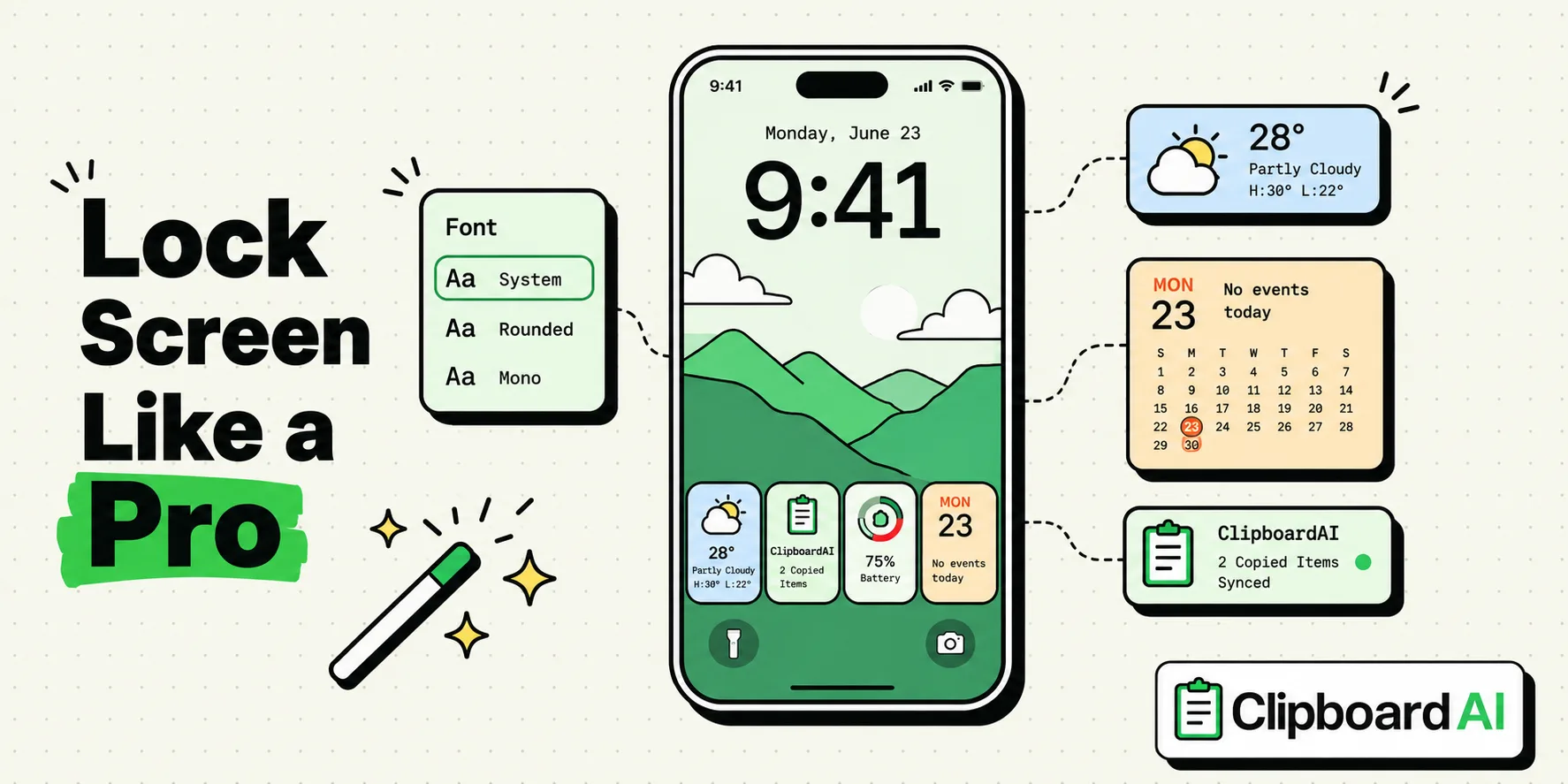
To customize your iPhone lock screen like a pro, tap and hold your locked screen, tap Customize, and choose either Lock Screen or Home Screen. From here, you can add custom widgets, change the clock font, and apply the depth effect to wallpapers. To maintain security, configure notification previews to show only when unlocked and prevent lock screen widgets from displaying private calendar or clipboard data to onlookers.
Since iOS 16, Apple has transformed the iPhone lock screen from a static gateway into a highly customizable dashboard. You can create multiple lock screen profiles, link them to specific Focus Modes, change typography, and layer widgets for a quick overview of your day.
However, customizing your lock screen is not just about aesthetics. The lock screen is your device's first line of defense. Adding widgets and notifications to your display without auditing your privacy settings exposes sensitive information to anyone who glances at your phone. Below, we discuss how to design an elegant lock screen while keeping your personal data secure.
1. Visual Customization: Fonts, Colors, and Wallpapers
Apple allows you to customize the typography and color styling of the time display, along with advanced wallpaper depth layers.
Setting Up the Clock and Wallpaper:
- Wake your iPhone and use Face ID or Touch ID to unlock it, but do not swipe up to the Home screen.
- Tap and hold on the lock screen until the wallpaper gallery view appears.
- Tap the "+" (Plus) icon to create a new layout, or tap Customize on your current wallpaper.
- Select your wallpaper source (Photos, People, Emoji, Weather, or Astronomy).
- Swipe left or right to change the color filters applied to your photo.
- Tap the clock display. A customization drawer will open, allowing you to select from different fonts, adjust font weight, and choose colors.
- To enable the Depth Effect (which places your clock slightly behind the subject of your photo), tap the three dots in the bottom-right corner and verify that Depth Effect is checked. Note: Depth Effect will not work if you add widgets below the clock, as iOS disables background layering to clear widget space.
2. Adding Lock Screen Widgets
You can place widgets both above and below the clock to display real-time information from your calendar, weather tracker, activity rings, or clipboard manager.
Step-by-Step:
- Enter customization mode by tapping and holding the lock screen and selecting Customize > Lock Screen.
- Tap the rectangular zone below the clock to open the widget library.
- Scroll through your installed apps, select an app, and tap or drag the widget to add it to the slot. You can fit up to four small widgets, two medium widgets, or a combination of both.
- Tap the thin text line above the clock to swap out the default date for a single-line widget, such as next calendar event, stock prices, or fitness goals.
- Tap Done in the top-right corner, then select Set as Wallpaper Pair.
3. Secure UI Audit: Guarding Your Lock Screen Data
A "pro" lock screen must protect your privacy. If your phone sits on an office desk or a restaurant table, default settings can leak verification codes, private messages, and work schedules.
Apply these four secure UI guidelines to lock down your screen:
Step 1: Hide Notification Previews
By default, iOS may display the full contents of text messages and emails on your lock screen. If you receive a two-factor authentication (2FA) one-time passcode (OTP), anyone looking at your phone can read it.
- The Fix: Go to Settings > Notifications > Show Previews. Set this to When Unlocked. Your notifications will still stack on your lock screen, but the message preview will read "1 Notification" or "Text Message" until Face ID scans your face.
Step 2: Restrict Lock Screen Widgets
Some widgets (like Calendar, Reminders, and Mail) display private meetings or task details. If you leave these widgets visible while locked, they bypass passcode protection.
- The Fix: Go to Settings > Face ID & Passcode. Scroll down to the Allow Access When Locked section. Toggle off Lock Screen Widgets. This forces the widgets to display blank placeholders or generic icons until your face unlocks the device.
Step 3: Disable Siri & Control Center Access
If Siri is active on the lock screen, unauthorized users can ask questions about your calendar, contacts, or trigger home automation scripts without entering a passcode.
- The Fix: In Settings > Face ID & Passcode, scroll to Allow Access When Locked and toggle off Siri, Control Center, and Today View and Search.
Step 4: Keep Clipboards Hidden
Do not place widgets that display your latest copied text directly on the lock screen. If you copied a password or credential, it could be exposed. Keep clipboard widgets restricted to your unlocked Home screen or keyboard expansion tool.
Lock Screen Customization & Security Checklist
Use this checklist to verify your lock screen setup balance:
| Customization Element | Aesthetic Benefit | Security Risk | Recommended Configuration |
|---|---|---|---|
| Wallpaper Depth Layering | Clean 3D visual overlap | None | Avoid photos containing geotagged home coordinates. |
| Notification Previews | Quick messaging review | Exposes SMS 2FA and OTP codes | Set to When Unlocked |
| Calendar/Mail Widgets | Quick schedule checks | Exposes meetings and tasks | Set to hide details on Lock Screen |
| Siri Access | Hands-free commands | Voice bypass attacks | Toggle off on the lock screen |
| Control Center | Quick settings access | Allows enabling Airplane Mode if stolen | Toggle off when device is locked |
Honest Caveats: Widget Performance Limits
Lock screen widgets run on Apple's WidgetKit framework. To save battery, iOS does not allow these widgets to update continuously in real-time.
Instead, the system allocates a "refresh budget" to each app. A weather widget or calendar widget might only update its layout every 15 to 30 minutes. If you rely on a widget for time-critical data - such as monitoring stock trades or tracking live delivery statuses - the widget display may lag behind the actual data. For real-time updates, look for apps that support Live Activities, which run on a separate background thread with higher system resource allocation.