
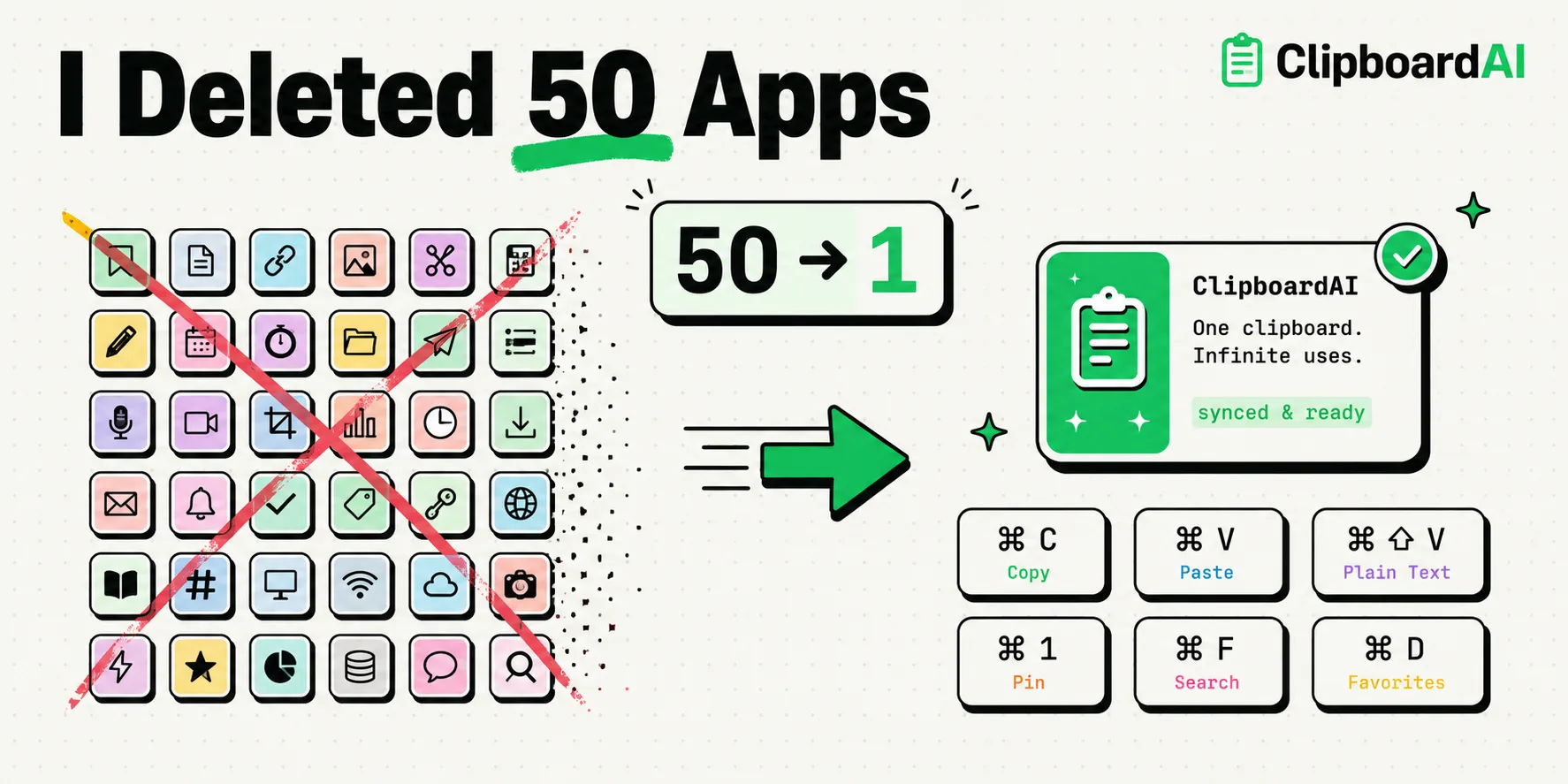
To declutter your digital workspace, you can replace dozens of single-purpose apps with custom clipboard shortcuts. By using iOS Text Replacement, Apple Shortcuts, and a smart clipboard manager like ClipboardAI, you can eliminate dedicated utilities for calculators, currency converters, text translators, template savers, and barcode scanners. Consolidating these micro-tasks into your pasteboard system frees up phone storage, reduces battery drain, and streamlines your daily workflows.
Modern smartphones encourage app bloat. For every minor digital task, there is a micro-app: an app to save links, an app to scan QR codes, an app to convert metric units, an app to translate phrases, and an app to store text templates.
Before long, your iPhone is cluttered with pages of folders, your battery life drains due to background tracking scripts, and you spend your day jumping between apps just to copy and paste bits of text.
By utilizing the power of your system clipboard, you can replace many of these single-purpose utilities with built-in iOS tools and a unified history manager. Here is how our team audited our device folders, consolidated our workflows, and cleared the clutter.
1. Replacing Canned Message & Template Apps
Many professionals install dedicated text-expander utilities to store templates for client emails, standard pitches, or customer responses. These apps require system keyboard access and often run expensive subscriptions.
- The Replacement: iOS Text Replacement and ClipboardAI Snippet Folders.
- How to set it up: Save your primary, multi-paragraph text templates in ClipboardAI's pinned collection or create native triggers under Settings > General > Keyboard > Text Replacement. By assigning short shortcuts (e.g.
thx1for a formal thank-you note), you can insert templates in any application without opening another tool.
2. Replacing Unit, Currency, and Calculator Apps
It is common to download ad-heavy conversion utilities for calculating tips, converting miles to kilometers, or checking currency rates when traveling.
- The Replacement: iOS Spotlight Search and Safari Clipboard Actions.
- How to set it up: You do not need an app to convert values. Simply swipe down on your home screen to open Spotlight Search, type the conversion directly (e.g.,
150 USD to EURor80 miles to km), and read the conversion result immediately. You can tap and hold the search result to copy it to your clipboard.
3. Replacing "Read Later" & Link Saver Apps
Apps designed to save links or articles often track your web usage and send frequent notification pings to pull you back into their feeds.
- The Replacement: A dedicated "Inbox" or "Read Later" folder inside a secure clipboard history manager.
- How to set it up: When browsing Safari or reading emails, simply tap Copy on any link you want to save. If you use ClipboardAI, the app captures the link in your background history. You can assign a custom tag (like
#ReadLater) or move the clip to a folder. This lets you access your saved resources in a single flat list without installing a separate reader utility.
4. Replacing OCR Text Scanners & QR Apps
Dedicated scanner utilities often charge weekly subscription rates for basic text recognition (OCR) and document scanning.
- The Replacement: iOS Camera Live Text and native Files app scan engine.
- How to set it up: Point your iPhone camera at any text, tap the Live Text button in the lower-right corner of the viewfinder, and copy it directly to your clipboard. For QR codes, the native Camera app handles parsing out-of-the-box. To scan documents, open the native Files app, tap the three dots in the top-right corner, and select Scan Documents. This generates a clean, cropped PDF without watermarks.
The 50-App Deletion and Consolidation Matrix
The table below shows how we consolidated our iPhone utility folders by using clipboard actions:
| Deleted App Type | Native/System Replacement | Setup Action | Performance & Privacy Benefit |
|---|---|---|---|
| Canned Message Savers | iOS Text Replacement | Save text strings in Keyboard Settings | Eliminates third-party keyboard background analytics. |
| Link Savers (Pocket/Instapaper) | ClipboardAI Saved Folders | Copy links to local clipboard history | Strips web tracking pixels and read-status alerts. |
| Metric & Currency Converters | iOS Spotlight Search | Swipe down and type formula directly | Avoids subscription-locked basic utilities. |
| Document Scanners (OCR) | Camera Viewfinder + Files App | Use Camera Live Text and Files scanning | Removes ad banners and PDF watermark overlays. |
| Temporary Scratchpads | ClipboardAI Local History Feed | Copy ideas; edit later in a single list | Clears messy note app collections. |
How to Build a "Swiss Army Knife" Clipboard Shortcut
You can use the native Shortcuts app to create custom workflows that process whatever text is currently on your clipboard. Here is how to build a translation shortcut that replaces standalone translator apps:
- Open the Shortcuts app on your iPhone.
- Tap the "+" (Plus) icon to create a new shortcut.
- Search for the action Get Clipboard and add it to the workflow.
- Add the action Translate Text. It will automatically link to the clipboard input, translating it from detected languages to your local language.
- Add the action Copy to Clipboard (linking it to the translated text output).
- Add the action Show Result or send a system notification.
- Save the shortcut as "Translate Clip." You can add this shortcut as a widget to your home screen or link it to a double-tap gesture on the back of your phone (Settings > Accessibility > Touch > Back Tap).
Honest Caveats: When You Still Need Apps
While consolidating your phone into clipboard workflows saves space, clipboard systems have clear limitations:
- No Complex Databases: A clipboard history manager is a utility for active workspace tasks. It is not a database. Do not use it to store persistent, complex data structures, spreadsheets, or long-term archives. Use dedicated database tools for records.
- Zero Formatting Preservation on Plain Text: If you copy rich-text documents (containing font sizes, tables, or bold text) and process them through simple clipboard actions or native text replacements, the styling is stripped, leaving only plain text behind.
- Loss of History: If your device database gets corrupted during an iOS update and you do not sync your data, you risk losing all your temporary folders. Keep vital records backed up.