
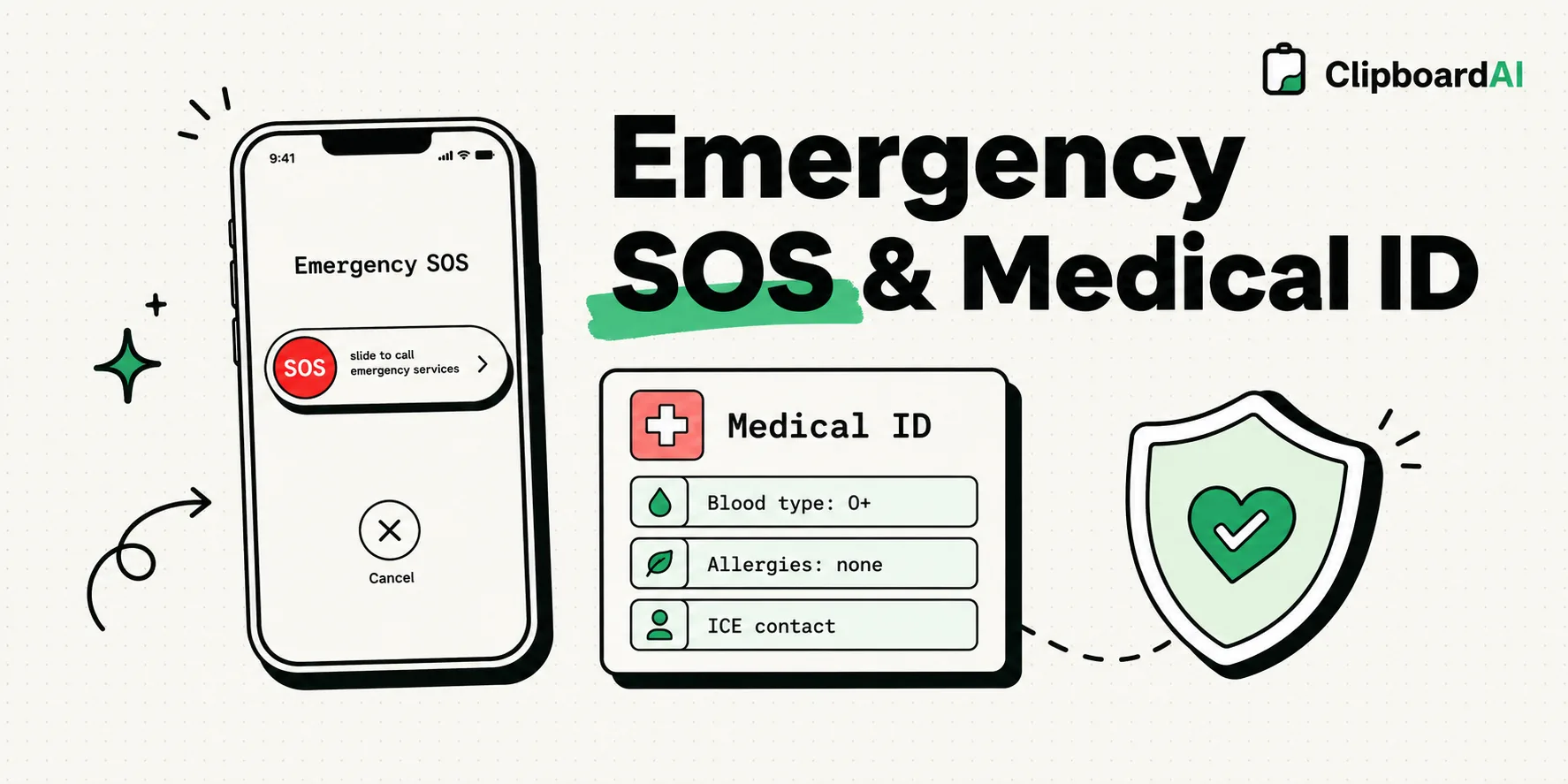
To configure Emergency SOS and Medical ID on your iPhone, open the Health app, tap your profile picture, select Medical ID, and choose Edit. Fill in critical medical info and emergency contacts, and toggle on Show When Locked so first responders can access this data from your lock screen. You can trigger an Emergency SOS call by holding the side button and either volume button until the countdown begins.
We carry our phones everywhere, making them valuable safety tools. In an emergency, your iPhone can contact emergency services, share your real-time GPS coordinates with family, and display life-saving medical details to first responders - even when your screen is locked behind a passcode.
However, many users leave these features unconfigured, or turn on settings that trigger accidental 911 calls. Below, we discuss how to set up your Medical ID securely, configure Emergency SOS trigger gestures, and balance lock screen accessibility with personal privacy.
1. Setting Up Your Medical ID for First Responders
Medical ID provides critical health details to emergency personnel - such as blood type, severe allergies, active medications, and emergency contact numbers.
Step-by-Step Instructions:
- Open the Health app on your iPhone.
- Tap your profile picture or initials in the top-right corner.
- Tap Medical ID, then tap Edit in the top-right corner.
- Add your name, date of birth, medical conditions, notes, allergies, and medications. Be concise and precise.
- Under Emergency Contacts, tap add emergency contact. Select a contact from your address book, define their relationship, and add their phone number. When you trigger an Emergency SOS, your iPhone will text these contacts with your coordinates.
- Enable Lock Screen Access: Scroll to the bottom and toggle on Show When Locked. This allows anyone to read your medical details in an emergency by swiping up from the bottom of your lock screen, tapping Emergency, and selecting Medical ID.
- Tap Done to save.
2. Configuring Emergency SOS Gestures
iOS provides two physical button configurations to dial emergency services (like 911 or 112). You should select the trigger method that fits your environment to avoid accidental dials while ensuring you can call for help discreetly.
Step-by-Step Instructions:
- Open your iPhone Settings and scroll down to Emergency SOS.
- Call with Hold and Release: Toggle this on. This allows you to call emergency services by pressing and holding the side power button and either volume button. A countdown timer will appear on the screen, and a loud siren will play. Continuing to hold the buttons down past the countdown triggers the call.
- Call with 5 Button Presses: Toggle this on. This allows you to call for help by rapidly clicking the side power button five times. This trigger is useful if you need to call services discreetly from your pocket.
- Call Quietly: Toggle this on if you want to silence the warning siren and flash alerts during the SOS countdown. This prevents drawing attention to yourself in dangerous situations.
3. Emergency SOS via Satellite (iPhone 14 and Newer)
If you are hiking or traveling in an area with no cellular coverage or Wi-Fi, your iPhone can connect directly to satellites to text emergency services.
- How it works: When you dial 911 in a dead zone, your iPhone will display an option to connect to a satellite. The system will guide you through a series of quick questions to assess your status, then instruct you where to point your phone to lock onto a satellite orbit.
- Testing the feature: Do not dial 911 to test this. Go to Settings > Emergency SOS, scroll to the bottom, and tap Try Demo. This launches a simulation that walks you through connecting to a satellite without calling emergency dispatchers.
Emergency Configuration & Privacy Checklist
Verify your settings using the table below to balance safety access with lock screen privacy:
| Emergency Setting | Path | Safety Benefit | Privacy Consideration | Recommended Action |
|---|---|---|---|---|
| Show When Locked | Health > Medical ID > Edit | Allows medics to view allergies and blood type | Exposes listed data to anyone handling your phone | Enable; list only vital medical facts |
| Call with 5 Presses | Settings > Emergency SOS | Allows pocket calls without looking at screen | High rate of accidental triggers | Enable if you travel alone; disable if prone to pocket dials |
| Call with Hold | Settings > Emergency SOS | Intentional trigger via dual-button squeeze | Low risk of accidental dials | Enable as your primary trigger method |
| Call Quietly | Settings > Emergency SOS | Silences countdown siren during emergencies | No audio confirmation that call is starting | Enable if personal safety requires silent alerts |
| Emergency Contacts | Health > Medical ID > Edit | Sends location coordinates to family | Exposes contact names/numbers on lock screen | Add trusted immediate family members |
Honest Caveats: Security Controls and Medical Privacy
Setting up emergency features involves trade-offs between safety and privacy:
1. The Face ID Lockdown Feature
When you trigger the Emergency SOS countdown screen (by holding the power and volume buttons), your iPhone immediately disables Face ID and Touch ID.
The device cannot be unlocked again without typing your passcode. This is a deliberate security feature designed to prevent someone (such as an assailant or law enforcement) from forcing you to unlock your phone by holding it up to your face.
2. Medical ID Data Exposure
Any details you write in your Medical ID can be read by anyone who gets hold of your phone. Do not store sensitive details, home address directories, office access codes, or private notes in your Medical ID file. Keep the information focused strictly on what a paramedic needs to know in an emergency.
3. First Responder Awareness
While iOS Medical ID is a standard feature, not all first responders are trained to check smartphone screens, especially in high-stress medical emergencies. A digital Medical ID is a valuable backup, but it does not replace a physical medical alert bracelet if you have a life-threatening condition like severe diabetes or penicillin allergies.