
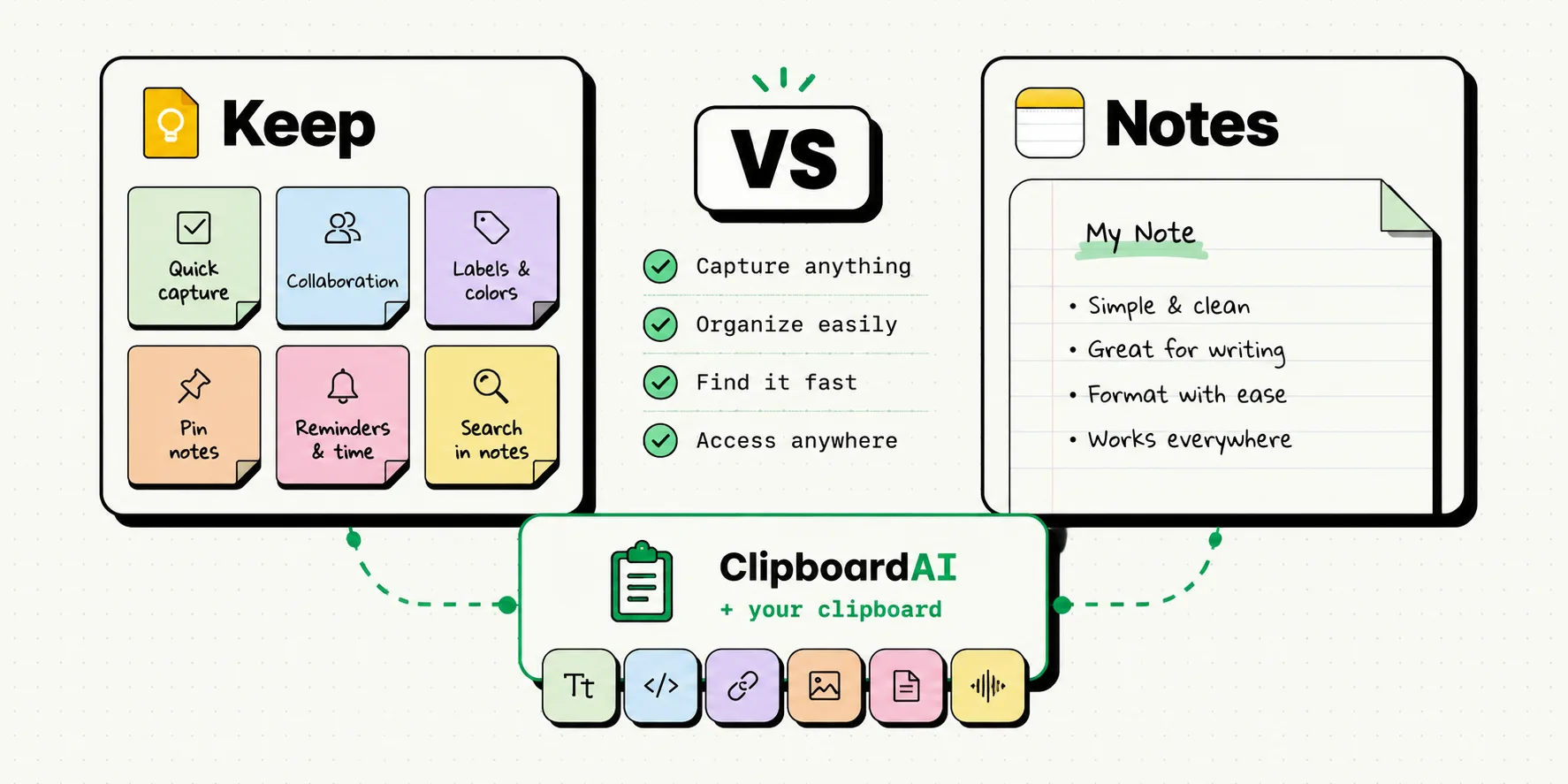
For iPhone users choosing between Google Keep and Apple Notes, the decision comes down to cross-platform access versus native iOS features: Apple Notes is the superior tool for document scanning, handwriting support, nested folders, and security. Google Keep is best if you need to access your notes on Windows, Android, or a web browser, and prefer a color-coded, sticky-note layout. Choose Apple Notes for a rich, system-integrated experience, or Google Keep for simple, cross-platform checklists.
The Sticky Note Wall vs. The Digital Notebook
Note-taking apps generally fall into two categories: quick capture scratchpads or structured digital notebooks.
Google Keep belongs in the scratchpad category. It organizes notes as virtual sticky notes pinned to a board. You can color-code your cards, drag them around, and add simple tags. It is designed for capturing quick thoughts, shopping lists, and reminders that you will archive or delete within a few days. It does not try to host multi-page documents; it is a card wall for your brain.
Apple Notes has evolved into a full-featured digital notebook. While you can use it for quick lists, it supports advanced nesting, folders, smart search criteria, tables, and rich text formatting. It is designed to hold your long-term research, scan receipts, annotate PDFs, and store encrypted documents. It is a structured database that handles complex layouts natively.
Keep vs. Apple Notes Feature Matrix
This comparison table highlights the core feature differences between Google's sticky notes and Apple's built-in notebook application.
| Feature Category | Google Keep | Apple Notes |
|---|---|---|
| Primary Platforms | Android, iOS, Web | macOS, iOS, iPadOS |
| Windows / Web Access | High (Dedicated web client) | Low (iCloud.com web browser portal) |
| Note Organization | Labels and Color Cards | Folders, Subfolders, Smart Tags |
| Text Formatting | None (Plain text only) | Rich Text (Headers, bold, lists, tables) |
| Document Scanning | Photo capture only | Native PDF document scanner |
| Individual Note Security | No individual password locks | Yes (Biometric and passcode locking) |
| Handwriting & Markup | Basic drawing canvas | Deep Apple Pencil & markup toolset |
| iCloud Sync Speed | Fast (Google Sync) | Fast (iCloud) |
Deep Dive: Where Apple Notes Wins
1. Document Scanning and PDF Management
On iPhone, Apple Notes features a native document scanner that is arguably better than most standalone scanning apps.
- Apple Notes: You can tap the camera icon in a note, select "Scan Documents," and point your iPhone at a receipt. The app automatically crops, aligns, and color-corrects the document, embedding it as a searchable PDF inside your note. You can then write notes directly on top of the PDF or use markup tools to sign it.
- Google Keep: Only allows you to snap a photo and attach it to a card. It cannot merge multiple pages into a single PDF, crop document edges automatically, or support native signatures.
2. Layout Formatting and Rich Text
If you need to organize information with headings, blockquotes, or tables, Google Keep falls short.
- Apple Notes: Supports standard text formatting (Title, Heading, Subheading, Monospaced, Bulleted Lists, Tables). This layout control makes it easy to organize meeting notes, recipes, or project plans.
- Google Keep: Restricts you to plain text. You cannot make a specific word bold or italic, insert a table, or change font weights. Checklists are an all-or-nothing toggle for the entire note.
3. Native Security and Encryption
For storing sensitive personal information like Wi-Fi codes, lease details, or financial accounts, security is critical.
- Apple Notes: Allows you to lock individual notes using your iPhone's passcode or FaceID. These notes are protected by end-to-end encryption, ensuring that even if someone unlocks your phone, they cannot read your secured notes.
- Google Keep: Lacks a passcode lock feature. If someone has access to your unlocked iPhone, they can open the Google Keep app and read every card instantly.
Deep Dive: Where Google Keep Wins
1. Superior Cross-Platform Sync
The major drawback of Apple Notes is its lock-in to the Apple ecosystem.
- Google Keep: Works seamlessly across iOS, Android, macOS, Windows, and Linux via a dedicated web app. If you use an iPhone but work on a Windows computer, you can open Google Keep in Chrome and edit your notes in real-time.
- Apple Notes: Only has a dedicated app on Apple hardware. To access your notes on Windows, you must log in to iCloud.com through a web browser, which is slow and lacks many of the formatting features of the native iOS app.
2. Time and Location-Based Reminders
Google Keep has a robust reminder engine integrated with Google Calendar.
- Google Keep: You can set a note to trigger a reminder when you arrive at a specific geographic location (e.g., reminding you of a shopping list when your iPhone detects you have arrived at the grocery store).
- Apple Notes: Does not support location-based alerts inside the app. You must export the note or task to Apple Reminders to set up location triggers.
The Workflow Bridge: How a Clipboard Manager Connects Both Apps
Whether you use Google Keep or Apple Notes, you will frequently find yourself copying information between your notes, web browser, and messaging apps.
[Web Browser / Email]
       │ (Copy Snippet)
       ▼
[ClipboardAI SQLite Database] ──► Pinned Templates / Snippet History
       │ (Fast Injection)
       ▼
[Apple Notes (Folders) OR Google Keep (Sticky Cards)]
Instead of constantly switching between Google Keep and Apple Notes to copy links, addresses, or template blocks, you can run ClipboardAI in the background. ClipboardAI acts as a temporary scratchpad database, capturing everything you copy. When you are writing a structured note in Apple Notes or sorting checklists in Google Keep, you can switch to the ClipboardAI custom keyboard to paste your collected snippets instantly, without leaving your active editor.
Honest Caveats and Sync Limitations
- Apple Notes Web Lag: Syncing Apple Notes to iCloud is fast between Apple devices. However, the web version of iCloud Notes is notoriously slow, frequently requiring you to re-authenticate.
- Google Keep Document Limits: Because Keep is optimized for lightweight cards, large attachments or heavy photo logs can cause the app to stutter on startup. It is not designed to store massive photo archives.
Final Verdict: Which Note App Should You Choose?
- Choose Apple Notes if: You own multiple Apple devices (Mac, iPad, iPhone), need a powerful document scanner, use an Apple Pencil, want to lock sensitive notes with FaceID, and write long-form, formatted documents.
- Choose Google Keep if: You work across multiple operating systems (like an iPhone paired with a Windows PC or Linux desktop), prefer a fast visual card layout, and only need to store short lists, quick memos, and reminders.
Frequently Asked Questions
Can I export my notes from Google Keep to Apple Notes?
Yes, but you must do it manually. You can share a Google Keep note as a Google Doc, open the Doc on your computer, and copy-paste the text into Apple Notes. Alternatively, you can use the Share button on iOS to send a Keep card to the Apple Notes application directly.
Is Apple Notes completely private?
Yes, if you use the iCloud end-to-end encryption feature. Standard notes synced to iCloud are encrypted in transit and on Apple's servers, but locked notes use local hardware keys, ensuring Apple cannot read them even if requested.
Does Google Keep support folders?
No. Google Keep relies on "Labels" (tags) and color-coding for organization. You can search by label or card color, but you cannot nest notes inside folders.