
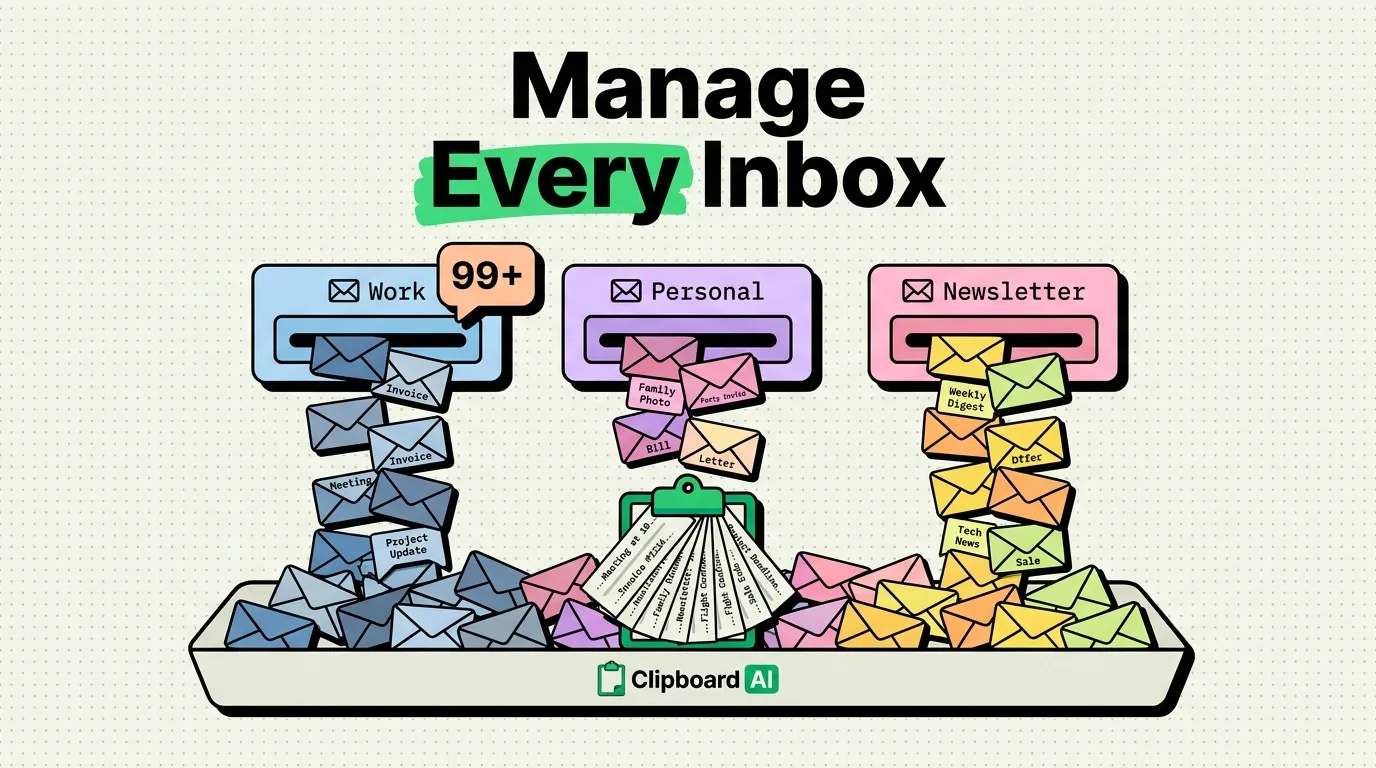
The best apps for managing multiple email accounts on iPhone are Outlook (for enterprise-grade organization), Spark (for AI-powered sorting and unified inboxes), and Apple Mail (for lightweight, native privacy). If you manage more than three email accounts, combining a consolidated email client with ClipboardAI enables you to copy and paste templates, links, and replies across accounts instantly.
Managing multiple email accounts is a recipe for digital chaos. You log in to a personal Gmail, a corporate Exchange account, a freelance workspace, and a junk newsletter address. Toggling between different applications to find single messages leads to missed updates, communication delays, and inbox fatigue. Consolidating your accounts into a unified email client restores order.
Multiple Email Clients Feature Matrix
Here is how the top email apps for iOS compare for multi-account management:
| App Name | Unified Inbox Quality | Pricing Model | Offline Capability | Security Focus | Best Suited For |
|---|---|---|---|---|---|
| Microsoft Outlook | High (Separates Focused / Other inbox streams). | Free (Basic) / Office 365 | Excellent (Stores message drafts offline). | Enterprise (Supports strict corporate policies). | Professional users with corporate Exchange accounts. |
| Spark Mail | Excellent (AI categorizes newsletters, notifications). | Subscription ($59.99/year) | Medium (Requires cloud connection for smart tools). | Moderate (Processes smart sorting on Spark servers). | Users who want AI filtering and group email tools. |
| Apple Mail | Moderate (Standard chronological aggregate). | Free (Native) | Excellent (Fully local cache). | High (On-device processing; Mail Privacy Protection). | Privacy-first users who want a simple default client. |
| ProtonMail | Low (Requires separate accounts/toggles). | Free (Basic) / Premium tiers | Moderate (Encrypted database access). | Ultra (End-to-end zero-knowledge encryption). | Users handling highly confidential or sensitive logs. |
In-Depth Reviews of the Top 4 iOS Email Clients
1. Microsoft Outlook (The Professional Standard)
Outlook is the most robust option if you manage a corporate Exchange email alongside personal IMAP accounts.
- The Unified Setup: Its "Focused Inbox" scans all connected accounts, showing priority emails in one stream while filtering newsletters and shipping updates into an "Other" folder.
- Why it works for power users: The integration with calendar invites and contacts means you can copy details and schedule meetings without leaving your inbox.
- Pricing: Genuinely free for basic email; requires a Microsoft 365 subscription to remove ads and unlock advanced security features.
2. Spark Mail (The AI-Powered Inbox)
Spark is designed for individuals who struggle with high email volumes.
- The Unified Setup: Its "Smart Inbox" automatically groups incoming mail from all accounts into three categories: Personal, Notifications, and Newsletters. You can archive an entire newsletter category with a single swipe.
- Smart Features: Includes built-in AI writing assistants and email snooze rules.
- Pricing: Expensive. While there is a basic free version, the priority sorting and AI features require a yearly subscription.
3. Apple Mail (The Privacy-First Native Client)
If you want a lightweight client that does not route your messages through third-party servers, stick to Apple's default app.
- The Unified Setup: Features an "All Inboxes" aggregate folder. It is a simple, chronological list of every email you receive.
- Privacy Features: Includes Apple's Mail Privacy Protection, which hides your IP address and blocks tracking pixels that let senders know when you open their email.
- Pricing: Completely free with no ads.
4. ProtonMail (Secure Sandbox)
ProtonMail is the benchmark for encrypted communication.
- The Unified Setup: Because ProtonMail prioritizes zero-knowledge encryption, you cannot easily combine it with standard IMAP accounts inside other clients. You must use the Proton app.
- Why it matters: All messages between Proton users are encrypted automatically. If you deal with legal, financial, or private credentials, this is the safest endpoint.
The Pro Workflow: Cross-Account Template Management
When managing multiple accounts, you will frequently find yourself writing similar responses across different addresses (e.g., sending payment details from your business email, or scheduling meetings from your personal account).
Instead of saving drafts in each app, set up a centralized snippet library:
- Identify your most frequent replies: payment terms, meeting templates, or portfolio links.
- Save these blocks of text in your ClipboardAI dashboard.
- Open whichever email app you need (Outlook, Spark, or Mail).
- Tap the text entry field, swipe to the ClipboardAI custom keyboard, and tap your template.
- Your canned response is injected instantly, complete with custom placeholders, regardless of which account inbox you are replying from.
Honest Caveats & System Limitations
Before consolidating your emails, keep these technical limitations in mind:
- The Third-Party Server Intermediary: Many smart email clients (like Spark) route your credentials and messages through their cloud servers to enable search indexing, push notifications, and AI sorting. If you work in a regulated industry (like healthcare or finance) with strict compliance rules, verify that your client meets security policies before adding corporate accounts.
- iCloud Sync Latency: Apple Mail relies on iCloud sync to update folders. If you delete a message on your iPhone, sync latency can occasionally leave the message marked as unread on your Mac for several minutes.
- Battery Consumption: Adding multiple email accounts and setting them all to "Push" (delivering messages instantly) will drain your battery significantly faster than setting them to "Fetch" updates hourly.
Where ClipboardAI Fits
ClipboardAI acts as the utility bridge between your email accounts. Rather than rewriting standard pitches, payment links, and answers on your virtual keyboard, you can keep a library of templates pinned in ClipboardAI. It allows you to move contact details, links, and meeting locations across inboxes in seconds, reducing administrative work on your touchscreen.
Frequently Asked Questions
Can I add an Exchange account to Apple Mail?
Yes. Apple Mail supports Microsoft Exchange, Google, Yahoo, Outlook, and custom IMAP/POP3 accounts. Go to Settings > Mail > Accounts > Add Account to set them up.
How do I stop email alerts from draining my battery?
Go to Settings > Mail > Accounts > Fetch New Data. Toggle off Push, and set Fetch to Every 30 Minutes or Hourly. This restricts your phone from constantly pinging mail servers.
What is the difference between "Archive" and "Delete"?
Archiving removes the email from your inbox but stores it in your "All Mail" archive folder for future search retrieval. Deleting moves the message to the trash folder, where it is permanently wiped after 30 days.