
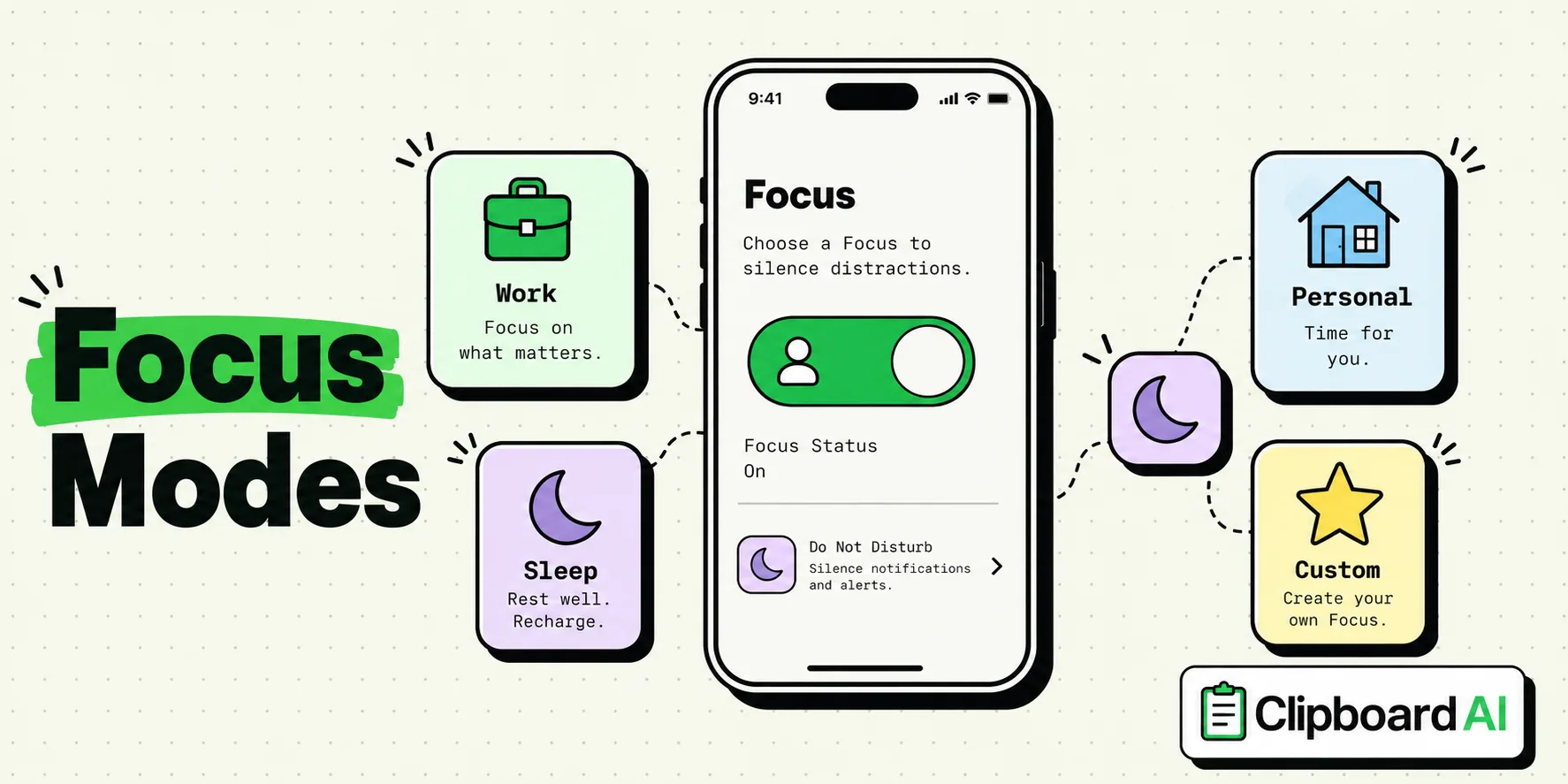
Setting up iPhone Focus Modes allows you to dynamically filter notifications, customize home screens, and silence distracting apps based on your activity, whether working, sleeping, or personal time. To configure a Focus Mode, go to Settings > Focus, tap the + icon to select a preset or create a custom profile, and select which people and apps can notify you. Combining these modes with a silent capture tool like ClipboardAI lets you save ideas for later without breaking concentration.
The Constant Interrupt Cycle
We check our phones dozens of times a day, often prompted by a buzz or a banner that did not require our immediate attention. Standard notification settings treat all alerts equally - a work email, a group chat meme, and a discount coupon get the same screen space and sound. This constant interruptions fragment our focus.
Apple introduced Focus Modes to solve this specific problem. Rather than a simple "Do Not Disturb" switch, modern iOS allows you to build context-aware profiles. You can change how your phone behaves based on your location, the time of day, or the app you currently have open.
Designing Your Focus Profile Matrix
To get the most out of Focus Modes, you should build distinct environments for the primary activities of your week. A generic setup will not work; you need specific boundaries.
Focus Mode Configuration Matrix
We recommend setting up three core profiles alongside the default Do Not Disturb mode. Here is how to configure them for maximum efficiency:
| Focus Profile | Allowed Contacts | Allowed Apps | Home Screen Customization | Lock Screen Behavior | Trigger |
|---|---|---|---|---|---|
| Work Focus | Co-workers, Clients, Family (Emergency) | Slack, Calendar, ClipboardAI, Mail | Hide social/games; Show work widgets | Dim Lock Screen; Hide notification badges | Schedule: 9 AM - 5 PM (or office location) |
| Personal Time | Friends, Family, Inner Circle | Messages, Photos, Maps, Spotify | Hide work email/Slack; Show personal apps | Show notifications silently in history | Trigger when leaving work location |
| Sleep / Wind-Down | Family (Emergency Only) | None | Blank home screen (widgets only) | Darkened screen; No alerts except calls | Smart schedule (e.g., 10:30 PM - 7:00 AM) |
| Deep Work / Solo | None | Word processors, Figma, IDEs | Only focus utility apps | Block all alerts; Silence calls completely | Manual toggle via Control Center |
5 Steps to Set Up a Custom Focus Mode on iPhone
If you have never configured a Focus Mode, the settings can feel buried. Follow these steps to build your first work-focused screen:
- Create the Profile: Open Settings > Focus, tap the + button in the top right corner, and select Work or Custom.
- Choose Allowed People: Tap People. Select Allow Notifications From and add your emergency contacts, family, and direct work managers. Silence everyone else.
- Choose Allowed Apps: Tap Apps. Select Allow Notifications From and select only tools essential to your current task (such as Calendar, Slack, or project managers).
- Link a Custom Home Screen: Create a dedicated home screen page containing only your work apps. In the Focus menu, tap Choose under the Home Screen icon, and select that specific page while hiding the others.
- Add a Focus Filter: Scroll to the bottom and tap Add Filter. Choose Mail or Messages to filter out personal email accounts or group chats while this focus is active.
Capturing Thoughts Silently: How ClipboardAI Fits
One of the biggest challenges of maintaining a Focus Mode is the temptation to switch apps to jot down an idea, save a link, or record a number. If you are writing a report and see a reference link you need, opening your notes app to paste it often exposes you to other distractions. You see an unread note, get sidetracked, and your focus block is ruined.
ClipboardAI acts as a silent inbox for these moments. When you are in a Work Focus, you do not need to open a document, a notes page, or a workspace dashboard to organize your research. You simply copy the text, URL, or data.
ClipboardAI saves the snippet in the background without sending a notification or requiring you to switch screens. You stay in your primary app, continue your work, and retrieve your copied history later when you are ready to review and organize your tasks.
Focus Mode Caveats and Limitations
While Focus Modes are highly effective, they have several limitations that you should keep in mind:
- No Manual Block for App Openings: Focus Modes block notifications, but they do not physically lock you out of apps. If you have a habit of mindlessly opening Instagram or Safari out of muscle memory, Focus Modes will not prevent it. You must pair them with Screen Time limits if you need strict app blocking.
- Focus Sync Issues: If you use multiple Apple devices (an iPhone, an iPad, and a Mac), Focus Modes sync via iCloud. However, a weak internet connection can cause sync delays, leaving one device buzzing while the other is silenced.
- App Developer Support: Focus Filters (which let apps show different content based on the active Focus) require developers to explicitly write support for them. If your third-party task manager does not support Focus Filters, you cannot filter out personal tasks from your work list.
Frequently Asked Questions
Can I set a Focus Mode to turn on automatically?
Yes. You can schedule Focus Modes to trigger at specific times, when you arrive at a location (like your office), or when you open a particular app (such as Kindle or a text editor).
Do silenced callers know that my phone is in Focus Mode?
If you enable "Focus Status" in settings, iOS will show a small notice in the Messages app to other users, stating that you have notifications silenced. For phone calls, callers will be routed directly to voicemail unless they are on your allowed list.
Will alarms still sound when Focus Mode is active?
Yes. Built-in iOS alarms and timers will always sound, regardless of the active Focus Mode, ensuring you do not sleep through your wake-up times.
What is the difference between Do Not Disturb and a Custom Focus?
Do Not Disturb is a global filter that silences all incoming alerts. A Custom Focus allows you to target specific contexts, enabling you to block work notifications during personal hours while letting family calls go through.