
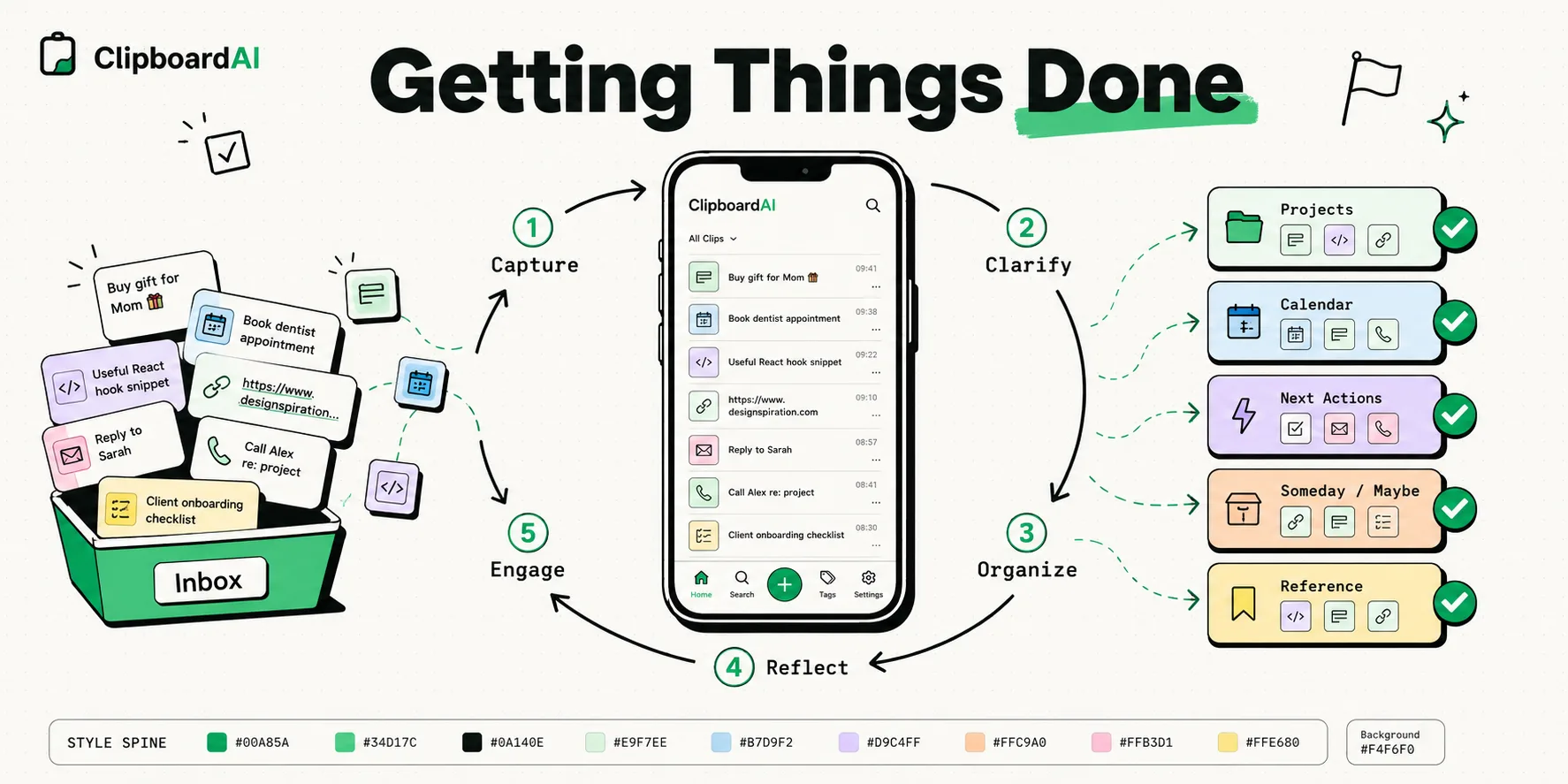
To implement the Getting Things Done (GTD) method on your iPhone, you must map the five core pillars - Capture, Clarify, Organize, Reflect, and Engage - to iOS apps like Apple Reminders, Notion, and a clipboard manager like ClipboardAI. ClipboardAI serves as the ultimate low-friction "Inbox" during the Capture phase, silently saving copied thoughts, tasks, and reference links in the background so you can process them later without derailing your current task or interrupting your focus.
The Capture Bottleneck on Mobile
The core premise of David Allen’s Getting Things Done (GTD) framework is simple: your brain is for having ideas, not holding them. To achieve "mind like water," you must extract every commitment, task, and reference point from your head and store it in a trusted external system.
On a desktop computer, this is straightforward. You have a full keyboard and multiple open screens.
On an iPhone, capturing is highly inefficient. If you are reading an email and see a task, you have to select the text, copy it, close Mail, open your task manager, create a new item, paste the text, categorize it, and switch back to Mail. Because this loop takes twenty seconds and interrupts your train of thought, you end up telling yourself, "I will remember this later." You rarely do.
Mapping GTD to the iOS App Ecosystem
To build a functioning GTD system on iOS, you must assign a specific tool to each of the five workflow steps. Do not try to use a single application for everything; specialized tools are more effective.
GTD Mobile System Mapping Table
Our team designed this configuration to maximize capture speed and minimize cognitive friction:
| GTD Phase | Action | Primary iOS Tool | Role / Configuration | Capture Friction |
|---|---|---|---|---|
| 1. Capture | Gather raw ideas, tasks, URLs, and snippets. | ClipboardAI | Silently records all copied text, links, and data in the background. | Zero (Copy gesture only) |
| 2. Clarify | Decide if an item is actionable and what the next action is. | Apple Notes | A scratchpad for processing raw clipboard snippets into clean tasks. | Low |
| 3. Organize | File tasks into lists: Projects, Next Actions, Waiting For. | Apple Reminders | Set up tags like #work, #errands, and #waiting for context filtering. |
Medium |
| 4. Reflect | Review lists to keep the system clean and current. | Notion | A central dashboard for monthly project roadmaps and reviews. | High (Requires quiet focus) |
| 5. Engage | Execute tasks based on current context, time, and energy. | iOS Focus Screens | Filters out notifications so you can work on Reminders lists. | Low |
The Weekly GTD Review Checklist for iPhone Users
A GTD system is only as good as its maintenance. Run this checklist once a week (such as Friday afternoon) to clean up your digital inbox:
- Empty the Clipboard Inbox: Open ClipboardAI. Review the items you copied over the past week. For each snippet, decide: Is it a task (move to Reminders), reference material (move to Apple Notes/Notion), or junk (swipe to delete)?
- Clear the Apple Reminders Inbox: Process any tasks that were quick-captured into your default Reminders inbox. Assign a context tag (like
@officeor@computer) or move them to a specific project list. - Scan Physical Notes and Receipts: Open Apple Notes, tap the camera icon, select Scan Documents, and digitize any paper receipts or business cards you gathered. Shred the originals.
- Review "Waiting For" and Follow Up: Check your
@waitinglist in Reminders. Send quick follow-up messages for projects or answers that are blocking your progress. - Review Next Action Lists: Ensure every active project has at least one concrete "Next Action" scheduled for the coming week.
Phase 1 in Action: High-Speed Capture with ClipboardAI
The "Capture" phase is where most mobile GTD systems fail. If capturing a task requires more than three taps, you will stop doing it.
By using ClipboardAI, you bypass the capture friction. When you run research in Safari, message clients on Slack, or review invoices in Safari, you simply copy the text block, email, or URL. You do not need to open another app.
  [Active App: Mail / Safari / Messages] ──(Copy Text/URL)──> [ClipboardAI RAM Log]
                                                                        │
                                                                 (Local SQLite)
                                                                        │
                                                                        ▼
  [GTD Inbox Processing Session] <──(Pasted via Keyboard Extension)──────┘
ClipboardAI logs the copy in your local history database in the background. Later, when you sit down for your daily "Clarify" session, you can open your task manager, launch the ClipboardAI custom keyboard, and paste your captured snippets directly into task fields. This separates the act of capturing information from the act of organizing it.
GTD System Caveats and Limitations on Mobile
An iPhone-centric GTD setup has three main vulnerabilities:
- The Sandbox Delay: Because iOS restricts apps from monitoring your system clipboard automatically in the background, you must ensure ClipboardAI is running when copying data. Alternatively, utilize the custom keyboard to pull your history when pasting.
- Notification Overload: If your task manager pings you continuously with alerts, you will develop notification fatigue. Silence all app alerts for Reminders and only open the app when you are actively choosing what task to do next.
- Database Bloat: A clipboard history that keeps thousands of old links will become hard to navigate. Set ClipboardAI's Auto-Delete Old Clips to 30 days, the shortest window available, keeping only your pinned templates permanent.
Frequently Asked Questions
Can I use Apple Reminders as my sole GTD tool?
Yes. Reminders is highly capable. You can create lists for different contexts (e.g., @online, @calls, @errands) and use sub-tasks to manage small projects. However, it lacks long-form formatting, making it poor for storing reference materials, which should go to Apple Notes or Notion.
How does ClipboardAI protect my task list privacy?
ClipboardAI stores your clipboard history locally on your iPhone’s flash memory. It does not send your captured text or task snippets to external cloud servers, preventing corporate exposure.
What is the "Two-Minute Rule" in GTD?
If an incoming task takes less than two minutes to complete, do it immediately rather than writing it down or organizing it. Capturing and tracking a two-minute task takes more time and energy than executing it on the spot.
How do I trigger the ClipboardAI keyboard in Reminders?
Tap a text field in Apple Reminders to bring up the default iOS keyboard. Tap the Globe icon in the bottom-left corner to cycle through your enabled keyboards until ClipboardAI appears. Tap any snippet to write it directly into your task.