
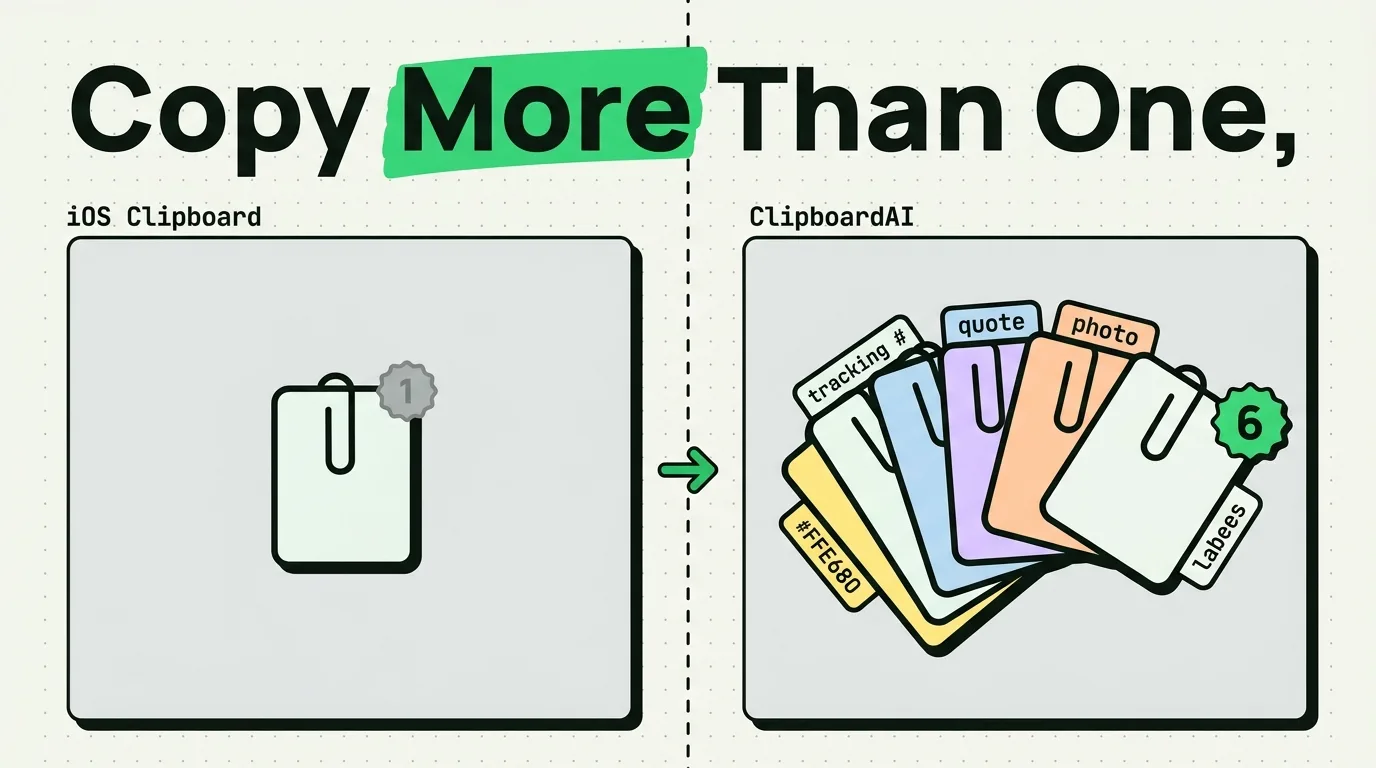
To copy multiple items on iPhone, you must use either the native iOS Drag-and-Drop gesture stack for immediate transfers, or a clipboard manager like ClipboardAI for sequence copying. By default, the native iOS clipboard only stores one copied item at a time. Every new copy operation immediately overwrites the previous text or image, making sequential multi-copying impossible without third-party utility help or advanced gesture techniques.
Here is how to master multi-item copying and pasting on your iOS device.
The Human Scenario: The App-Switching Loop
Imagine filling out a freelance invoice or a web form on your iPhone. You need to copy a client's billing address, an invoice number, a project title, and a bank account detail from an email.
Without a way to store multiple copies, you are trapped in an app-switching loop:
- Open Email → Copy Address.
- Open Browser → Paste Address.
- Open Email → Copy Invoice Number.
- Open Browser → Paste Invoice Number.
By the time you finish, you have switched apps eight times, lost your place in the form, and wasted several minutes.
Native iOS Limitations: The UIPasteboard Single-Slot Rule
The core pasteboard framework in iOS (UIPasteboard) is historically single-threaded and single-slot. Under the hood:
- The Overwrite Hook: When you tap "Copy", iOS registers the data type (string, image, URL) and allocates it to the main pasteboard index. Any subsequent copy trigger immediately calls a release function on the previous memory allocation.
- No Cache Ledger: iOS does not maintain a ledger of previous allocations. The data is either held in active memory or permanently dropped.
While this protects your system from running out of RAM and shields passwords from staying active in background logs, it severely restricts productivity.
Quick Win: The Hidden iOS "Drag-and-Drop" Stack
Many users do not know that Apple built a multi-item transfer gesture directly into iOS. It allows you to collect multiple blocks of text, images, or files and drag them together into another app.
How to use the Multi-Select Drag Stack:
- Select the first block of text or tap and hold an image until it floats under your finger.
- Drag your finger slightly away from the original position - do not let go.
- Use a second finger to navigate to other items (images, links, or text blocks) and tap them. They will stack under your first finger.
- With your first finger still holding the stack, use your other hand to swipe up and open your target app (e.g., Mail or Notes).
- Drag your finger over the text field and let go to drop the entire stack at once.
Limitations: This requires two hands, can be physically awkward to execute, and only works for immediate transfers. You cannot "hold" this stack in the background to paste items individually.
┌──────────────────────────────────────────────┐
│       iOS Drag-and-Drop Stack Gesture        │
├──────────────────────────────────────────────┤
│  [Hold Item 1] ──> Drag slightly (Float)      │
│  [Keep Holding] ──> Tap Item 2 & 3 (Stack)   │
│  [Swipe to App] ──> Release Stack to Paste   │
└──────────────────────────────────────────────┘
Detailed Workflows: Sequential Copying with ClipboardAI
For standard text-heavy workflows, the Drag-and-Drop gesture is impractical. Here is how to copy multiple items sequentially using ClipboardAI.
The Sequential Copy-Paste Workflow:
- Download and open ClipboardAI to initialize background monitoring.
- Open the source app (e.g., Safari or an email).
- Copy your first item (e.g., name).
- Immediately copy your second item (e.g., email address).
- Copy your third item (e.g., phone number).
- Switch to your destination form or document.
- Tap the globe icon (🌐) on your keyboard to switch to the ClipboardAI keyboard.
- Tap the corresponding saved items in your history to paste them into each form field in seconds.
Performance Comparison: Native App-Switching vs. ClipboardAI
To measure the real-world efficiency of these workflows, we mapped out the steps required to transfer five distinct text fields from an email to a Safari form:
| Transfer Phase | Native iOS Copy-Paste | Drag-and-Drop Gesture | ClipboardAI Sequential Copy |
|---|---|---|---|
| App Switches Required | 10 switches | 1 switch (multitasking) | 1 switch (at the end) |
| Physical Gestures | 20+ taps & holds | High-coordination multi-finger hold | 5 copies + 5 keyboard taps |
| Risk of Lost Data | High (if overwrite occurs) | Low (must keep finger down) | None (stored in history) |
| Max Items Supported | 1 item | ~10 items (visual stack limit) | Unlimited |
| Ideal Content | Short single text | Images, PDFs, and Files | Form details, serials, microcopy |
Privacy Note and Security Caveats
Because a clipboard manager stores a history of your copies, you must observe some safety rules:
- Snooping Protection: Some social media and shopping apps snoop on your clipboard in the background. If you copy a sensitive transaction code, open ClipboardAI and swipe left to delete it from the history ledger.
- Exclude Sensitive Sources: ClipboardAI operates locally using on-device sandboxing, which means it cannot share your data with other apps unless you paste it. Ensure that your settings have Auto-Clear Sensitive Data toggled on so that credit cards and passwords are automatically scrubbed from your history database after 5 minutes.
Product Fit: When to Use a Keyboard Extension
Where ClipboardAI excels:
- E-Commerce and Sales: Copying sku numbers, client addresses, and coupon codes from spreadsheets to sales portals.
- Customer Support: Storing common text templates, macro replies, and help center links to paste into chat windows.
- Student Research: Copying citations, quotes, and references from PDFs to write papers.
Where it is NOT appropriate:
- Encrypted Environments: If you are working inside secure corporate databases (like secure medical portals or banking terminals), you should not use custom keyboards, as the enterprise policies will likely restrict their access.
On a Mac this gets even faster: sequential and batch paste puts a whole queue of clips out in order, free. On iPhone, the paste keyboard keeps every saved item one tap away.
Frequently Asked Questions
Can you copy and paste multiple items at once on iPhone?
Not with the built-in clipboard. iOS stores only your most recent copy, and each new copy overwrites the last. With a clipboard manager like ClipboardAI, every copy you save is kept as a separate clip, so you can copy several things in a row and paste each one later from the ClipboardAI keyboard.
Does iPhone have a built-in clipboard history?
No. There is no clipboard history setting anywhere in iOS. The system clipboard holds exactly one item at a time. To keep a history of what you copy, you need a third-party clipboard manager app like ClipboardAI.
How many clips can ClipboardAI save?
The free tier saves up to 10 clips, which is plenty to try the workflow. The keyboard is free and shows up to 200 recent clips, so your latest copies are always a tap away. Pro unlocks unlimited clip history.
Can I batch paste multiple items on iPhone?
Batch and sequential paste are Mac-only features, and they are free. On Mac, Paste All inserts a whole batch at once, Paste One by One inserts the next queued clip with each press of Command-V, and Copy as One merges clips into a single paste. On iPhone, you paste clips one tap at a time from the ClipboardAI keyboard.
How much does ClipboardAI cost?
ClipboardAI is free for up to 10 saved clips. Pro is $19.99 per year or a one-time $34.99 Lifetime purchase, and both come with a 7-day free trial. Pro unlocks unlimited clips across iPhone, iPad, and Mac. For how that compares with the other free options, see our tested roundup of free iPhone clipboard apps.