
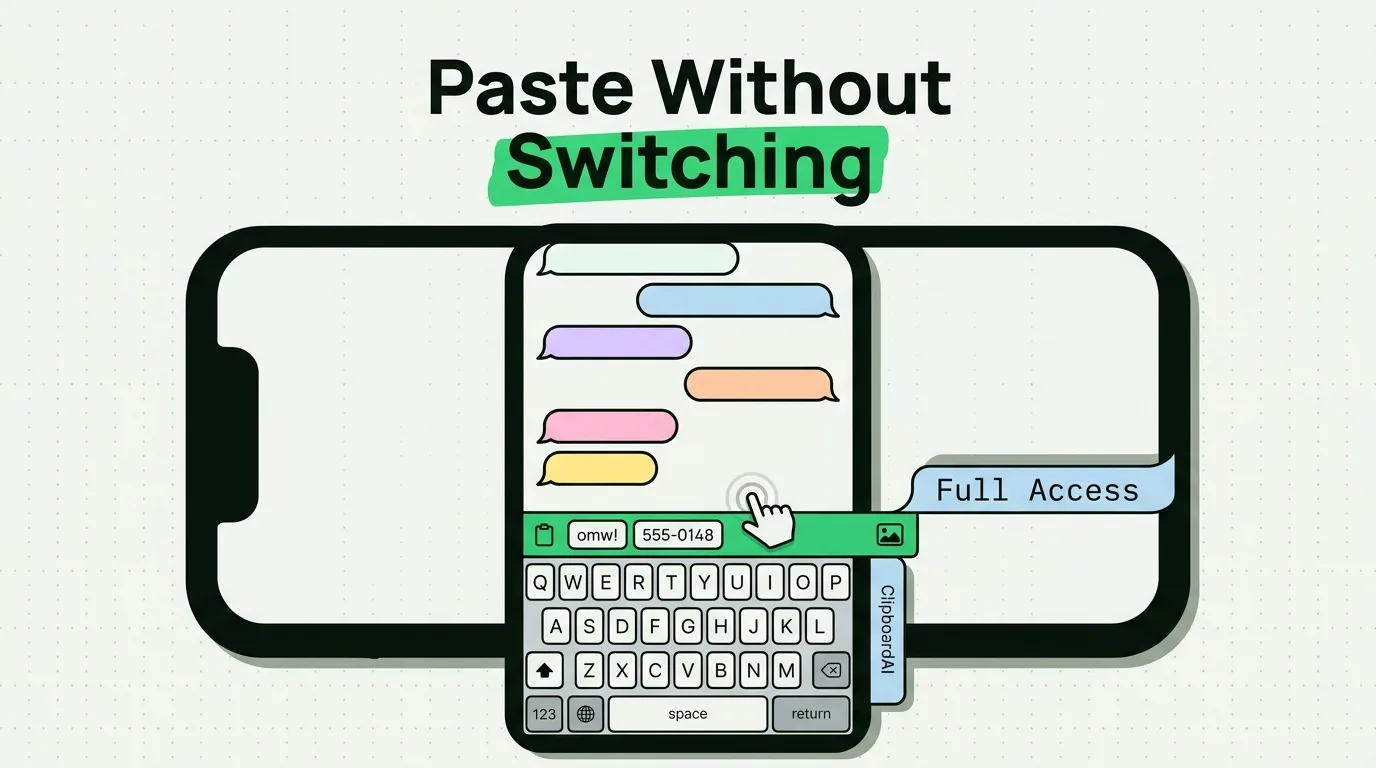
To use a clipboard keyboard on iPhone, download a clipboard manager like ClipboardAI, enable its custom keyboard extension in your iOS Settings, and grant "Allow Full Access" permission. Once configured, you can switch to the custom keyboard by tapping and holding the Globe icon (🌐) while typing in any app. This displays your saved copy history as selectable, one-tap buttons, allowing you to paste previous clips without app switching. Several free clipboard apps for iPhone include a keyboard on their free tier, so you can try the workflow before paying.
Here is a step-by-step walkthrough to configure and optimize your clipboard keyboard on iOS.
The Human Scenario: The Multi-Field Form
You are checking in for a flight or ordering delivery on your iPhone. The web form requires your full name, email, billing address, phone number, and a promo code.
Normally, you would open your Contacts app, copy your address, switch to Safari, paste it, open your Notes app, copy the promo code, switch back to Safari, paste it, and repeat the process for your phone number.
With a clipboard keyboard, your phone stays on the Safari screen. You tap the globe icon, and all your previously copied details appear as buttons at the bottom of the screen. You tap "Address", tap "Promo Code", tap "Phone Number" - and you are done.
Step-by-Step Setup Guide
To enable a third-party clipboard keyboard on iOS, you must follow Apple's custom keyboard registration flow.
Step 1: Install the Parent App
- Download ClipboardAI from the iOS App Store.
- Launch the app once to initialize its local SQLite database.
Step 2: Enable the Custom Keyboard in Settings
- Open the native iOS Settings app.
- Navigate to General > Keyboard > Keyboards.
- Tap Add New Keyboard.
- Scroll down to the Third-Party Keyboards section and select ClipboardAI.
Step 3: Grant "Allow Full Access" Permission
- In the Keyboards list, tap on ClipboardAI.
- Toggle on Allow Full Access.
- A system warning prompt will appear. Tap Allow to confirm.
iOS requires the "Allow Full Access" toggle to let the keyboard extension communicate with its parent app database. Without this permission, the keyboard will appear blank or show a connection error because it cannot read your saved clipboard history.
Step 4: Access the Keyboard While Typing
- Open any app with a text field (e.g., Messages, Safari, or Slack).
- Tap the text field to raise the default Apple keyboard.
- Tap and hold the Globe icon (🌐) in the bottom left corner.
- Select ClipboardAI from the pop-up list.
- Tap any clip in your history bar to paste it directly at your cursor.
┌────────────────────────────────────────────────────────┐
│             iOS Keyboard Switching flow                │
├────────────────────────────────────────────────────────┤
│  [Raise Default Keyboard] ──> Tap & Hold Globe (🌐)     │
│                                                        │
│  [Select ClipboardAI]     ──> Keyboard Pane Swaps      │
│                                                        │
│  [Tap Snippet Button]     ──> Instant Text Paste       │
└────────────────────────────────────────────────────────┘
Keyboard Setup and Troubleshooting Matrix
If your clipboard keyboard is not displaying your history correctly, use this checklist to resolve the issue:
| Symptom | Primary Cause | Troubleshooting Step |
|---|---|---|
| ClipboardAI does not appear in the "Add New Keyboard" list | App installation cache issue or iOS system delay | Restart your iPhone; verify the app is fully downloaded in the App Store. |
| Keyboard shows a "Connection Error" or is blank | "Allow Full Access" permission was disabled or reset | Go to Settings > General > Keyboard > Keyboards > ClipboardAI and verify Full Access is toggled ON. |
| Keyboard automatically switches back to default Apple keyboard | Secure field restriction (passwords or credit cards) | Built-in iOS Security: Apple automatically blocks all third-party keyboards on secure password fields. You must use the default keyboard. |
| Text does not paste when clicking a history button | App text-field focus loss | Tap the target text box to re-establish the active text cursor, then tap the history button again. |
| Saved history snippets are missing in the keyboard view | App database offloading or RAM clearing | Open the parent ClipboardAI app to force database re-indexing, then switch back to your target app. |
Privacy Note and Security Caveats
Granting "Allow Full Access" to any custom keyboard raises natural security concerns.
- How Keyboards Abuse Permissions: A malicious keyboard with Full Access can record your keystrokes, track your typing patterns, and transmit them to a remote server.
- Our Testing Notes & Local Privacy Guard: ClipboardAI does not access the internet through the keyboard extension. All data storage, categorization, and retrieval operations occur locally on your iPhone.
- Automatic Safeguards: The keyboard automatically filters out password fields. If you copy a password, the system keeps it hidden behind a blurred mask in your history until you explicitly tap to reveal it, and you can configure the database to auto-delete secure clips after a few minutes.
Product Fit: When to Use a Custom Keyboard
Ideal Use Cases:
- Online Forms: Speeding up checkout procedures, shipping details, and flight check-ins.
- Customer Support and Sales: Instantly pasting canned responses, reference URLs, and contact info into WhatsApp, Slack, or email.
- Coding and Development: Accessing frequently used code snippets, syntax tags, and terminal commands on the go.
When it is NOT appropriate:
- Secure Enterprise Environments: If your company enforces a strict Mobile Device Management (MDM) profile, third-party keyboards are usually disabled at the system level.
- Password Fields: You cannot use the clipboard keyboard to paste passwords into native credential boxes, as iOS blocks custom extensions in these fields for security reasons.
Frequently Asked Questions
Why does iOS warn me about "Full Access" when enabling the keyboard?
This is a standard Apple security warning displayed for all third-party keyboards. It alerts you that the keyboard can access your typing data. Trusted apps use this access strictly to read their own local database of saved clips, not to monitor your keystrokes.
Can I use the clipboard keyboard to paste images?
Yes. If you have copied an image, it will appear as a preview tile on your ClipboardAI keyboard. Tapping it will copy it back to your active pasteboard, and you can paste it into apps that support image inputs (like Messages or Mail).
How do I switch back to the default Apple keyboard?
Simply tap the Globe icon (🌐) in the bottom-left corner of the ClipboardAI keyboard to cycle back to the standard iOS keyboard.
Why is the clipboard keyboard blank when I open a banking app?
For security, iOS automatically overrides third-party keyboards and forces the native, secure Apple keyboard to load whenever you are inside banking apps or typing in password boxes.
How do I pin text snippets so they stay at the top of the keyboard?
Open the main ClipboardAI app, locate the text snippet you use frequently, tap the star or pin icon. Pinned items are cataloged in a dedicated "Pinned" tab at the top of the keyboard pane for easy retrieval.