
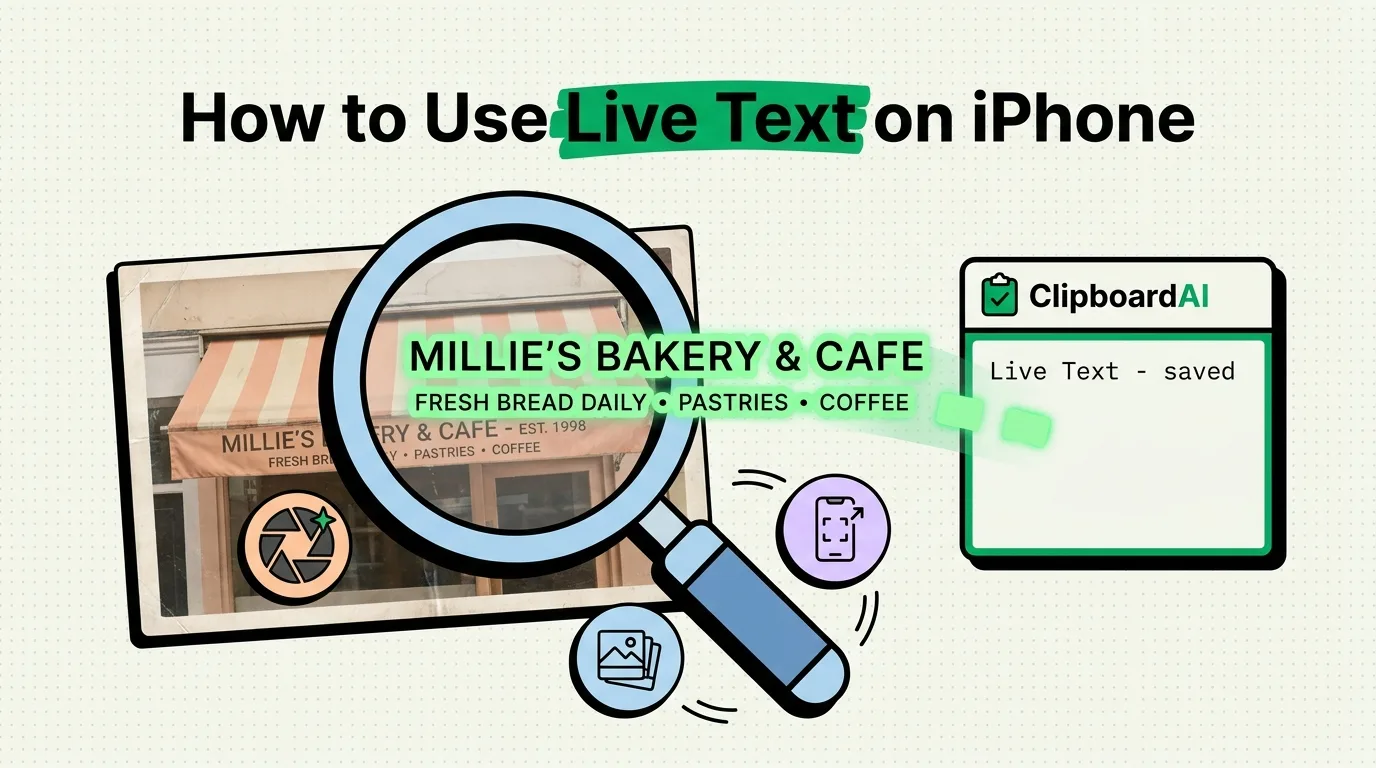
You snap a photo of a whiteboard after a meeting. You screenshot a recipe from a social media post. You take a picture of a business card at a networking event. In all of these cases, there is text trapped inside an image on your iPhone, and you need to get it out. That is exactly what Live Text on iPhone is designed to do. It is Apple's built-in OCR (optical character recognition) feature that lets you select, copy, translate, and interact with text in any photo, screenshot, or live camera view.
In this comprehensive guide, we will cover everything you need to know about Live Text - how it works, where you can use it, which languages it supports, its limitations, and how to pair it with a clipboard manager to build a powerful text extraction workflow on iOS.
What Is Live Text on iPhone?
Live Text is an Apple feature introduced with iOS 15 that uses on-device machine learning to recognize text within images. When your iPhone detects text in a photo, screenshot, or camera viewfinder, it allows you to interact with that text as if it were a regular text document. You can select it, copy it, look it up, translate it, or even call a phone number directly from a photo.
The processing happens entirely on your device using Apple's Neural Engine, which means your images are never sent to a server for text recognition. This makes Live Text both fast and private.
Supported Devices
Live Text requires an A12 Bionic chip or newer, which means it is available on:
- iPhone XS, iPhone XR, and all newer iPhone models
- iPad Pro (3rd generation and later), iPad Air (3rd generation and later), iPad (8th generation and later), iPad mini (5th generation and later)
- Mac computers with Apple Silicon (M1 and later)
If you have an older device like an iPhone X or iPhone 8, unfortunately Live Text is not available on your hardware.
Supported Languages
Live Text supports a growing list of languages for text recognition. As of iOS 18 and beyond, the supported languages include:
- English
- Chinese (Simplified and Traditional)
- French
- German
- Italian
- Japanese
- Korean
- Portuguese
- Spanish
- Ukrainian
- Thai
- Vietnamese
- Arabic
- Hindi
Apple adds new languages with major iOS updates, so this list continues to expand. For the most current list, check Apple's feature availability page for your region.
Did you know? Live Text can recognize text in multiple languages within the same image. If you photograph a document that contains both English and French text, Live Text will recognize both without needing to change any settings.
Using Live Text in the Camera App
The most immediate way to use Live Text is directly through your iPhone's Camera app. Here is how:
- Open the Camera app and point it at any text - a sign, a document, a label, a book page, or a business card.
- When the camera detects text, you will see a small yellow indicator icon (a square with lines of text) appear in the lower right corner of the viewfinder.
- Tap the Live Text icon. The camera will freeze the frame and highlight the detected text.
- Tap and hold on any word to start selecting text. Drag the selection handles to expand your selection.
- Use the contextual menu to Copy, Select All, Look Up, Translate, or Search the Web.
This is incredibly useful for quickly grabbing information without even taking a photo. Point your camera at a Wi-Fi password on a sign, copy it, and paste it into your Wi-Fi settings. Point it at a phone number on a poster, and you can call it directly.
Pro tip: After copying text from the Camera using Live Text, the text sits on your clipboard until you copy something else. Use Clipboard AI to automatically save every piece of text you extract, building a permanent library of captured information from signs, documents, and labels.
Using Live Text in the Photos App
Live Text works on any image in your Photos library - photos you have taken, screenshots, images saved from the web, and pictures shared with you. Here is how to extract text from an existing photo:
- Open the Photos app and select the image containing text.
- Look for the Live Text icon in the bottom right corner of the image. If it appears, text has been detected.
- Tap the Live Text icon, or simply tap and hold directly on any text in the image.
- Drag the selection handles to select the specific text you need.
- Tap Copy from the contextual menu.
This method works particularly well for extracting information from screenshots. If you screenshot an article, a social media post, or a conversation, Live Text lets you pull out the text without having to retype anything.
Copying Text from Screenshots
Screenshots are one of the most common sources of trapped text. You might screenshot an address, a confirmation number, a recipe, a quote, error messages, or reference information. With Live Text, all of that text becomes copyable.
The process is the same as using Live Text in Photos. Open the screenshot, tap and hold on the text, select what you need, and copy. But here is where the workflow gets powerful when combined with a clipboard manager.
Consider this scenario: you are researching a topic and screenshot multiple sources - articles, social media posts, data visualizations with labels. With Live Text, you extract the relevant text from each screenshot. With Clipboard AI, every extraction is automatically saved to your clipboard history. At the end of your research session, you have a complete, searchable collection of all the text you extracted, organized chronologically and categorized by type.
For more ways to manage copied research, see our guide on clipboard apps for students, which covers similar text extraction and research workflows.
Using Live Text in Safari and Other Apps
Live Text is not limited to the Camera and Photos apps. It works in several other contexts across iOS:
Safari
When browsing the web in Safari, you can use Live Text on images embedded in web pages. Tap and hold on an image containing text, and if Live Text detects text, you will see the option to select and copy it. This is particularly useful for extracting text from infographics, charts, or images that contain information you want to save.
Messages
Photos received in Messages support Live Text. Open the image in the conversation, and you can select and copy text directly from it. This saves you from having to ask the sender to type out information that is already visible in a shared photo.
Maps
In Apple Maps, Live Text can recognize addresses, phone numbers, and business names in photos associated with map listings. This makes it easy to copy a restaurant's phone number or address directly from a photo in its Maps listing.
Quick Look and Files
When previewing images or PDFs in the Files app using Quick Look, Live Text is available for text extraction. This is useful for pulling text from scanned documents or image-based PDFs.
Translating Text with Live Text
One of Live Text's most powerful features is its built-in translation capability. When you select text in a photo, the contextual menu includes a Translate option. Tapping it instantly translates the selected text into your preferred language using Apple's on-device translation engine.
This is invaluable for travelers. Point your camera at a foreign-language menu, sign, or document, select the text, and get an instant translation. The translation happens on-device, so it works even without an internet connection for supported language pairs.
Supported translation language pairs are more limited than text recognition languages, so not every recognized language can be translated to every other language. However, major languages like English, Spanish, French, German, Chinese, Japanese, and Korean are well supported.
Travel tip: When traveling abroad, use Live Text to translate menus, signs, and documents. Copy the translated text and save it in Clipboard AI so you have a reference later, even when you are offline or have moved past the original sign or menu.
Interacting with Detected Data
Live Text goes beyond simple text copying. It can detect specific data types within images and offer contextual actions:
- Phone numbers: Tap to call, send a message, or add to contacts
- Email addresses: Tap to compose an email or add to contacts
- Web URLs: Tap to open in Safari
- Physical addresses: Tap to open in Maps or get directions
- Tracking numbers: Tap to track a package
- Flight numbers: Tap to see flight status
- Dates and times: Tap to create a calendar event
This data detection makes Live Text much more than a simple OCR tool. It transforms static images into interactive information sources. If you want to save these detected items for later reference, copying them to your clipboard and preserving them with a clipboard manager is the most efficient approach. Check out our article on saving phone numbers with a clipboard manager for related tips.
Live Text in Video
Starting with iOS 16, Apple extended Live Text to work with video content. You can pause a video in the Photos app or in supported video players, and Live Text will recognize any text visible in the paused frame. This opens up new possibilities for extracting information from video tutorials, presentations, lectures, and social media videos.
To use Live Text with video, simply pause the video at the frame containing the text you want to capture, then tap and hold on the text as you would with a photo. The same selection, copy, translate, and contextual action options are available.
Limitations of Live Text
While Live Text is a remarkable feature, it has some limitations you should be aware of:
| Limitation | Details | Workaround |
|---|---|---|
| Device requirement | Requires A12 chip or newer | Upgrade to supported device |
| Handwriting recognition | Limited accuracy with handwritten text | Use a dedicated handwriting OCR app |
| Small or blurry text | May not detect very small or low-quality text | Zoom in when taking the photo |
| Stylized fonts | Highly decorative fonts may not be recognized | Try a dedicated OCR app |
| No batch processing | Cannot extract text from multiple images at once | Process images one at a time |
| Clipboard single item | Each copy replaces the previous one | Use Clipboard AI to save all extractions |
The most significant practical limitation for most users is the clipboard issue. When you extract text from multiple images, each copy operation replaces the previous one on your clipboard. If you are extracting information from five different screenshots, you lose the first four extractions by the time you copy the fifth. This is precisely where a clipboard manager becomes essential.
Important: Live Text performs all processing on-device, which means it does not require an internet connection for text recognition. However, some features like web search and translation of certain language pairs may require connectivity.
Pairing Live Text with a Clipboard Manager
Live Text and Clipboard AI together create one of the most powerful text capture workflows on iPhone. Here is how they complement each other:
Live Text extracts the text. It handles the OCR - recognizing characters in images and making them selectable and copyable. Without Live Text, you would need to manually retype everything you see in a photo.
Clipboard AI preserves the text. It captures every piece of text you copy via Live Text and saves it permanently in a searchable, categorized history. Without a clipboard manager, each extraction replaces the last, and you can only work with one piece of extracted text at a time.
Consider these real-world workflows:
- Business card scanning: At a conference, photograph business cards and use Live Text to copy names, emails, phone numbers, and companies. Clipboard AI saves each extraction. After the event, review your clipboard history to add contacts to your address book.
- Receipt digitization: Photograph receipts and extract key details - merchant names, totals, dates - using Live Text. Clipboard AI preserves each detail for expense reporting.
- Research from physical sources: In a library or bookstore, photograph pages from books and extract quotes or data points. Your clipboard history becomes your research notebook.
- Whiteboard capture: After meetings, photograph whiteboards and extract action items, diagrams, and notes. All extracted text is saved and searchable in your clipboard history.
For more information on how clipboard history works on iPhone, read our detailed guide on how to access clipboard history on iPhone.
How to Enable or Disable Live Text
Live Text is enabled by default on supported devices, but if it is not working, here is how to check and toggle it:
- Open the Settings app on your iPhone.
- Navigate to General, then Language and Region.
- Scroll down to find the Live Text toggle.
- Make sure it is turned on (green).
If the toggle is already on and Live Text still is not working, try restarting your iPhone. If the issue persists, make sure your iOS version is up to date, as Live Text improvements and bug fixes are included in iOS updates.
Frequently Asked Questions
What iPhones support Live Text?
Live Text is available on iPhone XS, iPhone XR, and all newer models running iOS 15 or later. It requires an A12 Bionic chip or newer to perform the on-device text recognition processing.
What languages does Live Text support on iPhone?
Live Text supports English, Chinese (Simplified and Traditional), French, Italian, German, Japanese, Korean, Portuguese, Spanish, Ukrainian, and several other languages. Apple continues to add language support with iOS updates.
Can I copy text from a screenshot using Live Text?
Yes. Open the screenshot in your Photos app, tap and hold on any text in the image, and Live Text will recognize it. You can then select and copy the text just like you would in any text document. Use a clipboard manager like Clipboard AI to save the extracted text for later use.
How do I save text extracted with Live Text for later?
After copying text with Live Text, it sits on your iPhone clipboard until you copy something else. To save it permanently, use a clipboard manager like Clipboard AI, which automatically preserves everything you copy in a searchable history. This way, text extracted from photos is always available even after you copy other items.
Why is Live Text not working on my iPhone?
Common reasons include: your iPhone model does not support Live Text (requires A12 chip or newer), the feature is disabled in Settings under General then Language and Region then Live Text, the text in the image is too small or blurry, or the language is not supported. Make sure you are running iOS 15 or later and that Live Text is toggled on in Settings.
App CTA Share Tags Author