On this page
The Bottom Line
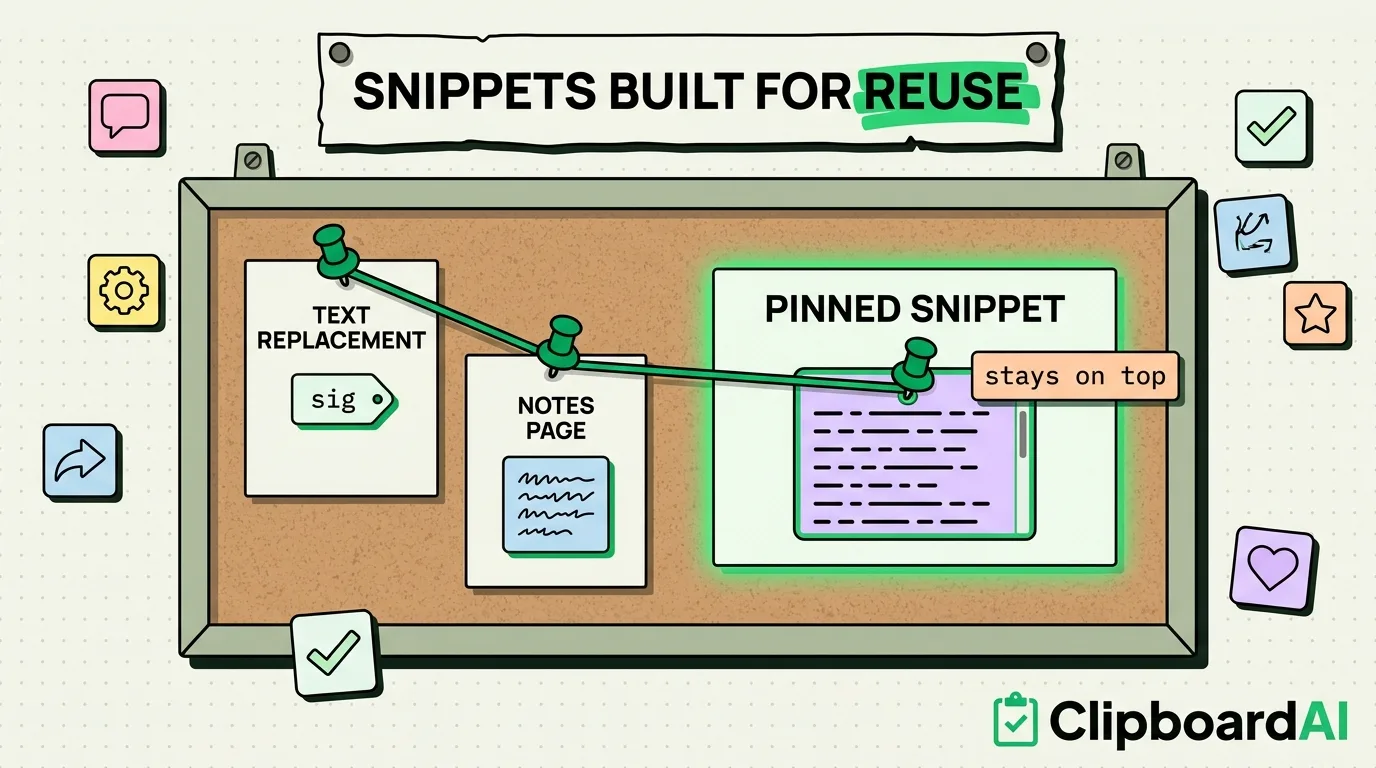
iOS has one native way to save reusable text snippets: Text Replacement (Settings > Keyboard > Text Replacement), where a short trigger like "omw" expands to a full phrase like "On my way, be there in 10 minutes." It works everywhere you type, but it is built for short expansions, not for a growing library of longer templates you want to browse and search. For that, a pinned-snippet setup in a clipboard manager is the better fit.
Method 1: Text Replacement (Best for Short, Frequent Phrases)
- Settings > Keyboard > Text Replacement > tap the + in the top right.
- Enter the full phrase, then a short shortcut trigger (keep it something you would not type by accident, e.g. "sig" for your email signature).
- Anywhere you type on iOS, typing the trigger and hitting space auto-expands it to the full phrase.
This syncs across your Apple devices via iCloud if enabled (Settings > [your name] > iCloud > iCloud settings for Text Replacement). Its limit: it works best for a handful of short snippets, once you have 20+ saved, remembering each trigger becomes its own small burden, and there is no way to browse or search your saved replacements from the keyboard itself, you have to already remember the trigger.
Method 2: A Dedicated Notes Page as a Manual Library
Keep a single Notes page titled something like "Templates," with each snippet as its own paragraph, and use Notes' search to find one when needed, then copy and paste manually. Zero setup cost, works today, but it is a fully manual copy-paste-find workflow with no automation.
Method 3: Pinned Snippets in a Clipboard Manager
ClipboardAI lets you pin specific text so it stays at the top of your clipboard history regardless of what else you copy afterward, and its custom keyboard (with Full Access enabled) lets you paste a pinned snippet directly inside any other app you're typing in, without switching apps first. This fits best for longer templates (a full customer response, a bio, a set of standard instructions) that are too long for a Text Replacement trigger to feel natural, and for anyone who wants to browse a visual list of snippets rather than memorizing shortcut triggers.
Which Method Fits Your Use Case
| Snippet type | Best method |
|---|---|
| Short phrases you type constantly (address, "on my way") | Text Replacement |
| Long templates you browse and pick from occasionally | Pinned clips in a clipboard manager |
| One-off reference text you don't need long-term | Notes page, or just clipboard history without pinning |
Caveat
Do not save sensitive information (passwords, ID numbers) as a Text Replacement shortcut or a pinned clip in any clipboard app, these are plain-text storage without the protections a dedicated password manager provides.
Frequently Asked Questions
How many Text Replacement shortcuts can I have?
There is no hard published limit, but in practice most people stop finding it useful somewhere around 20 to 30 before triggers start colliding or becoming hard to remember.
Can I use both Text Replacement and a clipboard manager together?
Yes, they solve different problems well: Text Replacement for muscle-memory short expansions, pinned clipboard snippets for longer templates you want to see and choose from visually.