On this page
The Short Answer
Travel days involve pasting the same handful of things repeatedly, confirmation codes, gate or hotel addresses, Wi-Fi passwords, translated phrases, in situations where you often have spotty signal and no time to dig back through an email app. Before you leave, download offline maps for your destination and pin your key travel documents' text as clipboard snippets so you are not searching for a confirmation number at airport Wi-Fi speeds.
Before You Leave: A Checklist
- Download offline maps. In Apple Maps, search your destination city, tap its info card, and choose "Download." This works without a data connection, useful the moment you land and before you have local SIM or roaming set up.
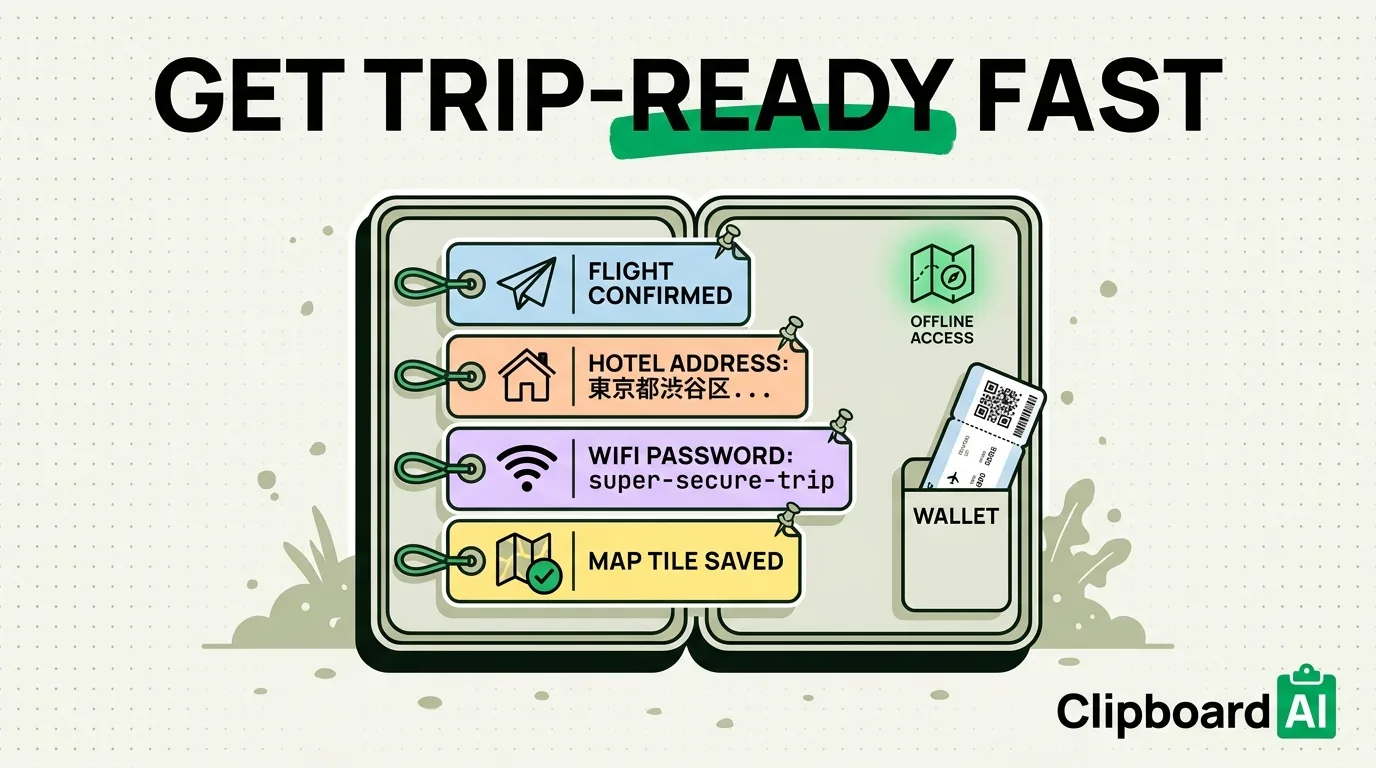
- Copy your key confirmation numbers into one place. Flight confirmation, hotel booking reference, rental car confirmation. If you use a clipboard manager, copying each of these once means they stay searchable in your history through the whole trip instead of overwriting each other the moment you copy the next one.
- Pin your most-needed strings. Passport number (if you are comfortable having it on your phone at all), hotel address in the local language for showing a taxi driver, your accommodation's Wi-Fi password once you have it. Pinning in ClipboardAI keeps these at the top of your history rather than buried under everything else you copy during the trip.
- Set up Translate for offline use if traveling somewhere non-English-speaking. Apple's Translate app supports downloading language packs for offline translation.
During the Trip
| Situation | What helps |
|---|---|
| Showing a hotel address to a taxi driver who does not speak English | Pin the address in the local language ahead of time; screenshots and OCR text-in-images both work if you only have it as a photo |
| Airport Wi-Fi login pages that need a confirmation or room number | Have it pinned rather than digging through email with a slow connection |
| A boarding pass barcode you keep needing to reopen | Use Apple Wallet for the actual pass; a clipboard manager is for text snippets, not barcodes |
| Multiple hotel or rental confirmations across a multi-city trip | Categorized clipboard history keeps links (booking pages) separate from plain text (confirmation numbers) |
Honest Caveats
- A clipboard manager does not replace Apple Wallet for actual boarding passes or tickets; those should stay in Wallet where they work offline and scan correctly at gates.
- Cross-device sync is optional and moves through your own private iCloud account, encrypted in transit and at rest, the same protection tier as your Photos and Notes. Nothing passes through a ClipboardAI server, and you can leave sync off entirely to keep sensitive details like passport numbers or payment info on-device only.
- Offline maps need to be downloaded before you lose signal, not after; do this while still on hotel or home Wi-Fi.
Frequently Asked Questions
Should I put my boarding pass in a clipboard manager?
No. Boarding passes are barcodes that need to scan correctly at the gate; use Apple Wallet for those. A clipboard manager is better suited to text snippets like confirmation numbers and addresses.
Does offline map downloading use a lot of storage?
It varies by city size, generally a modest amount for a single city. Check available storage under Settings > General > iPhone Storage before a trip if you are downloading maps for multiple destinations.