
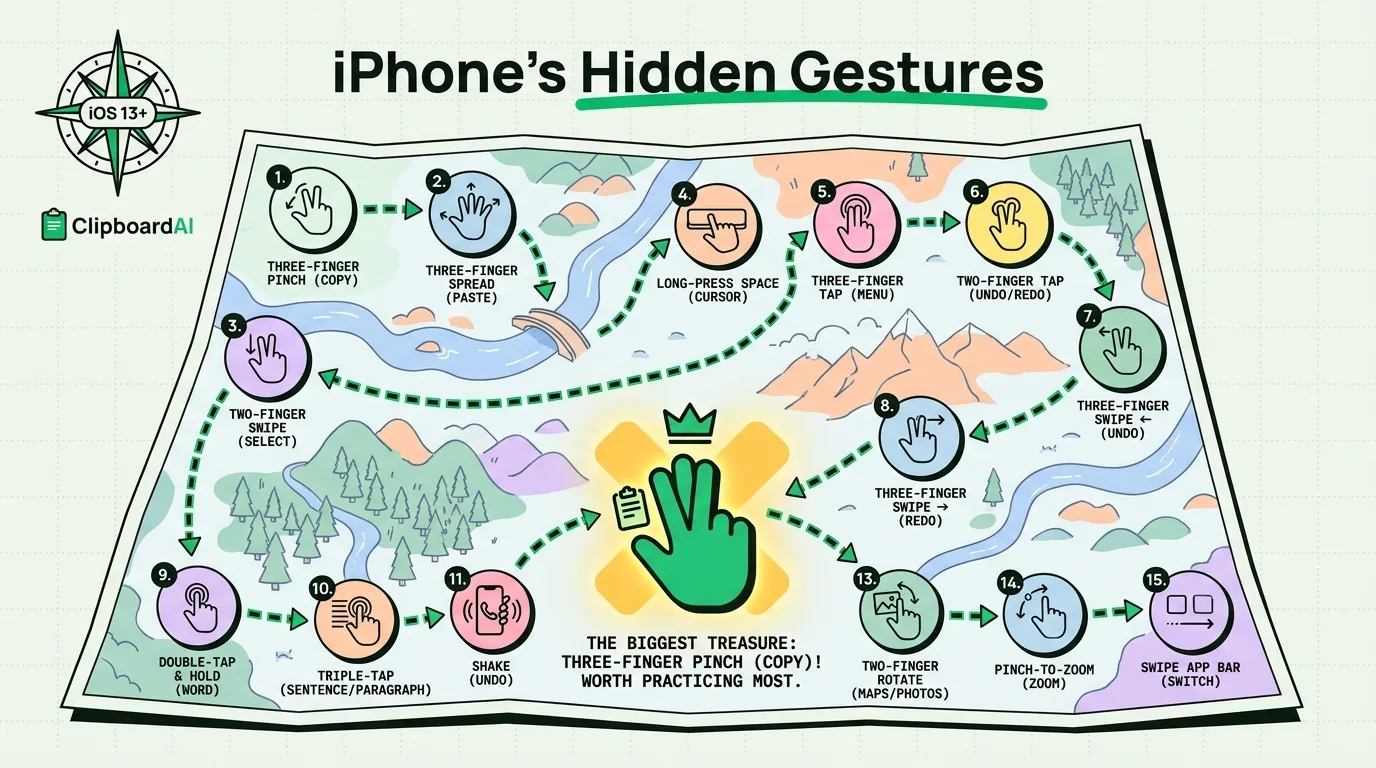
The Short Answer
Most iPhone gestures live below the surface: they are not shown in Settings, not covered in Apple's onboarding, and easy to miss unless someone points them out. The list below covers the ones that come up most often when people watch someone else use an iPhone and ask "wait, how did you do that?" One of them is the three-finger clipboard gesture, which is the fastest way to copy and paste without ever touching a menu.
15 Gestures, What They Do, and Where They Work
| # | Gesture | What it does | Where it works |
|---|---|---|---|
| 1 | Three-finger pinch | Copies selected text instantly | Any app with editable or selectable text |
| 2 | Three-finger spread (unpinch) | Pastes the last copied item | Any text field |
| 3 | Three-finger swipe left | Undo | Most text fields and some apps like Notes |
| 4 | Three-finger swipe right | Redo | Same apps as undo |
| 5 | Three-finger double-tap | Shows a small "Copy / Cut / Paste / Undo" bar without opening the full menu | Most text fields |
| 6 | Two-finger swipe down (from top area of keyboard) | Selects a range of text by "dragging" the cursor, keyboard becomes a trackpad | Any text field, requires 3D Touch/Haptic Touch on the space bar on older models |
| 7 | Long-press space bar | Turns keyboard into a trackpad for precise cursor placement | Any text field |
| 8 | Swipe down with two fingers from the home screen | Multi-select app icons to move or delete several at once | Home screen, iOS 15+ |
| 9 | Corner swipe (from bottom corner, diagonal) | Quick screenshot on some configured setups via Back Tap | Requires Back Tap setup in Accessibility |
| 10 | Swipe down center of screen | Opens Spotlight search | Home screen |
| 11 | Swipe down from top-right corner | Control Center | All screens, including inside apps |
| 12 | Swipe down from top-left corner (or notch area) | Notification Center | All screens |
| 13 | Press and hold on Control Center toggles | Reveals extra options, e.g. long-press Wi-Fi icon to pick a specific network | Control Center |
| 14 | Swipe along the bottom edge, left or right | Switches between recently used apps without opening the App Switcher | iPhones without a Home button |
| 15 | Pull down and hold on a link or image | Opens Preview (Peek) without leaving the current page | Safari and most apps with tappable previews |
Why the Clipboard Gesture Is the One Worth Practicing
Gestures 1 and 2, the three-finger pinch and spread, replace the "Select All / Copy / Paste" popup menu entirely. Once it becomes muscle memory, most people find it about a second faster per copy, which does not sound like much until you notice how many times a day you copy something.
The gesture has one real limitation worth knowing up front: like the rest of iOS, it only holds one item at a time. Pinch to copy a phone number, then pinch to copy an address, and the phone number is gone. If your day involves copying more than one thing before you paste it somewhere, a clipboard manager such as ClipboardAI keeps a running history so the three-finger gesture stops being a one-shot deal. You still pinch to copy the same way; you just get to go back and grab something you copied five minutes ago instead of losing it the moment you copy the next thing.
If a Gesture Isn't Working
- Three-finger gestures do nothing: Go to Settings > Accessibility > Touch and check that "Reachability" and any full-screen gesture-based accessibility features are not intercepting the touch. Also confirm you are using three fingers together, not spread across the screen.
- Undo/redo swipe does not appear: Not every app supports it. It works reliably in Notes, Mail, Messages, and Safari text fields, but many third-party apps override it.
- Trackpad cursor mode won't activate: On iPhones with 3D Touch (iPhone 6s through XS), a firm press works instead of a long-press. On newer models it is a plain long-press, and it needs about half a second of contact before it kicks in.
Frequently Asked Questions
Does the three-finger copy and paste gesture work on every iPhone?
It works on iPhone 6s and later running a modern iOS version, since it depends on multitouch tracking that has been in every iPhone for years. It is on by default; there is no separate setting to turn it on.
Can I copy more than one thing at a time with these gestures?
Not with the built-in gesture alone. iOS overwrites the clipboard on the next copy. A clipboard manager keeps prior copies accessible so you are not limited to the single most recent item.
Do these gestures work the same way on iPad?
Most of them do, including the three-finger copy, paste, undo, and redo, plus the space-bar trackpad trick. iPad adds its own set of multitasking gestures on top of these that do not apply to iPhone.