
Copy a link on your Mac and paste it on your iPhone a minute later. With sync on, the clipboard you build on one device shows up on all of them.
Turn on sync
Open Settings from the menu bar and turn on iCloud sync. As long as your devices are signed into the same Apple Account, your clips, saved items, and Collections sync between your Mac, iPhone, and iPad.
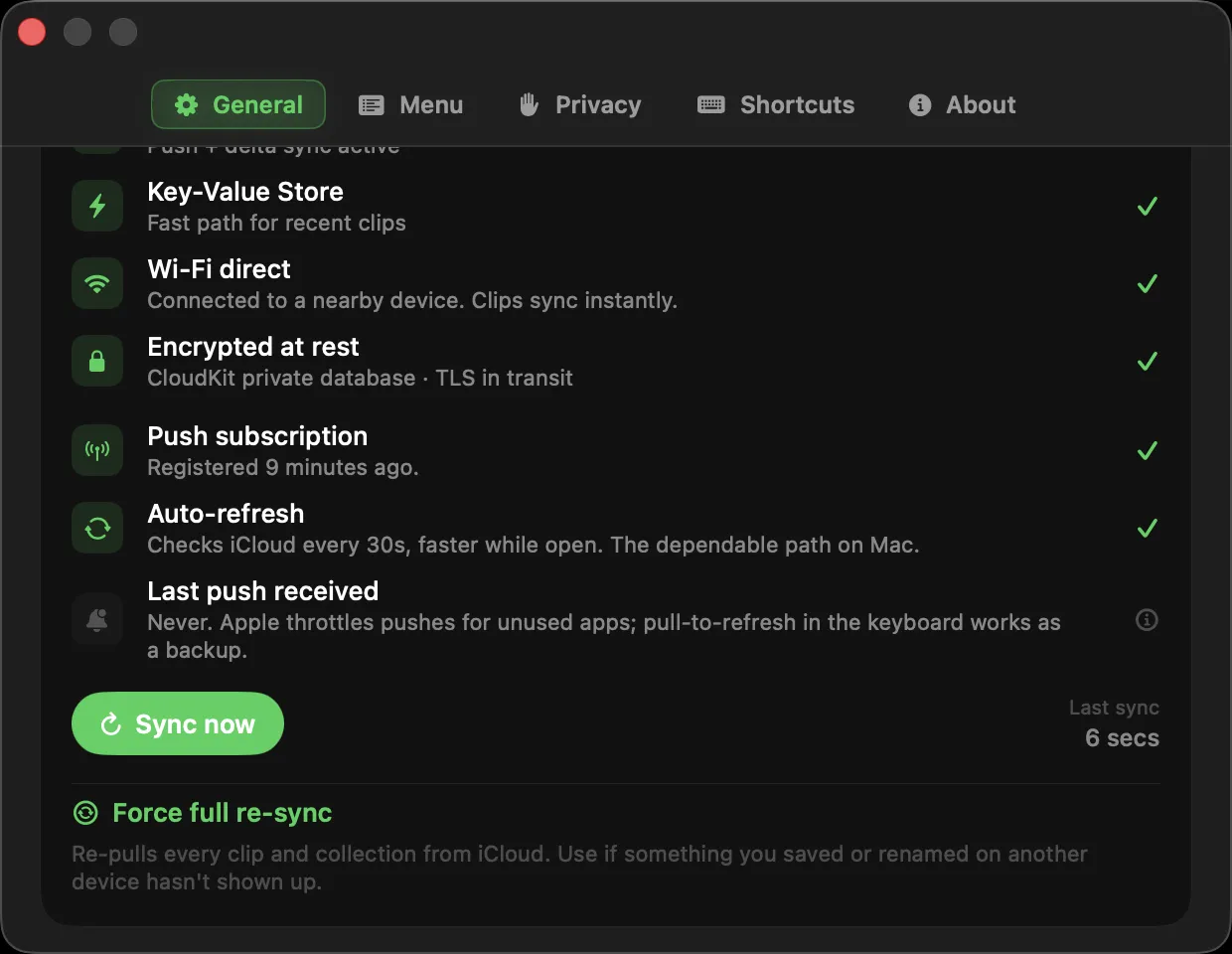
What syncs
Your recent clips, your saved and named items, and your Collections all stay in step. Copy on the Mac, and it is on your iPhone, ready to paste. A Collection you make on either device appears on the other, and a deleted one stays deleted. Sync is part of Clipboard AI Pro.
Know where things stand
Settings shows a Last synced time so you can tell at a glance that the Mac is up to date, with a Sync now button for a full two-way pass. A synced image that is still on its way says exactly what it is doing, with a one-click Retry if it needs a nudge, instead of an endless spinner. When your iPhone is on the same Wi-Fi, clips and Collections pass between the two directly, and any clip that only exists on one of them gets pulled across.
Mac 2.5 and iOS 3.1 stopped the app quietly re-uploading the whole library to iCloud at every launch, which throttled accounts and made new clips slow to arrive. One device on an older version keeps slowing the others down.
Sync runs through your private iCloud account, encrypted at rest and in transit. Your clips are not stored on our servers.
Add Clipboard AI to your iPhone and iPad so your clipboard is everywhere you are. See Get Clipboard AI on your devices.