
With sync on, the same clipboard follows you everywhere. Copy a link on your Mac and paste it on your iPhone, or start on your iPad and finish on your phone. Sync is part of Clipboard AI Pro.
Turn on iCloud Sync
- Open Settings inside the app.
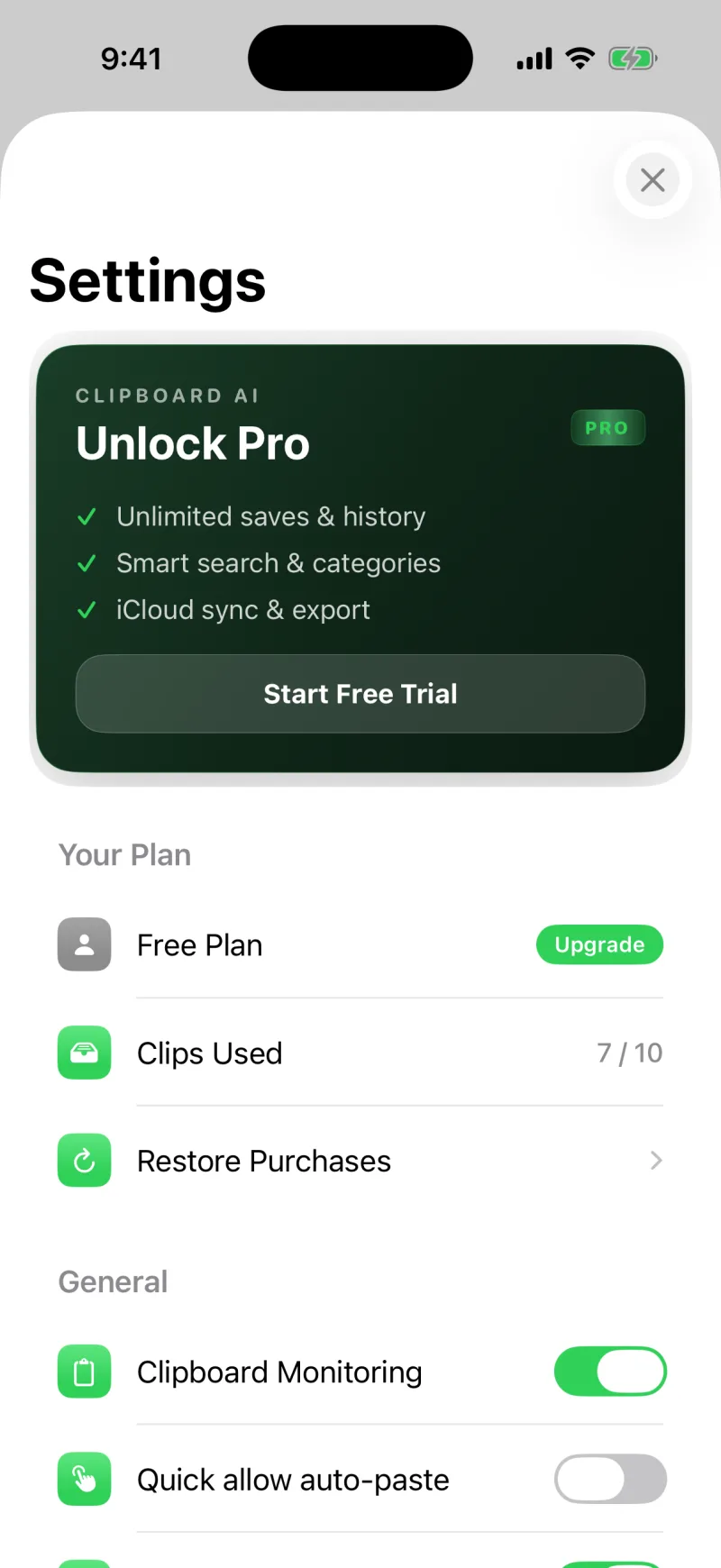
- Find iCloud Sync and turn it on. On the free plan this is where you upgrade to Pro.
- Make sure you are signed into the same iCloud account on each device, and that each one has Clipboard AI installed with sync on.
Push it now
Sync runs on its own in the background, but if you want to be sure a device is caught up, open the iCloud Sync section and tap Sync now for a full update in both directions.
When two of your devices are on the same Wi-Fi, Clipboard AI can hand clips between them directly for near-instant sync. See Understand the sync status panel.
Sync, unlimited history, unlimited pins, and Collections are included with Clipboard AI Pro. See Clipboard AI Pro and billing.
What travels, and how it heals
- Clips, saved clips, names, and Collections all sync. A Collection you make on your iPhone shows up on your Mac, and one you delete stays deleted.
- Nothing gets stranded. If a clip slipped through while a device was asleep or offline, your devices notice the gap and fill it in the next time they talk.
- Nearby devices skip the cloud. On the same Wi-Fi, clips and Collections pass directly between devices, without waiting on iCloud.
Clips not appearing on another device?
Check that both devices use the same iCloud account and have sync on, then tap Sync now. If one device still looks behind, a quick force-quit and reopen usually nudges it. Make sure every device is on iOS 3.1 / Mac 2.5 or later too: older versions re-uploaded the whole library at every launch, which could throttle your iCloud account and hold up new clips everywhere. More in Troubleshooting.