
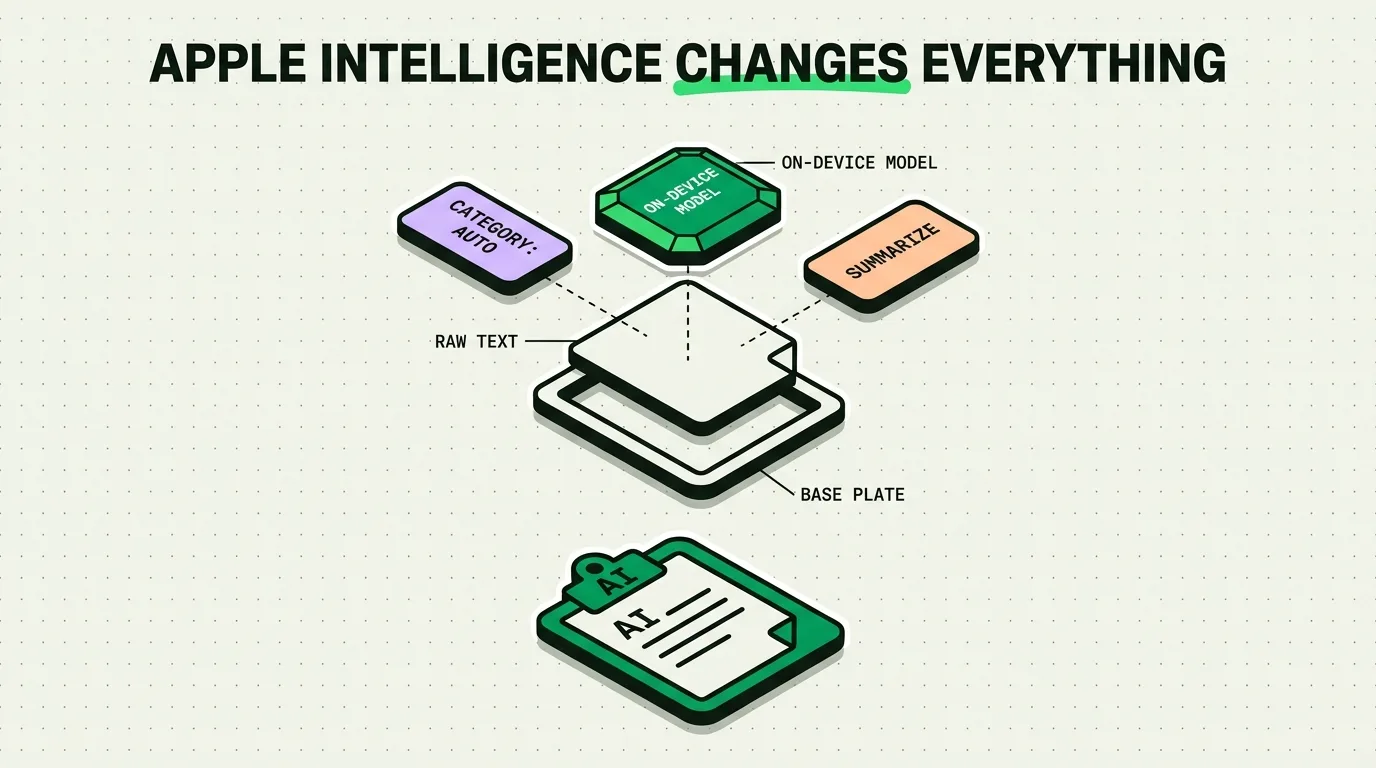
Apple Intelligence updates the iOS clipboard by introducing system-wide writing tools, smart summarization, and context-aware Siri integration directly into the text editing menu. However, it does not provide a native clipboard history manager; iOS still only saves your single most recently copied item. Combining Apple Intelligence with a dedicated manager like ClipboardAI provides the best of both worlds: smart text processing and an archive of past copies.
With the rollout of Apple Intelligence, the way we handle text, images, and variables on iOS has shifted. Instead of treating text as a static string of characters, the operating system can now read, rewrite, summarize, and format your text in-place.
While these tools make editing faster, they also highlight a persistent limitation: Apple's refusal to build a native clipboard history manager. To understand how to build an efficient mobile workflow, you must look at how Apple Intelligence interacts with your copied clips and where it falls short.
Apple Intelligence vs. ClipboardAI Feature Matrix
Here is how Apple's native AI writing tools compare to a dedicated clipboard history manager:
| Feature Area | Apple Intelligence (Native iOS) | ClipboardAI | The Hybrid Synergy |
|---|---|---|---|
| History Retention | None (Saves only 1 active item). | Infinite history (with local auto-delete rules). | ClipboardAI saves historical clips; Apple Intelligence edits active text. |
| Text Modification | Summarizes, rewrites tone, formats tables. | Strips URL tracking parameters; formats markdown. | Clean raw text first, then use system AI to format tone. |
| Data Types | Text, images, documents. | Text, structured CSV tables, links, templates. | Parse raw tables into clean CSV lists ready for system spreadsheets. |
| Keyboard Extension | Standard Apple layout with Siri writing tools. | Custom paste keyboard with categories & search. | Open ClipboardAI keyboard to retrieve clip, then tap Writing Tools to edit. |
| Processing Location | Local (Neural Engine) + Private Cloud Compute. | Local on-device SQLite database. | Zero-trust architecture ensures data does not leak to public servers. |
What Apple Intelligence Brings to the Clipboard
Apple Intelligence does not change the hardware clipboard itself, but it significantly upgrades the text manipulation tools wrapped around it. These updates are integrated directly into the system-level pop-up menu that appears when you tap on selected text.
1. System-Wide Writing Tools
Whenever you copy text into an input field (or highlight text on a website), you can trigger Writing Tools from the context menu. This tool suite lets you:
- Rewrite: Instantly generate alternative drafts of your copied text.
- Tone Adjustments: Change messages to sound Friendly, Professional, or Concise.
- Format: Convert messy copied paragraphs into bulleted lists, numbered steps, or structured tables.
2. Context-Aware Siri Integration
Siri can now read on-screen context. If a friend texts you a phone number and you say "Call this number," Siri recognizes the number on your screen, copies it to the call utility, and dials it without you ever touching the screen or highlighting the text.
3. Smart Summaries
If you copy a long email or web article to paste into a note, Apple Intelligence can automatically generate a brief summary paragraph or bulleted TL;DR at the top of the pasted field, saving you from reading long documents on a small mobile screen.
The Missing Piece: Why There is Still No Clipboard History
Despite all these advancements, Apple has not addressed the main pain point of clipboard usage: overwriting your data.
If you copy an address, and then copy a phone number before pasting the address, the address is gone forever. This behavior is a byproduct of Apple's strict security architecture:
- The Sandbox Model: Apple isolates apps to prevent them from reading data from other apps. If Apple built a native clipboard history, it would need to manage background access permissions, which introduces security vectors.
- RAM Management: Native clipboards are stored in volatile RAM. Apple prefers to clear this space quickly to optimize device performance and battery efficiency.
This is why a dedicated manager like ClipboardAI remains necessary. It acts as the vault that captures your historical copies, while Apple Intelligence provides the tools to reshape whatever active item you pull from that vault.
Honest Caveats & Privacy Controls
Using AI tools to manage and process your text requires understanding the security architecture:
- Data Processing Paths: Apple Intelligence processes simple tasks locally on-device using the Apple Neural Engine. For larger models, it routes data via Private Cloud Compute (PCC) to Apple-designed servers. While Apple guarantees PCC data is not stored or shared, users in highly regulated industries (like legal or medical fields) must review compliance policies before pasting sensitive client logs into cloud-connected tools.
- Formatting Errors: AI formatting tools can occasionally hallucinate details or drop characters (like numbers in a table) when converting unstructured paragraphs into clean lists. Always review formatted output before sending or saving.
- OS Hardware Restrictions: Apple Intelligence features require newer hardware with 8GB of RAM or more (such as the iPhone 15 Pro, iPhone 16 series, or M-series iPads and Macs). If you are running older devices, native AI features will not be available.
How to Set Up the Ultimate iOS Clipboard Workflow
For maximum efficiency, combine both tools into a single workflow:
- Capture: Enable ClipboardAI to record your daily copies in the background. If you copy links, prices, and names while researching, they are saved automatically.
- Retrieve: When writing an email or draft, open the ClipboardAI keyboard to retrieve a snippet you copied two hours ago. Tap to insert it.
- Refine: Double-tap the inserted text, open Apple's Writing Tools menu, and select "Professional" or "Concise" to clean up the draft.
This hybrid approach gives you the security of a local historical archive with the creative power of Apple's system-level AI.
Frequently Asked Questions
Can Apple Intelligence read my clipboard history?
No. Apple Intelligence only interacts with the text currently highlighted on your screen or the active item sitting in your system's single clipboard slot. It does not maintain or read a historical log of your past copies.
Is ClipboardAI safe to use alongside Apple Intelligence?
Yes. ClipboardAI operates locally on your device, saving your history in an encrypted SQLite database. It does not upload your clips to public servers or interfere with Apple's system-level privacy gates.
Will Apple Intelligence work on older iPhones?
Apple Intelligence features are restricted to the iPhone 15 Pro, iPhone 15 Pro Max, iPhone 16 series, and M-series iPads and Macs. Older devices lack the hardware memory and neural cores required to run these models.