
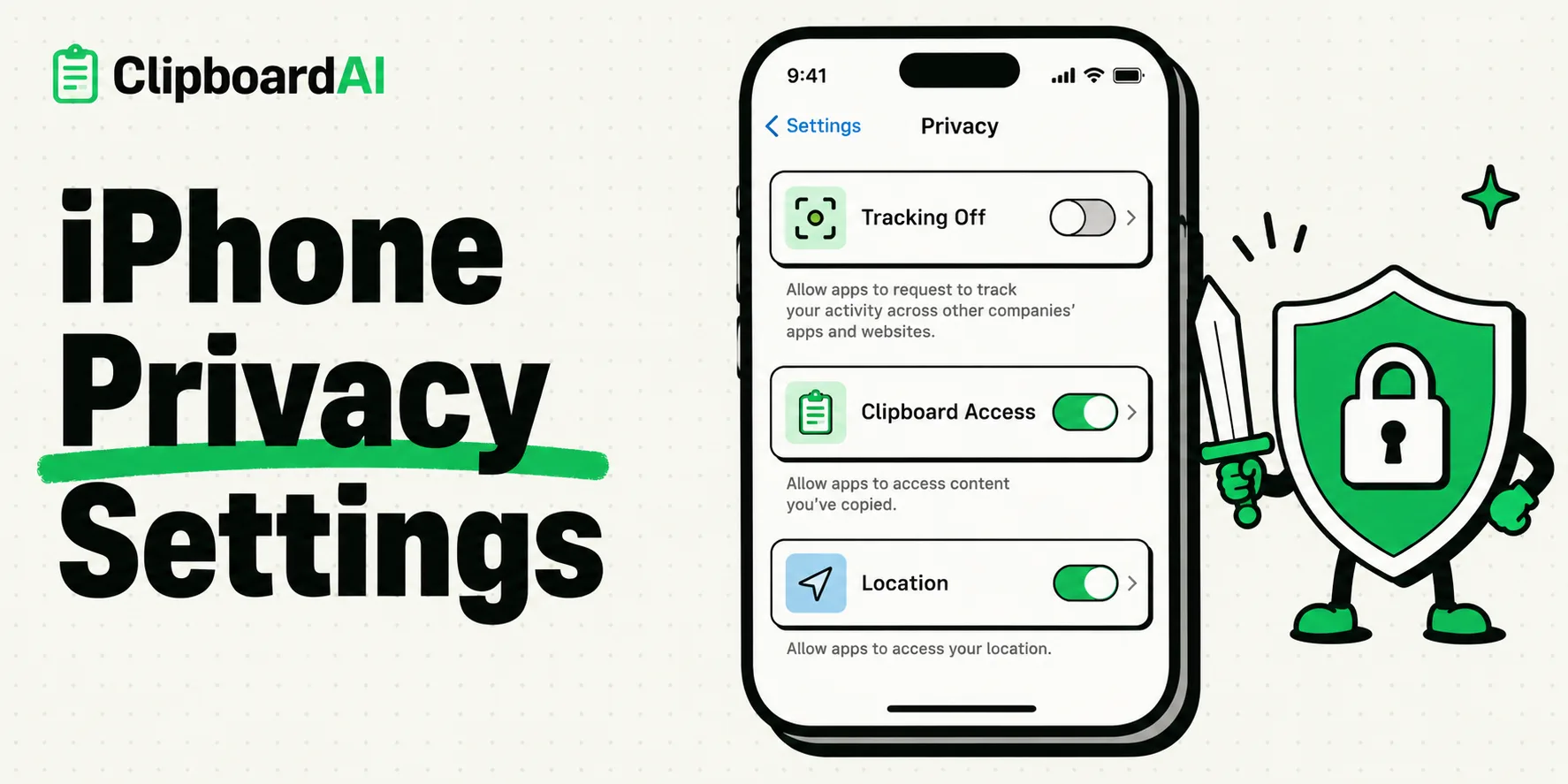
To lock down your iPhone's privacy, you must systematically audit settings across app tracking, location services, pasteboard permissions, and background data sharing. In iOS 17 and later, Apple has tightened control over local data access, but default configurations still allow apps to request location coordinates, track search habits, and view copied pasteboard items without strict limits. This guide details how to configure these controls to secure your personal data.
Here is a step-by-step checklist to lock down your iPhone settings and protect your local databases from unauthorized tracking.
The Landscape of Mobile Security
Privacy on mobile is an ongoing battle. Modern applications run telemetry scripts, tracking pixels, and data brokers that build behavioral profiles from your daily usage.
When you use your phone, you expose several interfaces:
- The Clipboard Pasteboard: Where passwords, account numbers, and drafts reside.
- Location Services: Tracking your movements down to a few feet.
- App Tracking Transparency (ATT): Building advertising profiles across apps.
- Network Traffic: Sniffing your DNS queries on public networks.
Apple has positioned the iPhone as a privacy-first device, but they leave many critical settings turned "On" by default to enhance user convenience. Taking ten minutes to audit these defaults is the easiest way to protect your personal details.
Required Value Artifact: The Ultimate iPhone Privacy Audit Matrix
Configure these critical iOS settings to establish a secure data profile:
| Setting Category | Target Menu Path in iOS Settings | Optimal Configuration | Privacy Threat Blocked |
|---|---|---|---|
| Pasteboard Access | Settings > [App Name] > Paste from Other Apps |
Set to Ask or Never | Prevents apps from silently scanning your copied text or passwords. |
| App Tracking | Settings > Privacy & Security > Tracking |
Toggle Off Allow Apps to Request to Track | Blocks cross-app advertising profile compilation. |
| Precise Location | Settings > Privacy & Security > Location Services |
Toggle Off Precise Location for non-maps apps | Prevents utility and weather apps from tracking your exact house coordinates. |
| Link Tracking | Settings > Safari > Advanced > Advanced Tracking Protection |
Set to All Browsing | Automatically strips tracking IDs (like ?utm_source) from Safari links. |
| iCloud Relay | Settings > [Your Name] > iCloud > Private Relay |
Toggle On (Requires iCloud+) | Encrypts and masks your DNS queries and IP address. |
| Lockdown Mode | Settings > Privacy & Security > Lockdown Mode |
Turn Off (Turn On only under active threat) | Limits web scripts, attachment types, and configuration profiles to block targeted malware. |
Deep Dive: Clipboard Privacy & Pasteboard Protections
Your clipboard is a common target for silent data harvesting. Historically, when you opened a shopping app or social network, the app could scan your active pasteboard memory without notifying you, reading whatever you had copied.
Setting Up Clipboard Isolation:
- Open the Settings app on your iPhone.
- Scroll down to your list of third-party apps (e.g., shopping portals, social feeds, gaming apps).
- Tap on an app and select Paste from Other Apps.
- Change the selection from Default to Ask or Deny.
- Setting this to Ask forces the OS to display a prompt when the app tries to read your clipboard: "Allow [App Name] to paste from other apps?"
If you use a dedicated utility like ClipboardAI, you can manage this access systematically by adding sensitive apps to the exclusion list, ensuring the utility never indexes your password vaults or banking accounts.
Location Services and Sensor Audits
Not every app needs to know where you are standing. While navigation services require precise GPS coordinates, news portals, retail shops, and social feeds do not.
How to Lock Down GPS Tracking:
- Disable Precise Location: Navigate to
Settings > Privacy & Security > Location Services. Select individual applications and toggle off Precise Location. The app will still know your general zip code but won't be able to map your home address. - Limit System Services: Scroll to the bottom of the Location Services menu and select System Services. Toggle off Significant Locations (which logs a database of places you visit frequently) and iPhone Analytics.
Honest Caveats: Security vs. Usability Trade-Offs
Hardening your privacy controls will impact how you interact with your device:
- iCloud Private Relay Latency: Enforcing Private Relay route encryption routes your internet traffic through two secure relays. While this hides your IP, it can slow down page load speeds on cellular connections by 10-15%.
- Universal Clipboard Vulnerability: If you have Universal Clipboard enabled to copy-paste between Mac and iPhone, local Bluetooth devices can theoretically sniff Handoff handshakes. If you are working in high-risk public environments, disable Bluetooth handoffs.
- App Glitches: Denying pasteboard permissions to some apps can break automated checkout features or invite link integrations, forcing you to type details manually.
Implementing Your Privacy Audit Today
To secure your iPhone, complete these four core setup steps:
- Perform the Settings Audit: Use the matrix above to turn off tracking, precise location, and silent pasteboard access across all third-party apps.
- Exclude Sensitive Folders: If you use a clipboard manager, configure it to ignore password apps and financial portals.
- Use Safari Private Browsing: Set Private Browsing as your default to strip tracking parameters automatically during web research.
- Schedule a Quarterly Audit: Set a calendar reminder to review app permissions every three months to verify that new updates haven't reset your security preferences.