
On this page
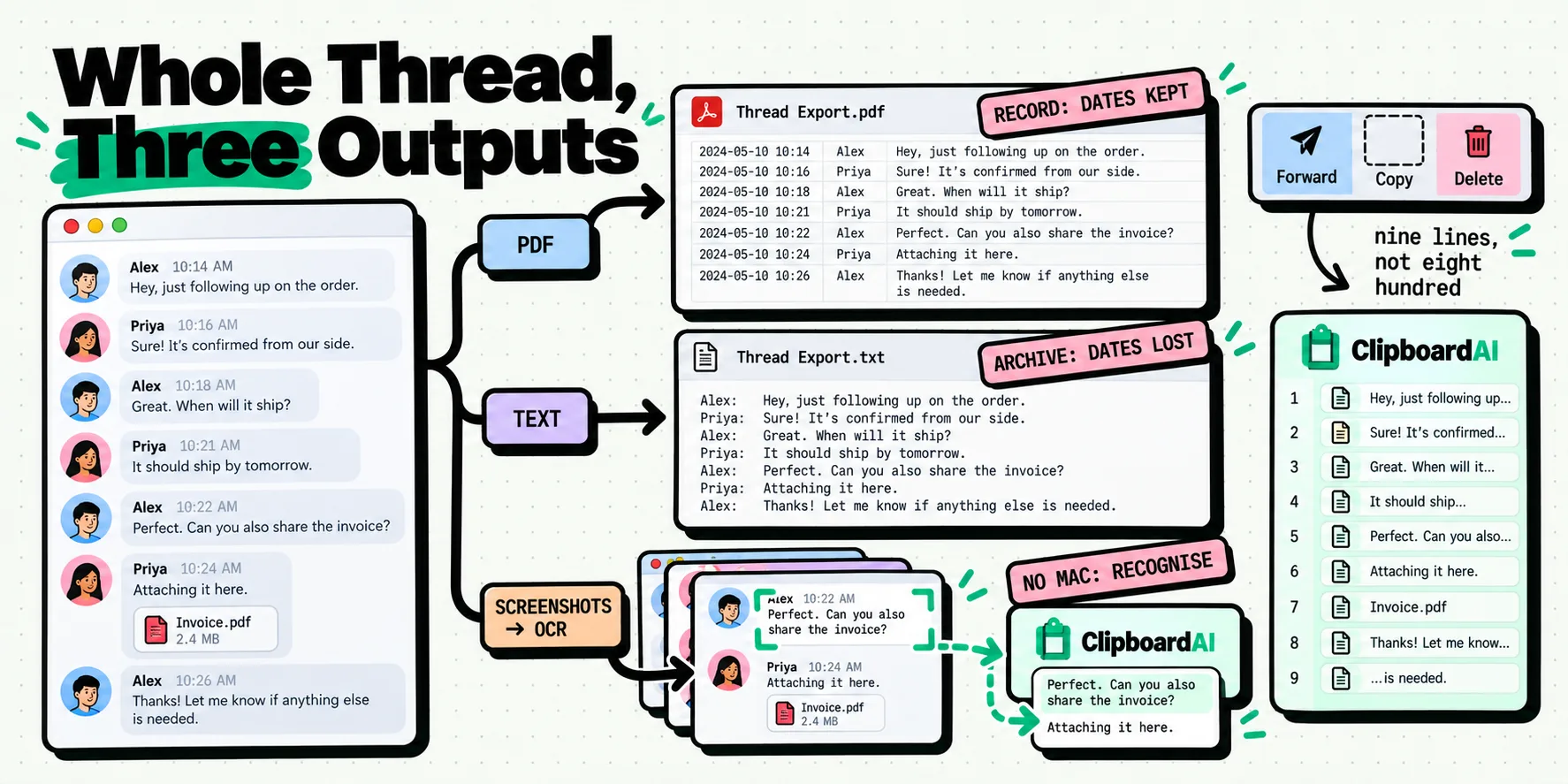
iOS has no native way to copy an entire Messages thread. Long press gives you Copy for a single bubble only, and multi-select mode offers forwarding and deleting rather than copying. The complete answers live on a Mac: Command-A then Command-C copies the text without dates, and File then Print then Save as PDF keeps timestamps and layout. With no Mac, overlapping screenshots plus text recognition is the honest route.
Which of those is right depends almost entirely on why you want the thread, so start there rather than with the method.
Why you want it decides which method works
People asking this question are almost always in one of three situations, and they need genuinely different things.
You need a record. A dispute with a landlord, a contractor, an ex-employer. What matters is that dates, times and who said what survive intact and legible. Plain text is the wrong output here. A PDF or a set of screenshots is the right one.
You are archiving. Moving off a number, or keeping a conversation with someone before an account closes. Completeness matters, attribution matters somewhat, and format flexibility matters most, because you do not yet know what you will do with it.
You want to quote a few lines. This is the largest group by far, and it is the one the search results serve worst, because the answer is not "copy the whole conversation" at all. It is nine specific messages, and the obstacle is not export. It is that the iPhone clipboard holds one item.
What iOS gives you natively, which is less than you think
Long press a bubble and Copy is there. Long press and tap More, and checkboxes appear next to every message in the thread. There is even a two finger gesture that lets you drag down the list ticking messages quickly. Then look at what the toolbar at the bottom actually offers: forward and delete. Copy is not one of the multi-select actions and never has been.
There is also no Print in Messages on iOS, no Export in the conversation info screen, and no share sheet action that produces the transcript as a file. The system share sheet's print-to-PDF trick works in Mail and Safari, and Messages does not offer it. This is not a setting you have switched off.
The Mac Messages app is a different application with a full menu bar, which is why every complete answer routes through it. Same iMessage account, same conversations, more capability.
Four methods, and what each one keeps
The four columns that decide it are timestamps, sender names, images, and whether the method needs a Mac. Here is how the realistic options compare.
| Method | Timestamps | Sender names | Images | Works without a Mac | Output you end up with |
|---|---|---|---|---|---|
| Mac Messages, Command-A then Command-C | No | Order is preserved, names are not reliably included | No | No | Plain text you can paste anywhere |
| Mac Messages, File then Print then Save as PDF | Yes | Yes, as the on screen layout | Yes, as they appear inline | No | A single PDF file |
| Overlapping screenshots on the iPhone | Yes, as pixels | Yes, as pixels | Yes, as they appear inline | Yes | A folder of images, plus recognized text if you run OCR over them |
| Third party desktop extractor | Yes | Yes | Usually | No, they are desktop software | A file in whatever formats that tool supports |
| Forward the messages to yourself | New forward time only | Partially, as forwarded markers | Yes | Yes | A second Messages thread, not a file |
Last checked 28 July 2026. Apple redesigns the Messages action sheet more often than you would expect, so confirm the multi-select toolbar on your own device before planning around it.
The Command-A route is the one most articles recommend and it is the weakest of the four for the commonest reason people ask. It drops the dates. If you are documenting a dispute, going straight to Print then Save as PDF saves you doing the whole job twice.
The free method nobody in the search results mentions
If there is a Mac anywhere in your life, including a borrowed one signed into your Apple Account, this takes under two minutes and produces the best artifact of any method here.
- Open Messages on the Mac and click the conversation in the sidebar.
- Scroll to the top of the thread. The print output covers what has loaded, so a long history needs scrolling first.
- Choose File, then Print.
- In the print dialog, open the PDF menu and choose Save as PDF.
- Name it with the other person's name and today's date, because in six months the filename is the only thing telling you what it is.
You get timestamps, sender attribution, bubble layout and inline images in one file that opens on anything. No purchase, no account, no upload. Compare that to a $40 tool and it is worth the two minutes of trying it first.
Its limitation is loading. Messages renders long conversations lazily, so a thread going back four years may need a lot of scrolling before the print output contains all of it. Check the page count in the print preview against how far back you scrolled.
The no-Mac route, step by step
Screenshots are unglamorous and they are also the only route that needs nothing but the phone.
The trick that makes them usable is overlap. Scroll by about two thirds of a screen between captures, not a full screen, so every shot shares a couple of messages with the one before it. Without overlap you will lose bubbles at the seams and not notice until you are assembling the document.
Once you have the set, the images carry everything a PDF would, they just are not text. Running text recognition over them turns the words into something searchable and quotable while keeping the pictures as the record. ClipboardAI uses Apple's Vision framework on the device itself for that, so for image clips the searchable text is the recognized text, which means finding the message where someone agreed to the price is a search rather than a scroll. The general mechanics are in our guide to using Live Text on iPhone, and the broader case for pulling words out of pictures is in copying text from any app.
Two things worth knowing about recognition. It reads what is legible, so a low contrast bubble in dark mode or a tiny timestamp may come back wrong, and you should read the output before quoting it. And each device produces its own recognition pass over its own copy of the image, so the words become searchable on whichever device is holding the picture, without adding a byte to what syncs.
When you only wanted nine messages, not nine hundred
This is the case the whole affiliate industry ignores, and it needs no exporter at all.
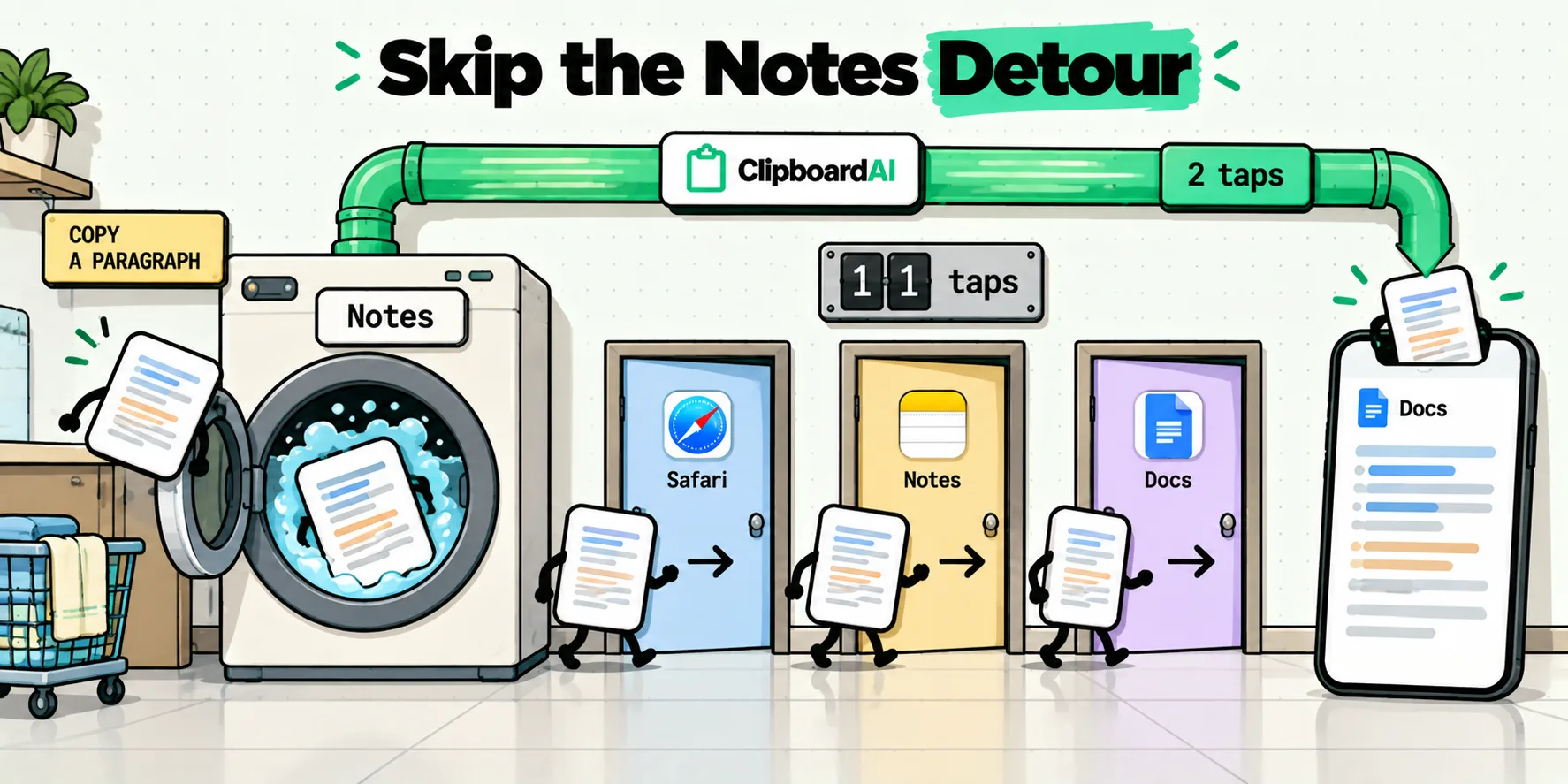
Nine specific messages means nine long presses and nine taps on Copy, because iOS has no multi-select copy. The difference a clipboard history makes is that all nine survive. Today, copy number two destroys copy number one, so you finish with the ninth message and eight more trips back into the thread. With a history, every one of the nine is still sitting there, in order, when you open the email you were writing.
Getting each one saved on the phone costs a single gesture, and the gesture is the good part. Set up Back Tap once in Settings, and from then on you long press, tap Copy, and double-tap the back of the phone. Saved. No app opens, nothing flashes, and you never leave the conversation you are reading. Owners of an iPhone 15 Pro or later can hang the same thing off the Action Button and use a single press. If you would rather not add a gesture at all, Messages has a text field at the bottom of every thread, so tapping into it after each Copy raises the ClipboardAI keyboard and the copy is saved as a side effect of something you were doing anyway. iOS only hands the clipboard to an app in the foreground, which is precisely why these one-gesture routes exist and why they are the fastest thing on the platform.
Two platform differences worth knowing before you start:
- The Mac app captures continuously and automatically, with no gesture at all, which is why the same job feels effortless on a laptop. Setup is in the Mac help article.
- On the Mac you can also fire a whole run of clips into a document one after another with Paste All or Paste One by One, so nine quotes land in one motion. That is the sequential paste feature. On the phone you tap each clip from the keyboard as you reach the spot it belongs.
If the collecting happens on the phone and the writing happens on the Mac, iCloud sync carries the clips across through your own private iCloud database. Sync is part of Pro, along with anything past the free ceiling of 10 stored clips, so a nine message run fits comfortably on free and a longer archiving session is what Pro is for. Either way, you write the email once, with every quote already in front of you, instead of bouncing back into Messages nine times.
Before you use any of this as evidence
- A self-made PDF is not a forensic export. It has no hash, no device metadata and no chain of custody. If the destination is a court, a regulator or an insurer, ask them what they accept before you build anything.
- Deleted messages are gone from all of these methods. Every route here reads what Messages is currently displaying. Recovery from a backup is a different exercise, and worth understanding first, because Apple's list of what an iCloud backup includes never mentions the clipboard at all, while our notes on recovering copied text cover why overwritten clipboard content in particular does not come back.
- Reactions, edits and replies translate badly. Copied text flattens a threaded reply into a stray line. An edited message shows only its current version. The PDF handles this better than any copy route.
- Group threads lose the speakers. This is where copying hurts most, because a transcript with no names is close to useless. Print to PDF or screenshot instead.
- Consider the other person. Copying a conversation out of its context and into a document is a thing you are doing to someone else's words as well as your own. That is a judgment call rather than a technical one, and it belongs in the decision.
For the day to day version of this problem, which is wanting three lines out of a thread rather than the whole thing, the useful habit is making the copies survive each other. Everything after that is searching what you already copied rather than going back to the conversation a fourth time.
Frequently Asked Questions
Can I select all my messages at once on an iPhone?
Not for copying. Long press a bubble and tap More, and checkboxes appear beside every message, but the toolbar at the bottom offers forwarding and deleting only. Copy vanishes as soon as more than one message is ticked. There is a hidden two finger gesture that speeds up ticking many messages, and it still leads to the same two actions. Single message Copy is the only copy that exists in Messages on iOS.
Do copied messages keep timestamps and sender names?
Copying does not. On a Mac, selecting a conversation with Command-A and copying gives you the message text in order, without the dates and times that were on screen. If you need those, print the conversation to a PDF instead, which preserves the layout including timestamps. A screenshot also keeps them, because they are simply part of the picture.
How do I save a thread as a file for legal use?
On a Mac, open the conversation in Messages, choose File then Print, then use the PDF menu in the print dialog to save it as a PDF. That keeps timestamps and layout in one file. Be aware that a self-produced PDF or screenshot carries no chain of custody. If the material is genuinely headed to a court or a regulator, ask what format they require before you spend an evening assembling one they will not accept.
Can I export a Messages thread without a Mac at all?
Not as a clean file. iOS has no export, no print to PDF for a conversation, and no select-all copy. The workable no-Mac route is overlapping screenshots plus text recognition, which gives you searchable text and images that still show the timestamps. It is slower and it is manual, but it needs nothing beyond the phone in your hand and it costs nothing.
Does copying a conversation include the photos in it?
No. Copy handles text. Images in a thread have to be saved separately, either by long pressing each one and choosing Save, or by opening the conversation info screen where recent photos are grouped together. Screenshots capture images as they appeared inline, which is often more useful than the files themselves when the point is showing what the conversation looked like.
Why does every search result try to sell me a desktop extractor?
Because that category has a high price point and an affiliate programme, and because there genuinely is no native iOS export for them to point at instead. The tools are real and some of them do the job well. The reason to read the native methods first is that three of the four cost nothing, and two of them are enough for most reasons people want a thread copied.