
Clipboard AI works well out of the box, but a few settings make it feel like yours: a different hotkey, what the menu shows, and whether it launches when you log in.
Open Settings
Click the Clipboard AI icon in the menu bar and open Settings.
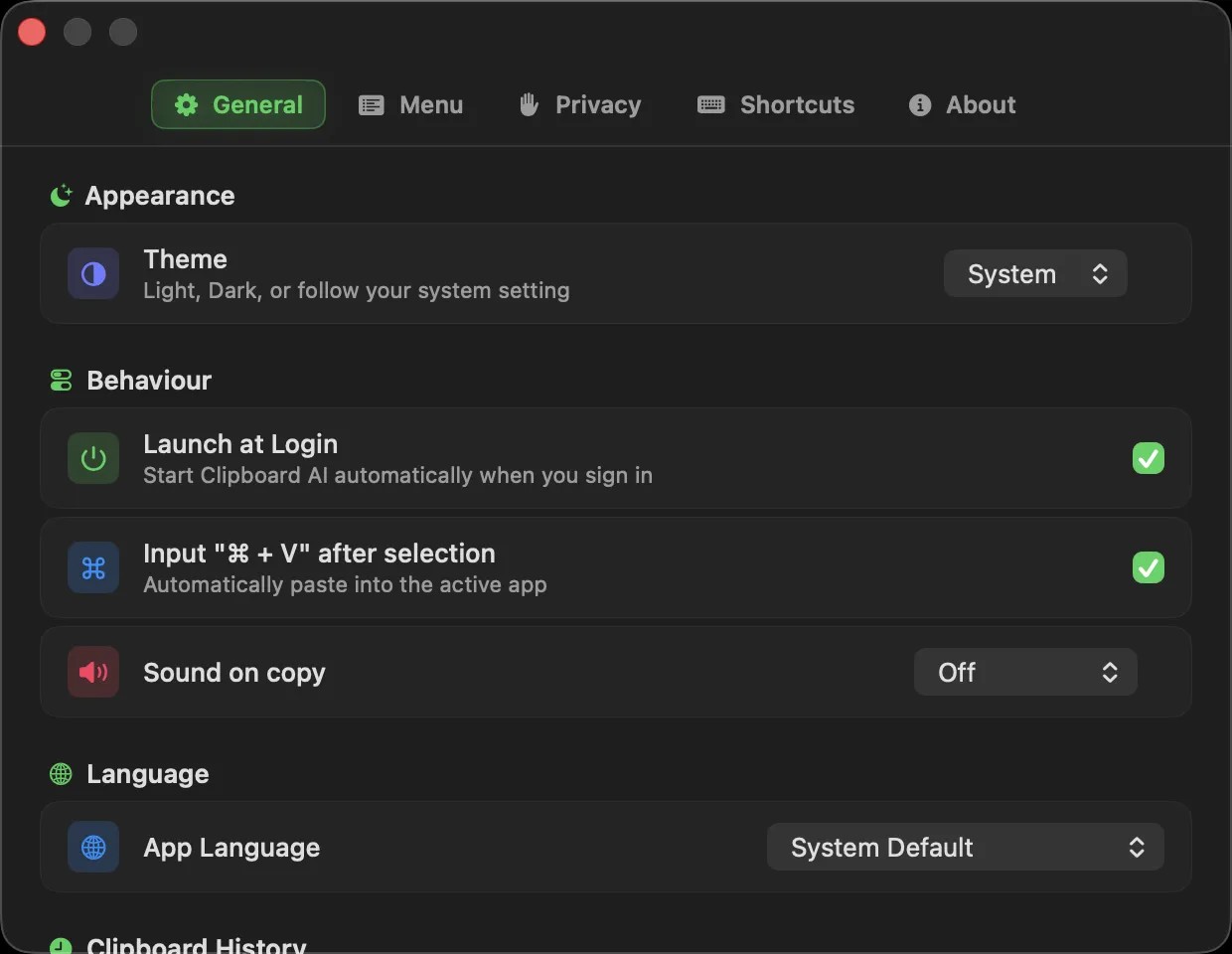
Change the paste hotkey
The floating menu opens with ⌘⇧V by default. To use a different combination, click the hotkey field in Settings and press the keys you want.
Always paste as plain text
Under Behaviour on the General tab there is a switch called Always paste as plain text. Turn it on and every clip you paste from Clipboard AI arrives with fonts, colours, and links stripped out, so pasted text always looks like the document you are pasting into. Hold ⌥ when you pick a clip to keep the formatting for that one paste.
The full guide, including the one-off Option trick and what plain text actually strips, is in Paste without formatting on Mac.
Tidy up the menu
Settings let you show or hide details in the menu bar and the floating menu: item numbers, category icons, timestamps, the app each clip was copied from, image thumbnails, your pinned section, and the clear-history button. Turn off what you do not need for a cleaner list.
Make it look like yours
Under Appearance, Theme picks Light, Dark, or your system setting for the menu, the floating menu, and All Clips, and Clip text size makes every clip easier to read from a distance. Sound on copy adds a quiet confirmation each time a copy is captured, if you like to hear it.
Keep your history in a fixed order
Place duplicates at the top, under Clipboard History, decides what happens when you copy something you already have. On, the clip jumps back to the top, so your latest copy is always first. Off, it stays exactly where it was, so a clip you reach for by its number is still at that number tomorrow. Max clipboard history size sets how many clips the history keeps before older ones roll off, and Sort history order by picks the order.
Deleting
Ask before deleting a clip keeps a confirmation card on every delete, because deleted clips are gone for good. Turn it off here if you prefer to skip it, and back on if you tapped "Delete without asking again" and want the check back. Clear History removes unsaved clips and keeps saved and collection clips. See Deleting clips: what is erased, what is kept.
Privacy
The Privacy tab holds Ignored Apps, for apps whose copies should never be captured, such as a password manager, and Find Clips in Spotlight, which puts your clips in the Mac's own search once you turn it on. Clipboard AI also honours the privacy markers password managers put on the clipboard automatically, so a copied password from one of them is skipped without any setup. See Find your clips in Spotlight.
Launch at login
Turn on launch at login so Clipboard AI is always in your menu bar, ready the moment you sign in.