
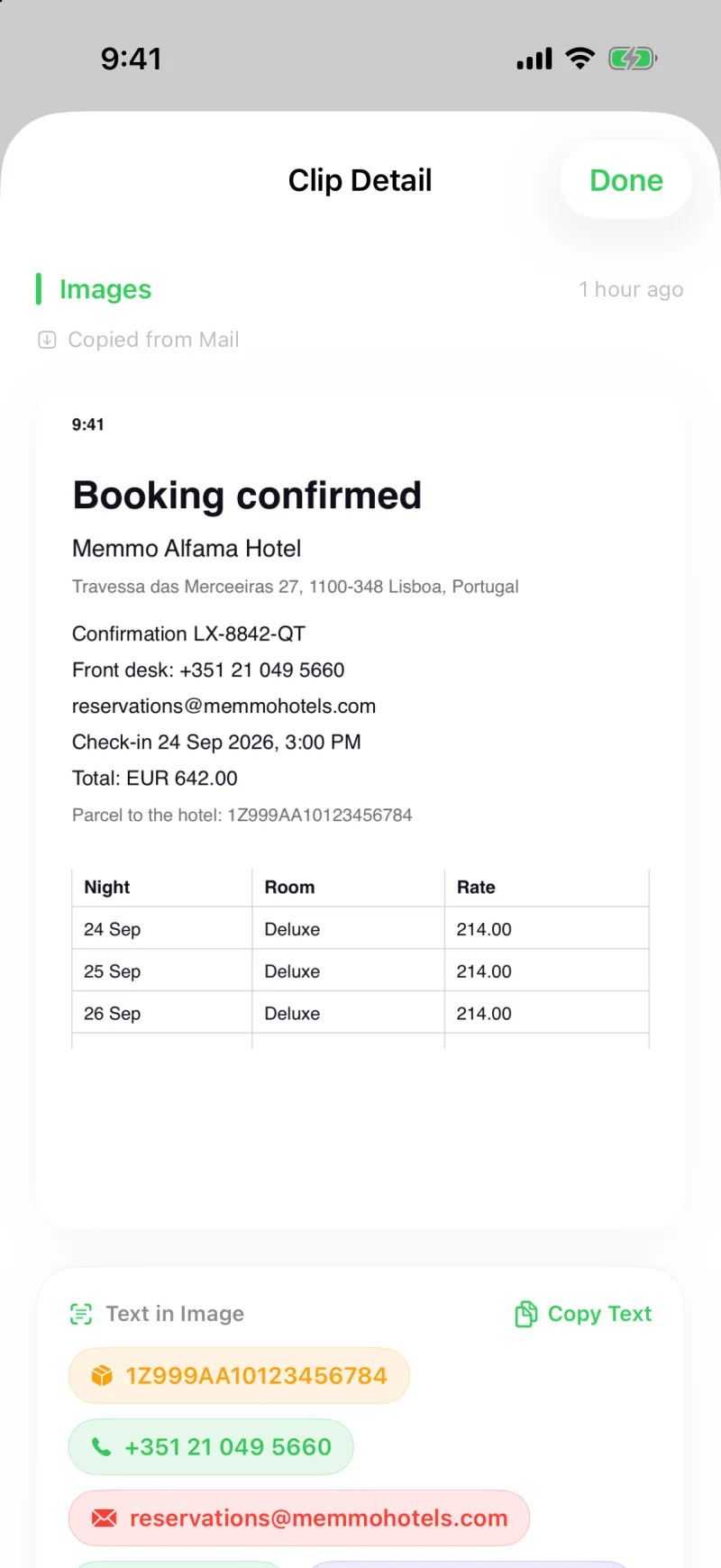
The useful part of a screenshot is usually one line: the tracking number in a delivery notice, the phone number on a business card, the total on a receipt, the table in a report. Clipboard AI reads those out of the picture and puts each one on a chip you can tap.
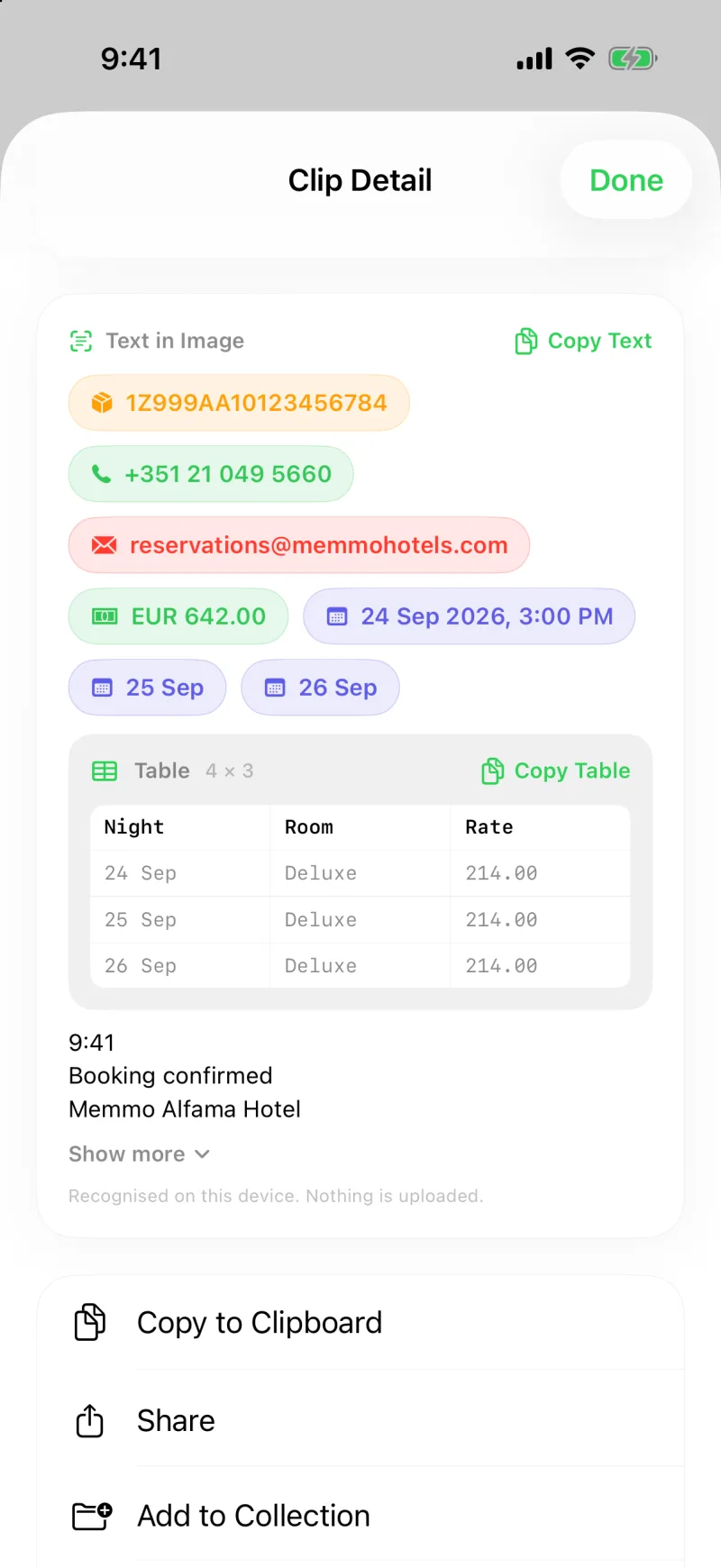
Open any screenshot in Clipboard AI. The phone numbers, addresses, links, dates, amounts, tracking numbers, and flight numbers inside it sit under the image as chips. Tap one to copy it, hold it to call, open, or navigate. Tables come out as tables.
What becomes a chip
- Tracking numbers, with Track Shipment on hold
- Phone numbers, with Call on hold
- Email addresses, with New Email on hold
- Links, with Open Link on hold
- Postal addresses, with Open in Maps on hold
- Amounts of money, dates, and flight numbers, which copy
Chips come in the order people reach for them: tracking and phone numbers first, then email addresses, links, and addresses, then amounts and dates, each in the order they appear in the image, so a receipt's prices stay in the order they were printed.
Tap to copy, hold to act
Open the image clip and look under the picture. Tap a chip and its value is on your clipboard; the chip reads Copied for a moment so you know it landed. Press and hold a chip for its natural next step: Call for a phone number, Open in Maps for an address, Track Shipment for a parcel, New Email for an address, Open Link for a link. On Mac, click to copy and right-click for the same actions.
Screenshot a "your order has shipped" email, open it in Clipboard AI, hold the tracking chip, and you are on the carrier's page. No retyping, no hunting through the email.
Tables come out as tables
When a screenshot contains a table, a preview of its first rows appears in a grid under the image. Tap Copy Table and the cells go on your clipboard in a form that pastes as a real grid into Numbers, Sheets, or Excel. Press and hold for Copy as Markdown instead, which is the right shape for a chat or a document.
Where the chips live
Chips and tables sit in the Text in Image section under the picture, above the full recognised text, so the shortcut is always in view and the whole text is still there when you want all of it. See Copy the text out of any image for the text itself, and for how it makes your images searchable.
Recognition uses Apple's built-in Vision framework, entirely on your iPhone, iPad, or Mac. Nothing is uploaded, and no Apple Intelligence hardware is needed. It is free.
Tables and the full set of chips need iOS 26 or macOS 26 or later, which is where Apple's document reader shipped. On older versions you still get the recognised text, plus chips for the links, phone numbers, addresses, and dates found in it.
If a screenshot has no chips
- It is still being read. New images are scanned within moments of being saved; a busy queue puts the clip you are looking at first.
- It was saved before you updated. Older screenshots are read again the first time you open them, so the chips appear a second later.
- There is nothing to find. A picture without a number, an address, a link, or a table gets no chips, only its text.